Inactivity Security Lock
Automatically lock the app after a period of inactivity, protect sensitive data with a PIN passcode, and unlock from any device.
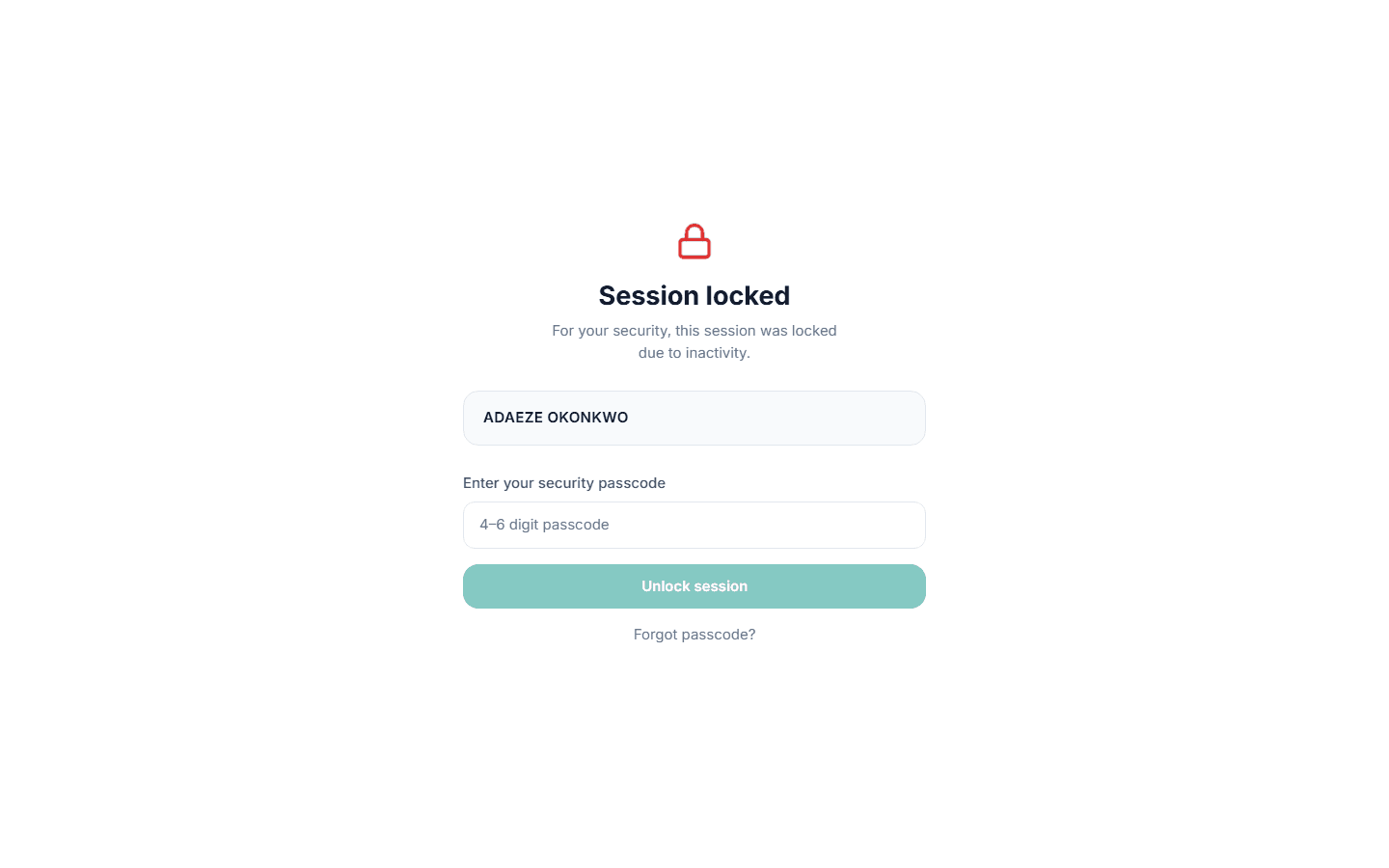
The Inactivity Security Lock automatically locks your BusinessCopilot session when there has been no activity for a set period of time. When locked, the full app is hidden behind a PIN screen — no data is visible and no action can be taken until the passcode is entered.
This works on all three platforms: Web, Desktop, and Mobile (Expo).
Setting up your passcode
Each team member sets their own passcode. To set it up:
- Go to Settings → Security Lock.
- Under Set up passcode, enter a 4–6 digit PIN and confirm it.
- Click Enable.
From this point on, your session will lock automatically after the configured timeout. The lock is tied to your user account — other team members on the same device are not affected.
Choosing your lock timeout
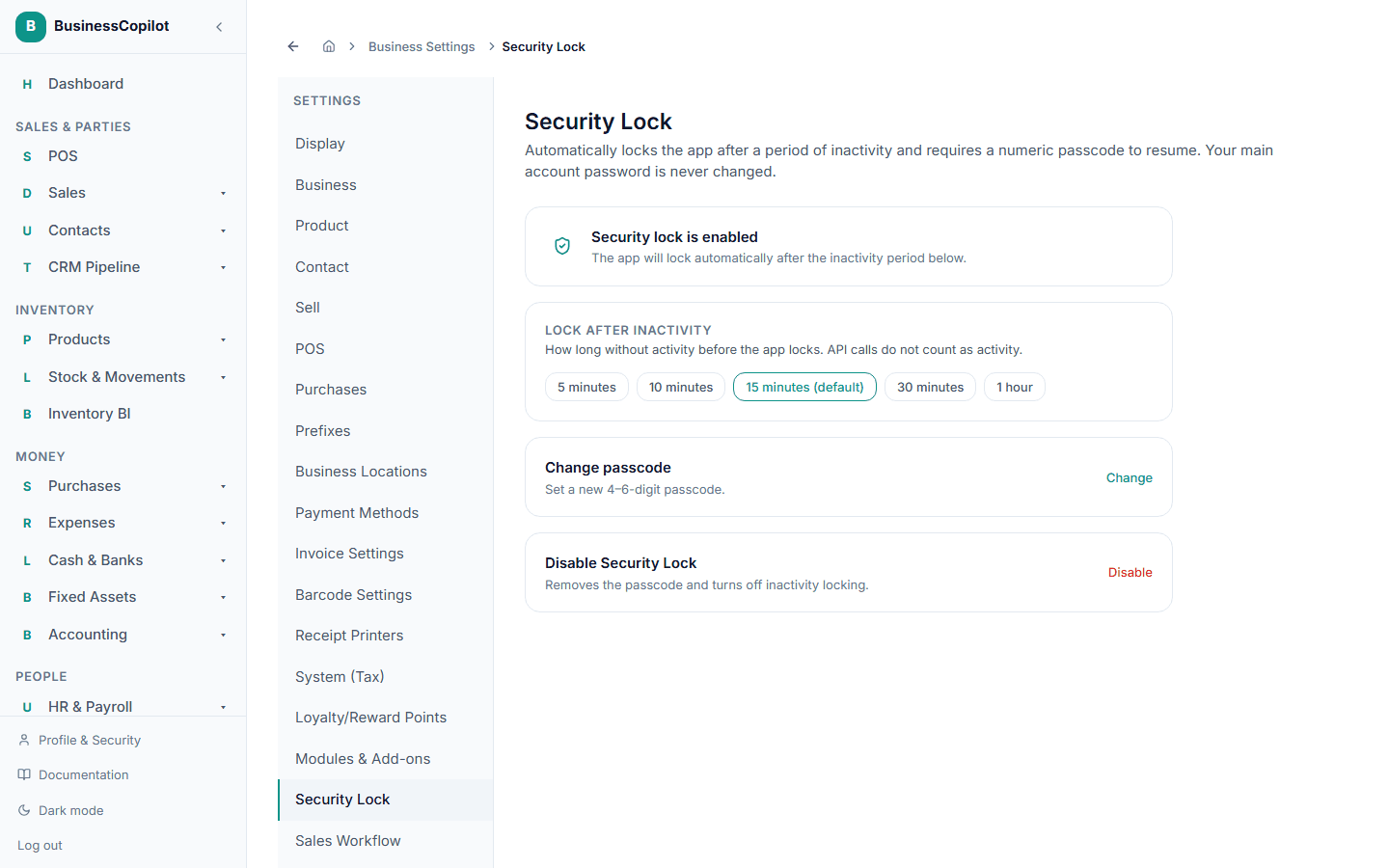
Under Auto-lock after, choose how long BusinessCopilot should wait before locking:
- 1 minute
- 5 minutes
- 10 minutes
- 15 minutes (default)
- 30 minutes
- 1 hour
The timer counts keyboard and mouse/touch activity only. Leaving a report open and walking away will trigger a lock; actively scrolling through it will not.
Mobile: The app also locks immediately if you send it to the background and return after the timeout has elapsed.
Multi-tab (Web): If you have BusinessCopilot open in more than one tab, locking in one tab locks all of them simultaneously. Unlocking in any tab unlocks all.
Unlocking
When the lock screen appears, enter your PIN using the on-screen keypad. If the PIN is correct, the session resumes exactly where you left off — the same screen, same data, nothing lost.
Failed attempts and lockout
BusinessCopilot protects against someone guessing your PIN:
| Attempts | Consequence |
|---|---|
| 1–4 | PIN rejected, try again |
| 5 | A progressive delay is added before each subsequent attempt |
| 10 | Account is locked for 30 minutes — a sign-out is required |
After 10 failed attempts, you must sign in again with your full account password. A manager or owner can see this event in the audit log.
Forgot your passcode?
On the lock screen, tap or click Forgot passcode?. You will be asked to enter your account password (the one you use to sign in). Once verified, you can set a new passcode immediately — no email or admin approval required.
Changing or removing your passcode
Go to Settings → Security Lock at any time to:
- Change passcode — enter your current PIN, then set a new one.
- Remove passcode — disables the inactivity lock entirely for your account. Your team members' passcode settings are not affected.
Does the lock affect my team?
No. The inactivity lock is per user. Each team member sets their own passcode and timeout. A session signed in as one user is completely independent of sessions signed in as another, even on the same device or browser.
Frequently asked questions
Can an owner force all staff to use a passcode? Not at this time. Each team member enables and manages their own passcode from their own Settings.
What happens if I close the browser while locked? The lock state is server-authoritative. When you open a new tab or reopen the app, you will be taken to the lock screen rather than the login page, as long as your session token is still valid.
Is my PIN stored anywhere? Your PIN is hashed with the same industry-standard algorithm as your account password. Neither BusinessCopilot staff nor your workspace owner can read it.
After you unlock
When you enter your passcode, the app confirms it and refreshes your session before showing your screen again, so you normally don't need to sign in again. If the connection drops at that moment, the next action you take will ask you to sign in again if it has to.