Using the calendar
See every appointment on a Day, Week, Month or Agenda view, filter by branch and provider, and book by clicking a time.
The calendar is the main Appointments screen. Open it from Clinical Suite → Appointments (Web and Desktop) or the Calendar chip (mobile app). You need the View permission on Patient Engagement (Appointments).
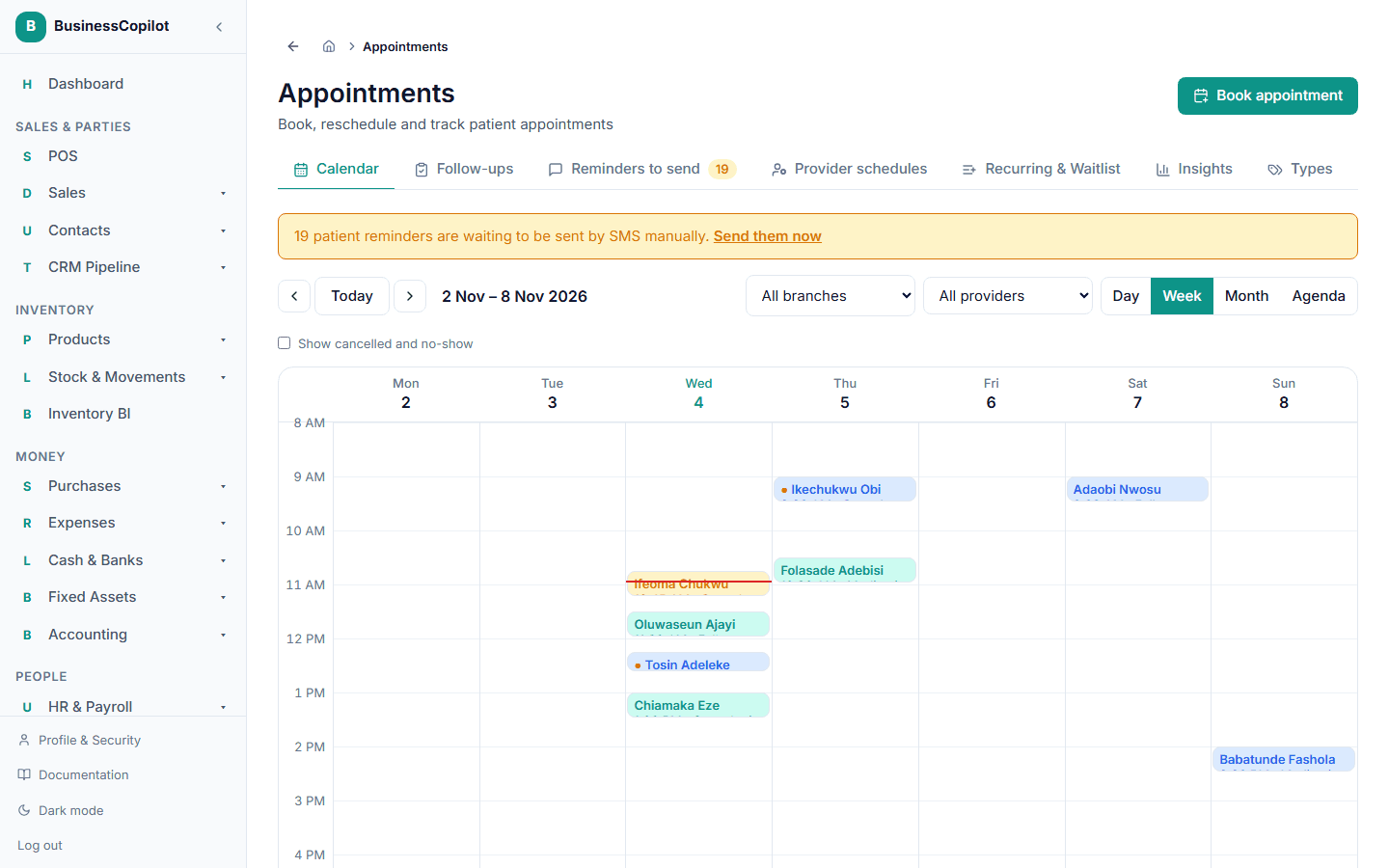
Moving around
Across the top:
- Previous and Next arrows step back and forward by a day, week or month, depending on the view.
- Today jumps back to today.
- The heading shows what you're looking at — a date, a week or a month.
On the right:
- All branches — choose a branch to see only that branch.
- All providers — choose one provider to see only theirs.
- Day / Week / Month / Agenda — switch the view.
It opens on the Month view
Whenever you open the calendar it starts on Month, showing the whole month at a glance. Switch to Day, Week or Agenda when you need more detail; it opens on Month again next time.
The four views
| View | Best for |
|---|---|
| Day | A busy single day, hour by hour. |
| Week | Seeing a provider's whole week. |
| Month | The big picture — how full each day is. |
| Agenda | A plain list of what's coming up. |
Day and Week
Time runs down the side. The visible hours are at least 8:00 to 18:00, and stretch automatically if you have an earlier or later appointment.
- Each appointment is a coloured block. The colour shows its status — see the key below.
- Overlapping appointments sit side by side, because overlaps are allowed.
- A red line shows the current time on today's column.
- A grey block is a provider's time off.
- Cancelled and No-show appointments are faded, and a cancelled one has its name crossed out.
- A small coloured dot ● before a name — red or amber — means the appointment has a medium or high no-show risk. Hover over a block to see the reasons.
To book: click an empty time on the grid. The Book appointment dialog opens with that day and time filled in. Times snap to 15 minutes. (You need the Create permission.)
To open an appointment: click its block.
Month
Every day shows up to three appointments, each with its time and name. If there are more, a +N more link takes you to that day. Select a day number to jump to that day. Days outside the month are shaded.
Agenda
A list of the next 14 days from the date you chose, grouped by day. Each row shows the time range, the patient, the type and provider, a risk label if medium or high, and the status. If nothing is coming up it says "No appointments in the next two weeks from this date."
Showing cancelled and no-show appointments
Cancelled and no-show appointments are hidden by default so the calendar shows only real bookings. Tick Show cancelled and no-show above the calendar to see them too.
What the colours mean
| Status | Meaning |
|---|---|
| Scheduled | Booked, not yet confirmed. |
| Confirmed | The patient or your team confirmed it. |
| In progress | The visit has started. |
| Completed | The visit is done. |
| Cancelled | Cancelled with a reason. |
| No-show | The patient didn't come. |
| Rescheduled | Moved to another time — the old entry is kept as history. |
Rescheduled entries are always hidden, since the new entry shows where the appointment went.
The reminder banner
If reminders are waiting for someone to send by hand, a yellow banner appears above the calendar: "3 patient reminders are waiting to be sent by SMS manually. Send them now." Select Send them now to go straight to the list — see Sending reminders by hand. The Reminders to send tab also shows a count.
The calendar updates by itself
You don't need to refresh. When a colleague books, moves or cancels an appointment, your calendar updates within a moment. See Live updates.
Times are always Nigerian time
The calendar always shows Africa/Lagos time, whatever your device's timezone.
Related
Booking an appointment
Book a patient with a provider — pick a time from the open slots, understand the warnings, and book outside working hours when you really must.
Managing an appointment
Confirm, start, complete, reschedule, cancel or delete an appointment, and see what messages the patient was sent.