Batch/lot expiry alerts
Get warned before stock with an expiry date goes out of date.
If a product is set to track batches (common for pharmacy, food, and cosmetics stock), every quantity you receive is recorded as its own batch — a group of stock that came in together and shares one expiry date. BusinessCopilot watches those expiry dates for you.
How the alert works
A batch is flagged Expiring Soon once it's within your workspace's lead time of its expiry date, and Expired once that date has passed. Both show up on your alerts feed so nothing quietly goes out of date on a back shelf.
- Go to your Home dashboard and check the alerts feed, or go to Stock → Batches.
- Look for a batch flagged Expiring Soon or Expired.
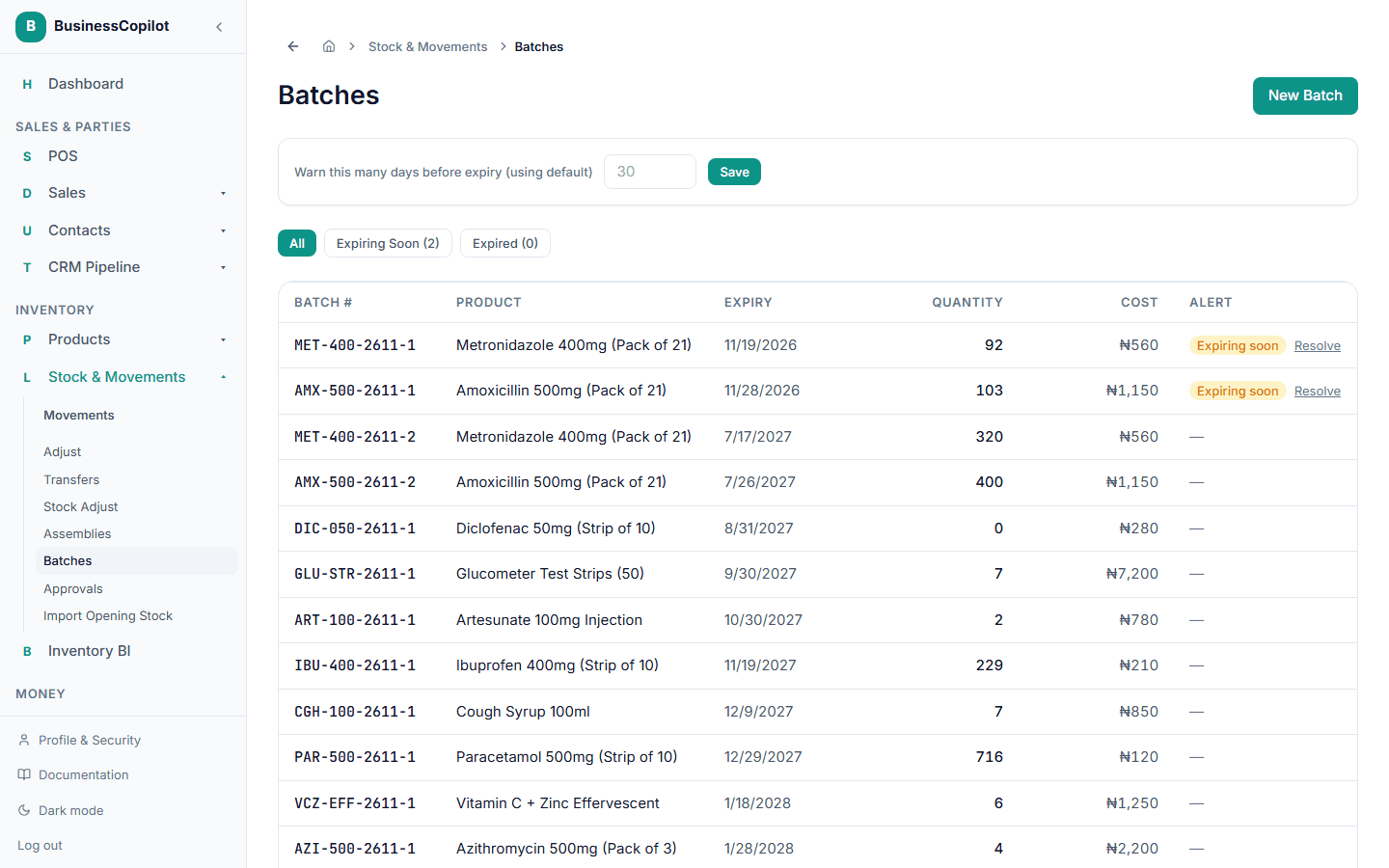
Selecting the alert takes you to the Batches list, filtered to just the batches that need your attention.
Setting how much warning you want
By default, BusinessCopilot warns you 30 days before a batch expires. To change this:
- Go to Stock → Batches.
- Find the warning lead time setting and enter the number of days you want.
- Save.
When an alert clears
An alert clears on its own once the batch is no longer a risk — because you've sold through it, written it off, or removed it from stock. You don't need to dismiss it by hand.