Selling in different units
Sell an item in a carton or a pack from the checkout screen, with the price following the unit you choose.
This page applies when your business uses Units mode Option 2 and the item has a secondary unit. If an item has only one unit, its cart line looks the same as always.
Pick the unit on a cart line
- Go to Sales → POS.
- Search for the product and select it to add it to the cart.
- On the cart line, open the unit dropdown and choose the unit the customer wants, such as Pack.
- Enter the quantity. In Option 2 you can use decimals, for example 2.5 kg of tomatoes.
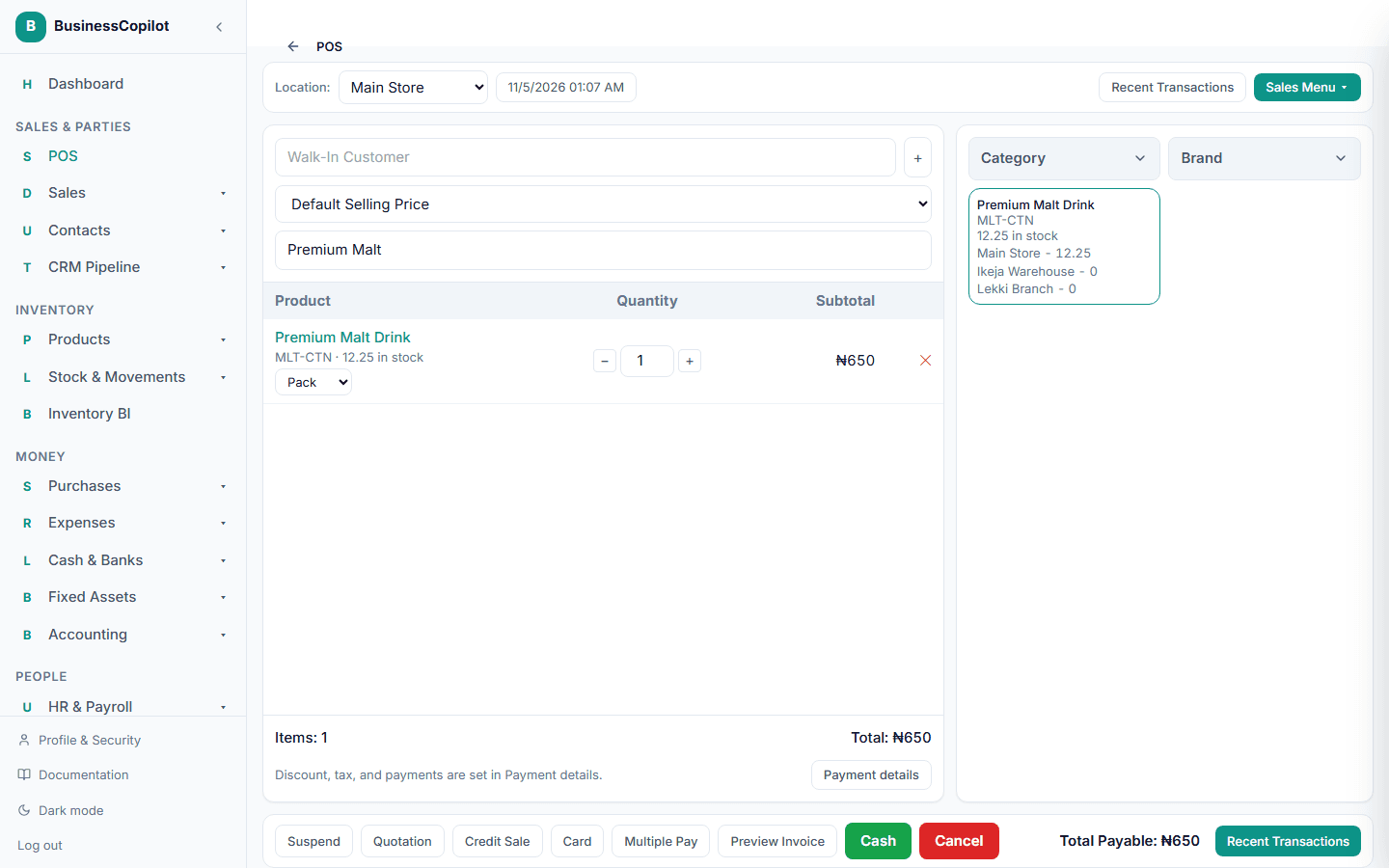
The price changes to match the unit. A pack uses the pack price, and a carton uses the carton price. If you have picked a price group or the customer belongs to one, the group's price for that unit is used, or the item's own price for that unit if the group has none. The line total is the quantity times that unit's price.
If your business uses a minimum selling price, it is checked against the price for the unit on the line, so a pack is never compared with a carton.
If the same item is in the cart in two units, for example 1 carton and 5 packs, they stay as two separate lines.
What happens to stock
Stock is kept in the primary unit. Selling 5 packs from a carton of 20 takes 0.25 carton out of stock.
Receipts, returns and history
- The receipt prints each line in the unit it was sold in, such as "5 Pack".
- A return is entered in the same unit the line was sold in.
- The sale's detail page shows each line in its own unit.
Offline on the desktop app
When the desktop app is working offline, items are sold in their primary unit only, and quantities are whole numbers. The unit dropdown is replaced by a note. Reconnect to sell in a secondary unit.