Creating a sales order
How to create, edit, and submit a sales order — including location selection and draft management.
Go to Sales Orders → Orders and tap or click New Order.
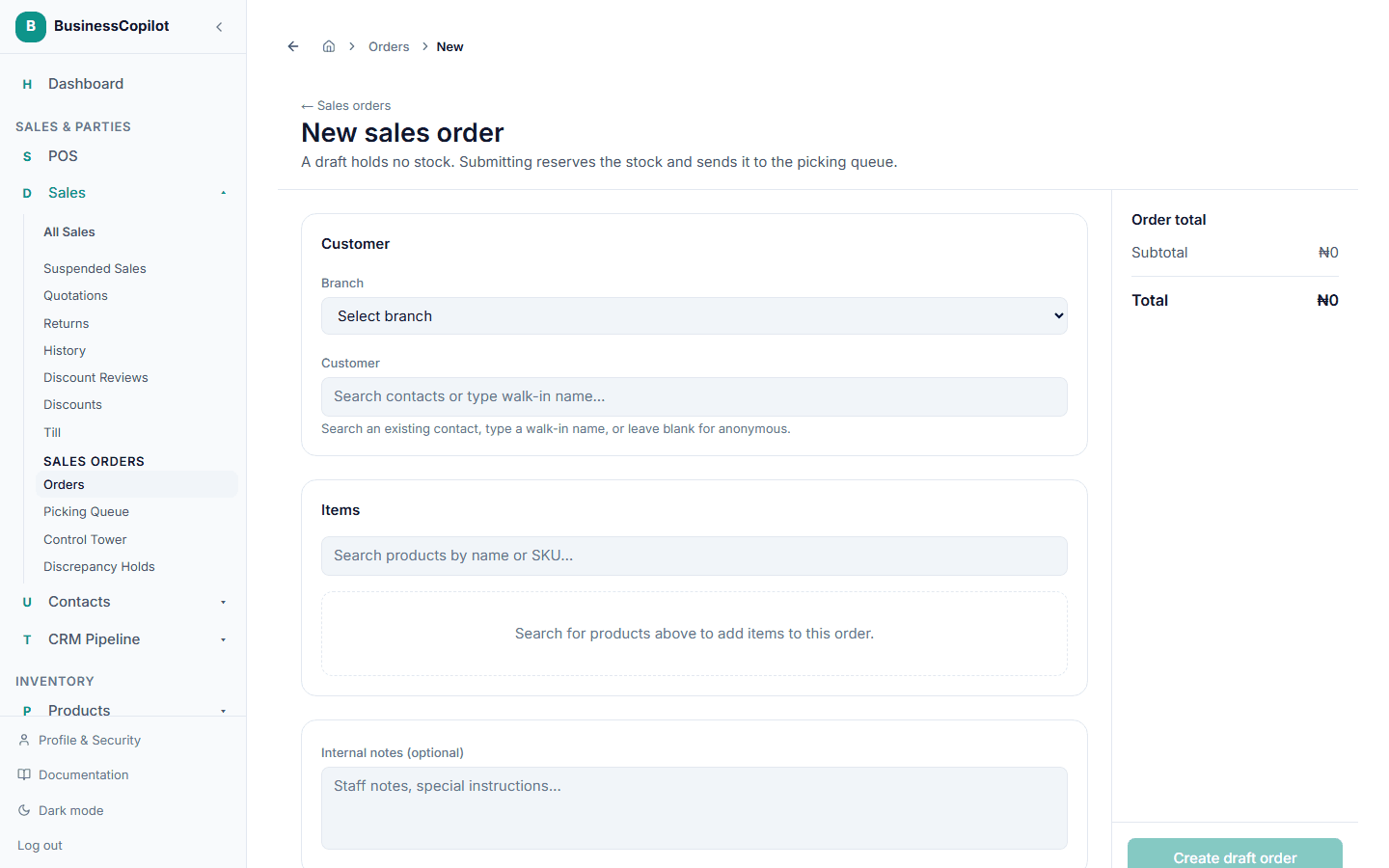
Step 1 — Choose a customer
Select an existing contact from the Customer field, or enter a walk-in name if no contact record exists. The customer field is optional for internal transfers but required if you want the invoice to carry a customer name.
Step 2 — Add order lines
Each line needs three things:
- Product — search by name, SKU, or barcode.
- Quantity — the number of units to fulfil.
- Stock location — the warehouse shelf or bin the stock should come from. Every line must have a location before the order can be submitted.
Use the + button to add more lines. To remove a line, tap the bin icon on that row.
Why is location required? BusinessCopilot needs to know exactly which bin to reserve stock from. If you have multiple locations for the same product, choose the one the picker will visit.
Step 3 — Review totals
The order summary shows:
- Subtotal — sum of all line prices × quantities
- Discount — any order-level discount (percentage or fixed amount)
- Tax — calculated automatically based on the product's tax settings
- Total — what the customer will owe
Step 4 — Submit the order
Click Submit order to lock the draft and reserve stock. Once submitted:
- The order moves to Submitted status.
- Stock is reserved at the chosen locations.
- Pickers can now be assigned in the Picking Queue.
- The order can no longer be edited (only cancelled).
Editing a draft
A draft order can be edited freely before submission. To edit:
- Go to Sales Orders → Orders.
- Find the draft (status = Draft) and click Edit.
- Change products, quantities, or locations, then save.
Once the order is Submitted, editing is no longer available — cancel and re-create if you need to make changes.
Cancelling an order
An order can be cancelled at any point before it reaches Released status. Cancellation immediately releases any stock reservation.
To cancel, open the order detail and click Cancel order. You will be asked to confirm. Cancelled orders are kept in history for audit purposes.
Finding your orders
Sales Orders → Orders lists every order for your workspace, newest first. Use the status filters at the top to focus on a particular stage — for example, all Submitted orders waiting for a picker.