Managing an appointment
Confirm, start, complete, reschedule, cancel or delete an appointment, and see what messages the patient was sent.
Click any appointment — on the calendar, in a patient's Appointments tab, or in a list — to open it. You need the Edit permission on Patient Engagement (Appointments) to change its status, and Delete to delete it.
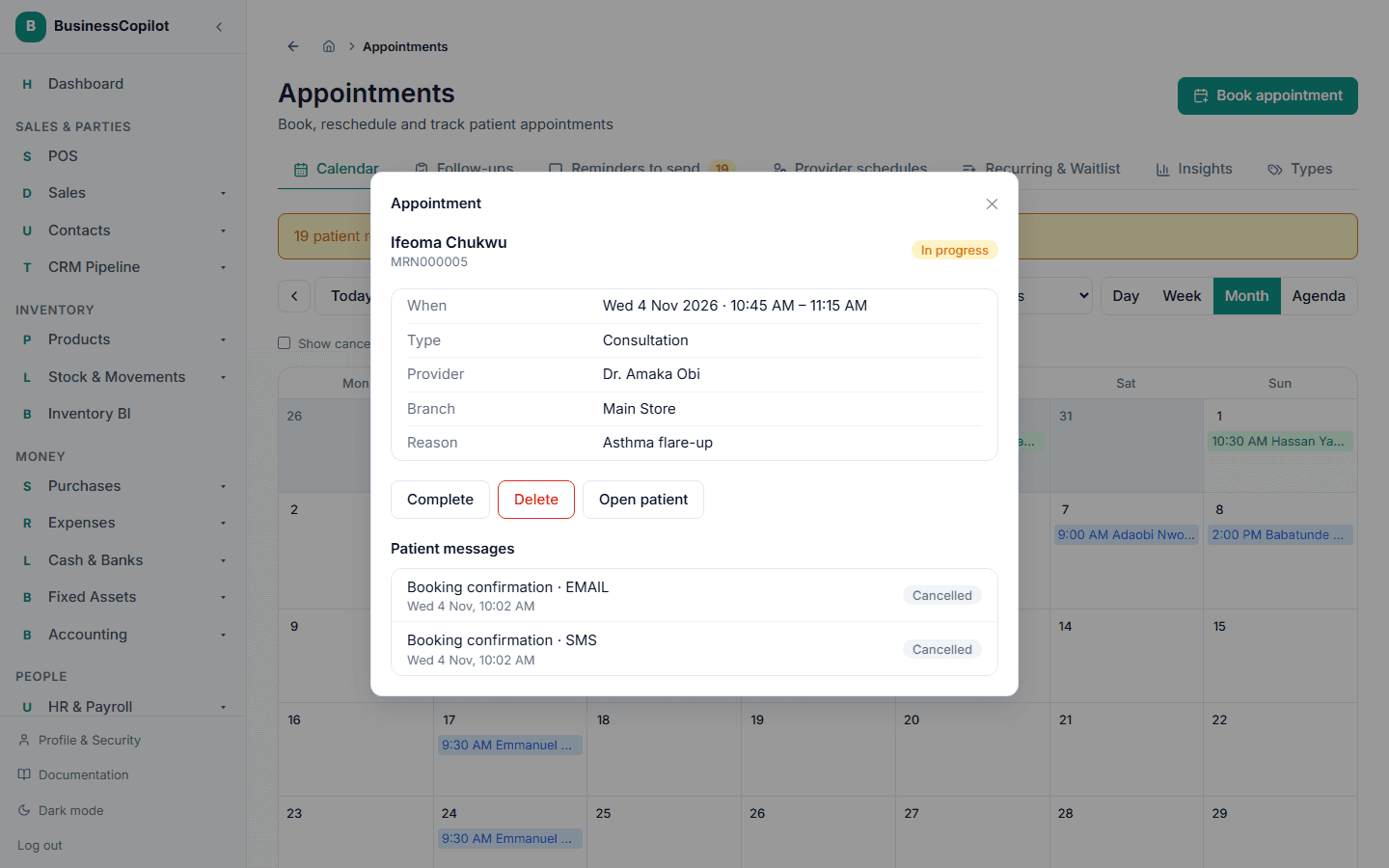
What you see
At the top: the patient's name and MRN, and a status pill. Below that, any notes worth knowing:
- Booked outside working hours — with the reason that was given.
- This appointment was rescheduled from an earlier booking.
- A note when the patient confirmed or declined through their online link — see The confirmation link.
- Part of a recurring series — see Recurring appointments.
- The no-show risk panel, with its reasons — see No-show risk.
Then the details: When, Type, Provider, Branch, Reason, and — once completed — Outcome. A cancelled appointment also shows Cancelled with the date and reason.
At the bottom, Patient messages lists every reminder and notice for this appointment and what happened to it.
The life of an appointment
Scheduled → Confirmed → In progress → Completed
Scheduled or Confirmed → No-show   (only once the start time has passed)
Scheduled or Confirmed → Cancelled
Scheduled or Confirmed → Rescheduled (a new entry is created)
Once a visit is In progress it can only be completed. It can no longer be cancelled or rescheduled.
Which buttons you see depends on the current status, so you can only do what makes sense:
| Button | Available when it is… | What it does |
|---|---|---|
| Confirm | Scheduled | Marks it Confirmed. |
| Start | Scheduled or Confirmed | Marks it In progress — the patient has arrived. |
| Complete | Scheduled, Confirmed or In progress | Opens a small panel, Mark completed, where you can note the Outcome (optional) — "What happened at the visit?" |
| Reschedule | Scheduled or Confirmed | Opens the booking form to pick a new time. |
| Mark no-show | Scheduled or Confirmed, and its start time has passed | The patient didn't come. The button only appears once the appointment time has passed, so a future appointment can't be marked missed by accident. |
| Cancel appointment | Scheduled or Confirmed | Asks for a reason, then cancels. |
| Delete | Any | Moves it to the Recycle Bin. |
| Open patient | Any | Jumps to the patient's record. |
Confirming
Select Confirm when the patient has told you they're coming (for example by phone). Patients can also confirm themselves — see The confirmation link.
Completing
- Select Complete.
- Optionally write what happened under Outcome (optional).
- Select Mark completed.
Completing an appointment stops any reminders that haven't gone out yet.
Marking a no-show
Once the appointment time has passed, select Mark no-show when the patient doesn't turn up. It counts towards that patient's history — a patient with past no-shows gets a higher no-show risk on their next appointments — and it's reported on Insights.
Rescheduling
- Select Reschedule.
- The booking form opens titled Reschedule appointment. Choose the new day and time (and a different provider if you need to). The type stays the same.
- Select Reschedule.
What happens behind the scenes matters: the old appointment isn't edited — it is marked Rescheduled and kept as history, and a brand-new appointment is created. That means you can always see what moved and when. The patient receives a reschedule notice, the old reminders are withdrawn, and new ones are set up for the new time.
Cancelling
- Select Cancel appointment.
- Under Why is it being cancelled?, type a reason. It's required.
- Select the cancel button to confirm.
The patient is sent a cancellation notice, and any reminders that hadn't gone out are withdrawn. If patients are waiting for that provider, your team is told — see The waitlist.
Deleting
Delete moves the appointment to the Recycle Bin: "Delete this appointment? It moves to the Recycle Bin, where it can be restored." Use it for entries made by mistake. To record that a visit didn't happen, cancel it or mark it a no-show instead, so the history stays honest.
Appointments in a recurring series
If the appointment is part of a repeating series, Reschedule and Cancel appointment first ask how far the change should reach:
- Just this occurrence
- This and every occurrence after it
- Every occurrence in the series
When two people act at once
If two people act on the same appointment at the same moment — say one selects Cancel appointment while another selects Complete, or the patient cancels through their link while your team confirms — only the first one goes through. The second person sees the message "that status change is not allowed from the appointment's current status", and can refresh to see what happened. Two people can never both reschedule the same appointment into two live bookings.
Patient messages
The Patient messages section shows each reminder or notice for this appointment — its kind (for example 24-hour reminder), whether it went by SMS or email, and its status. If a text couldn't be sent automatically, it says why. With none it says "No reminders were queued for this appointment (the patient may have opted out of both email and SMS)."
See Patient reminders.