Writing a clinical note
Write a SOAP note for a patient, with a type, a priority, tags, a linked appointment and files — step by step on every platform.
A clinical note is a written record of a patient interaction, in four parts: Subjective, Objective, Assessment and Plan (together, "SOAP"). Notes live on the patient's record and in one list of all notes across your patients.
You need Create on the Clinical Notes permission line to write one. See Getting access.
Where to write a note
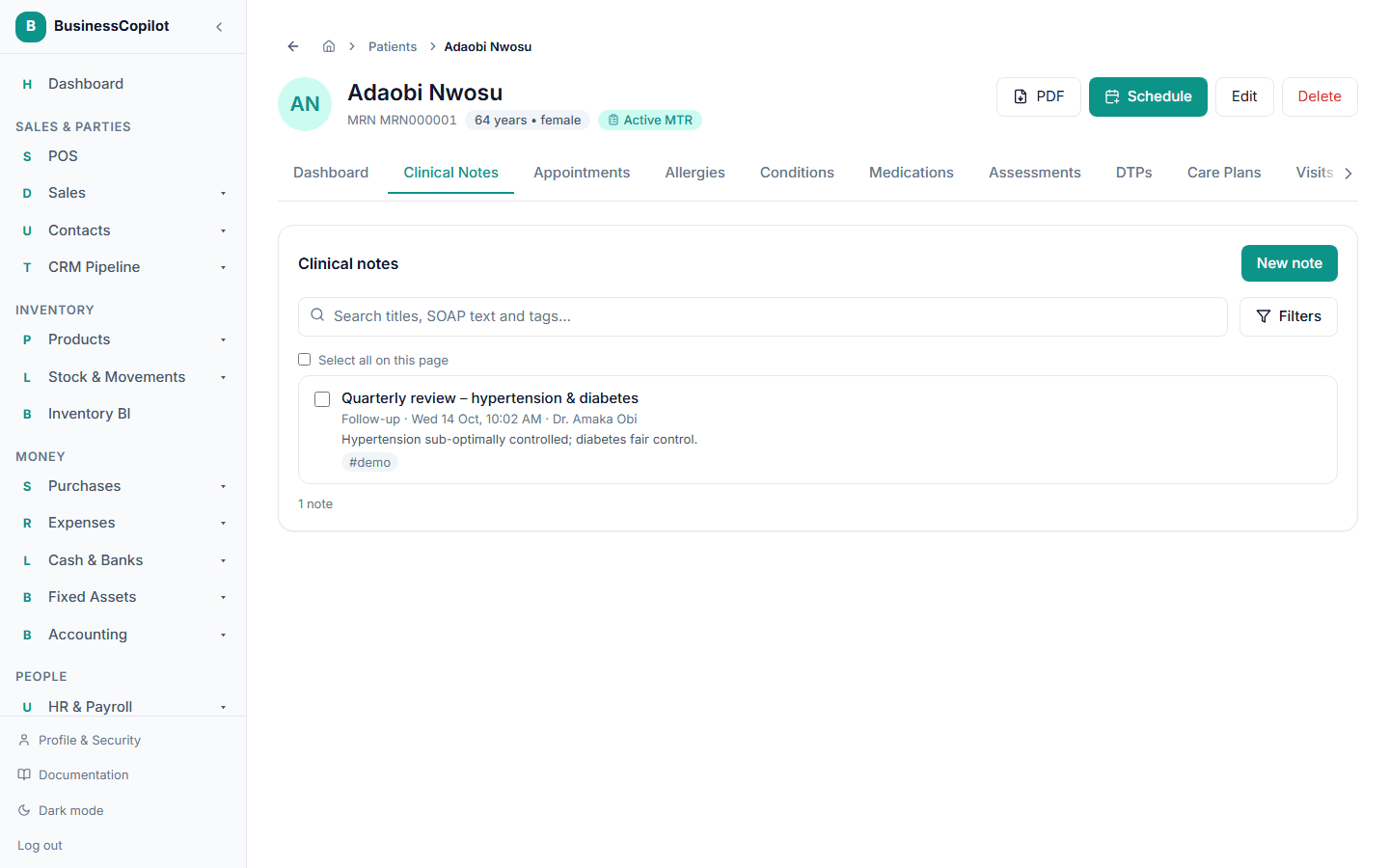
- On a patient's record: open the patient, select the Clinical Notes tab, then New note. The patient is already chosen.
- From the list of all notes: go to Clinical Suite → Clinical Notes and select New note, then pick the patient. On the mobile app, use the Notes chip in the Clinical Suite.
Step by step
-
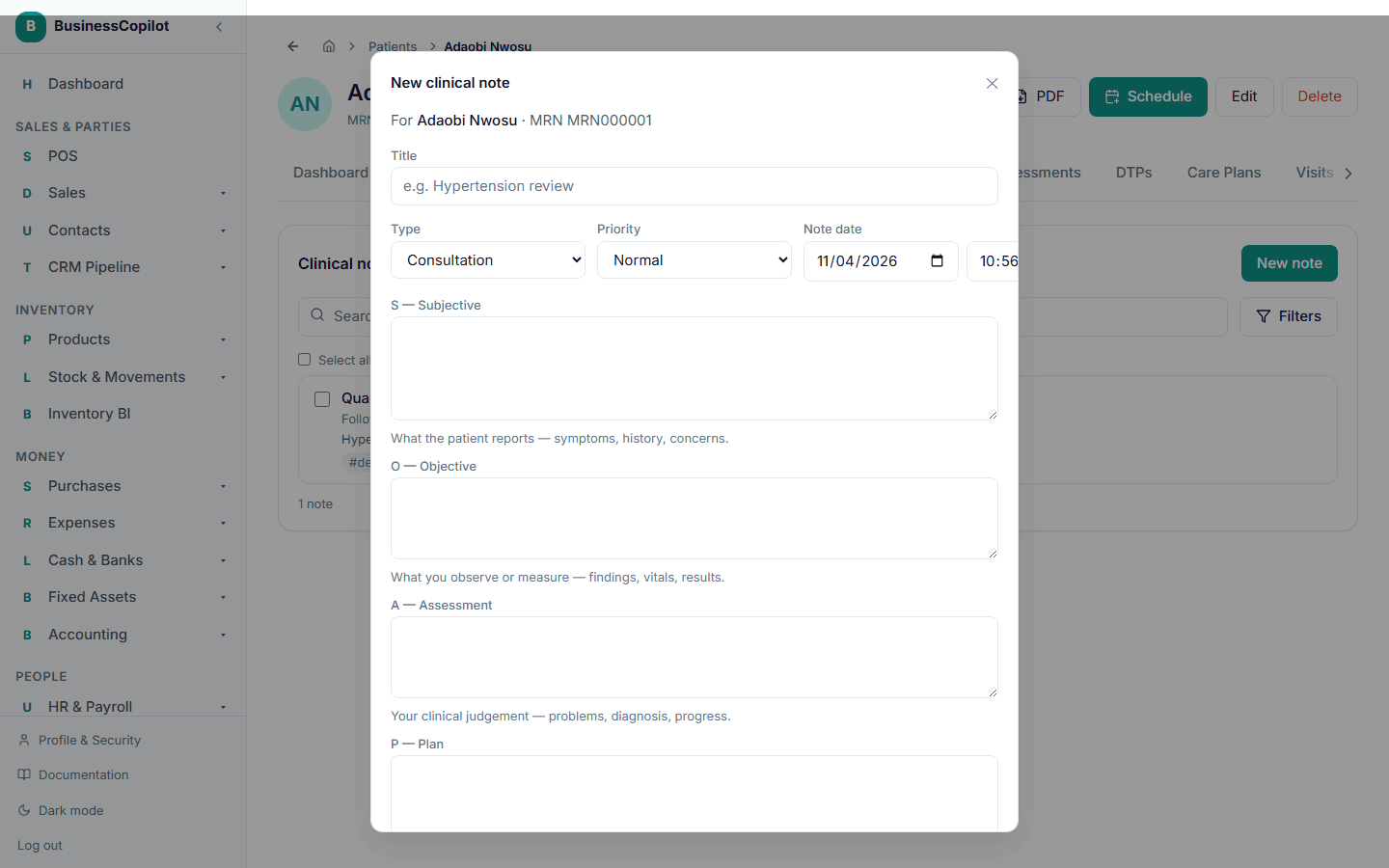
Select New note.
-
Type a Title — short and specific, for example "Hypertension review". A title is required.
-
Choose a Type: Consultation, Medication review, Follow-up, Counselling, Adverse event or General — plus any types your business has added (Your own note types).
-
Choose a Priority: Low, Normal (the default), High or Urgent. Only Low, High and Urgent show as a badge in lists.
-
Check the Note date. It starts as now. Change it if you are writing up an earlier visit. A note can't be dated in the future.
-
Write in the four boxes:
- S — Subjective: what the patient tells you — symptoms, history, worries.
- O — Objective: what you observe or measure — findings, readings, results.
- A — Assessment: your clinical judgement — the problem, diagnosis, progress.
- P — Plan: what happens next — treatment, advice, monitoring, follow-up.
You must write something in at least one of the four. Each box holds up to 20,000 characters.
-
Add Tags if you want — short labels separated by commas, such as
diabetes, follow-up. You can add up to 10, and tags are searchable. -
If the patient has appointments, you can choose a Linked appointment so the note points at its visit. This is optional.
-
Tick Confidential note only if it needs restricting — read Confidential notes first.
-
Add files if you have them (Files on a note). They are attached when you save.
-
Select Save note.
What is saved automatically
- Who wrote it and when. The note shows "Written by … on …".
- The patient's latest vitals. If someone has logged vitals for the patient, the note keeps a snapshot of them — blood pressure, heart rate, temperature and so on — as they were at that moment. They appear on the note under Vitals when this note was written. The snapshot never changes, even if new vitals are logged later. If the patient has no logged vitals, the note has no snapshot.
Good to know
- Times are West Africa Time (Lagos), whatever time your phone or computer is set to.
- Notes belong to the patient's location. If your role is limited to certain locations, you can only write notes for patients at those locations.
- Nothing is sent to the patient. Notes are internal records.
- Notes have no "sign" or "lock" step. A note can be edited afterwards, and every change is tracked — see Editing and deleting notes.
On the mobile app
The form works the same way. Note date is a date picker plus a Note time box (24-hour, for example 14:30). Add file opens your phone's file picker. After you save, the note opens.