Drilling into a number
Never just trust a summary figure — see the real transactions that add up to it, with totals, paging, export, and a way back.
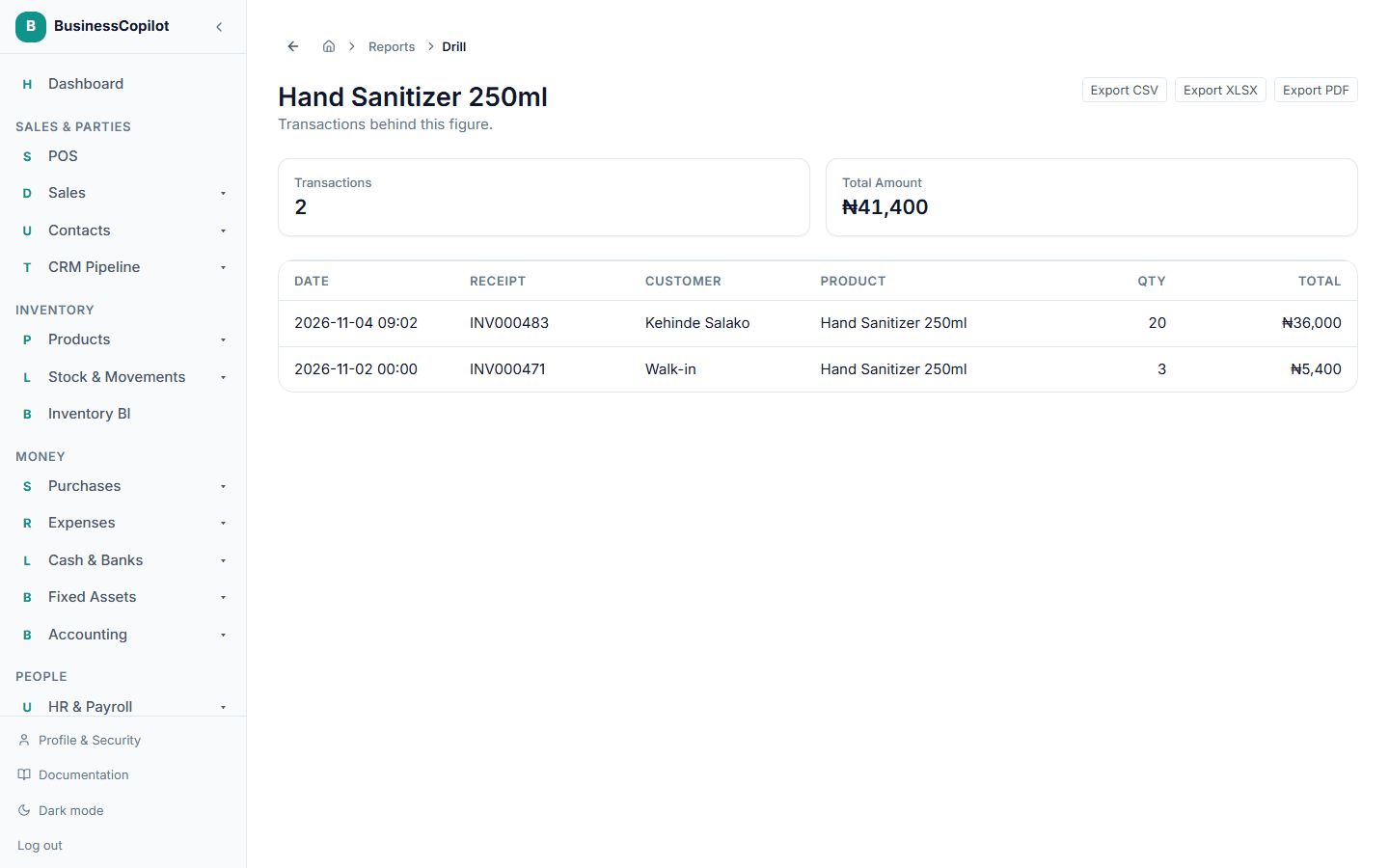
Anywhere you see a ranked list, a chart, or a summary figure with drill-down built in — like Top Products on the Dashboard, a row on the Sales BI Dashboard, or a chart on your Inventory dashboard — select it to open a page listing exactly which transactions make it up, not just the total.
What you can drill into
| Report | Select | You see |
|---|---|---|
| Revenue | A category, branch, payment method, or salesperson | The sales behind that group |
| Branch Intelligence | A branch row | The sales for that branch |
| Salesperson Intelligence | A salesperson row | The sales that person made |
| Product Profitability | A product (By SKU) or category | The sales of that product or category |
| Margin Protection | A product or a branch | The sales behind its margin |
| Payment Intelligence | A payment method | The sales paid that way |
| Inventory BI and HR analytics | Tiles and rows | The matching transactions or records |
Products are matched by their identity, not by name. Two different products with the same name appear as separate rows in Product Profitability.
What's on the page
- A Back link at the top naming the report you came from, for example Back to Revenue. Select it to return with the same date range and filters. See Moving between reports.
- A totals summary — the number of transactions and their total amount, calculated across everything that matches, not just the rows on this page.
- The list of transactions: date, reference, customer or supplier, product, quantity, and total.
- Prev / Next buttons if there are more transactions than fit on one page. On the phone app the list loads more as you scroll.
- An Export button to download the full list — see Exporting reports. On the phone app, export is available as CSV.
Steps
- On the report, select the number, bar, or row you want to check.
- Read the totals at the top to confirm you're looking at the right group.
- Scroll the list, or use Prev and Next, to see every transaction behind it.
- Select Export if you need the full list in a spreadsheet.
- Select Back to … to return to the report.
This is the fastest way to check a number you're not sure about. Instead of taking a total on faith, you can see exactly what it's made of.