Payment Methods
Every way a sale or purchase can be paid — set up once, used at checkout and in Purchases.
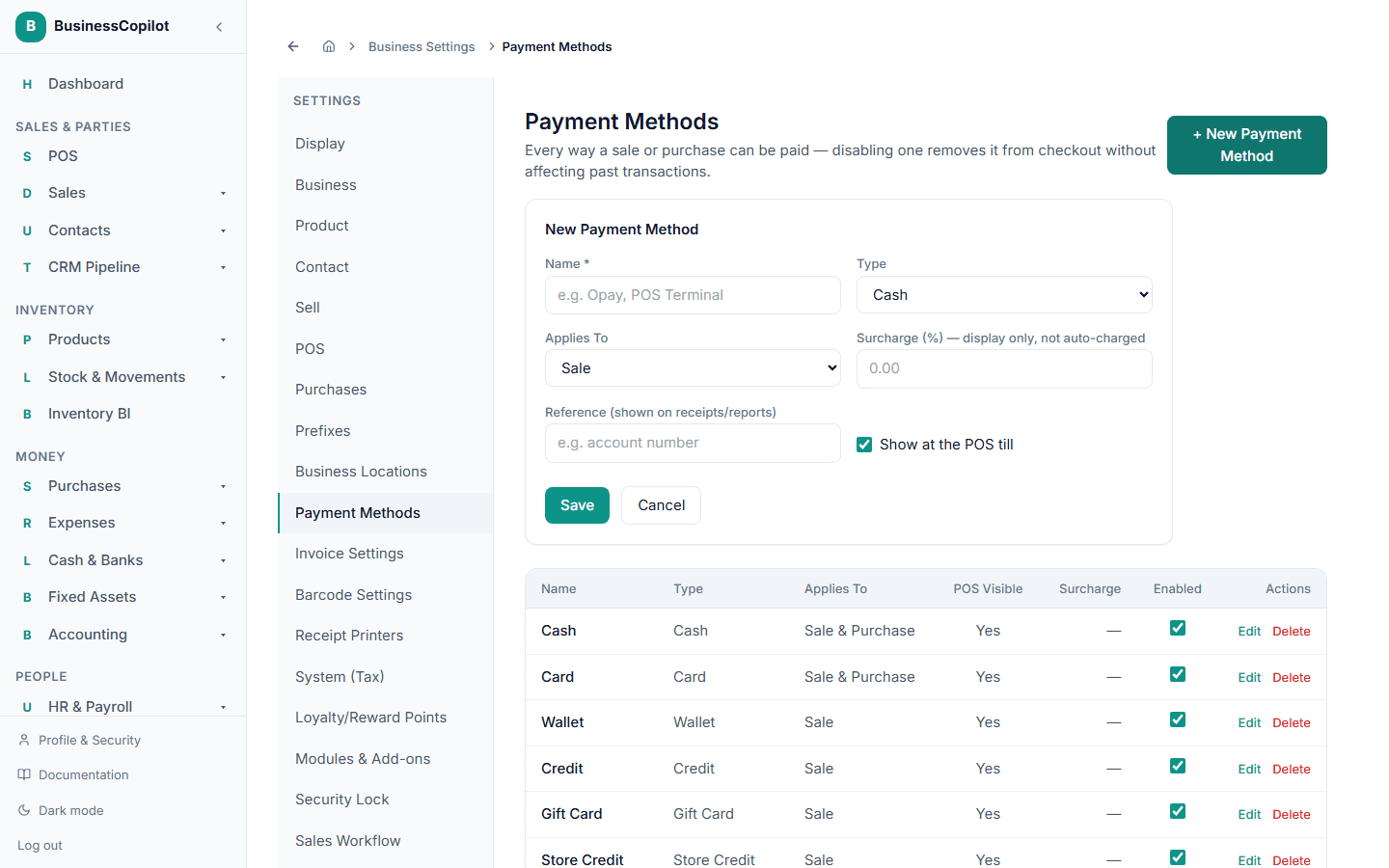
Settings → Payment Methods lists every way a sale or purchase can be paid. Disabling one removes it from checkout without affecting any past transaction it was already used on.
Types
Each payment method has a fixed type, chosen when you create it (you can't change it afterward):
| Type | Where it can be used |
|---|---|
| Cash | Sale, Purchase, or both |
| Card | Sale, Purchase, or both |
| Wallet | Sale |
| Credit | Sale |
| Gift Card | Sale |
| Store Credit | Sale |
| Bank Transfer | Purchase |
| Cheque | Purchase |
Adding a payment method
- Click + New Payment Method.
- Enter a Name — something recognizable, like "Opay" or "POS Terminal."
- Choose a Type (see the table above).
- Choose Applies To — Sale, Purchase, or both (only Cash and Card can apply to both).
- Optional: a Surcharge (%) — this is shown for reference only, it isn't automatically added to the total.
- Optional: a Reference — shown on receipts and reports, e.g. an account number.
- For sale-facing methods, choose whether it should Show at the POS till.
- Click Save.
Editing or removing one
- Edit changes the name, reference, surcharge, and POS visibility — Type and Applies To are locked once created.
- The Enabled switch in the list turns a method on or off instantly, without opening the edit form.
- Delete only works if the method has never been used in a real payment. If it has, disable it instead — that keeps your history intact while hiding it from checkout going forward.