Control Tower
Monitor all in-flight sales orders at a glance, track picking progress, confirm payment, and release goods to the customer.
The Control Tower (Sales Orders → Control Tower) is the command centre for the entire order fulfilment workflow. It shows every order that has not yet been completed or cancelled, grouped by urgency.
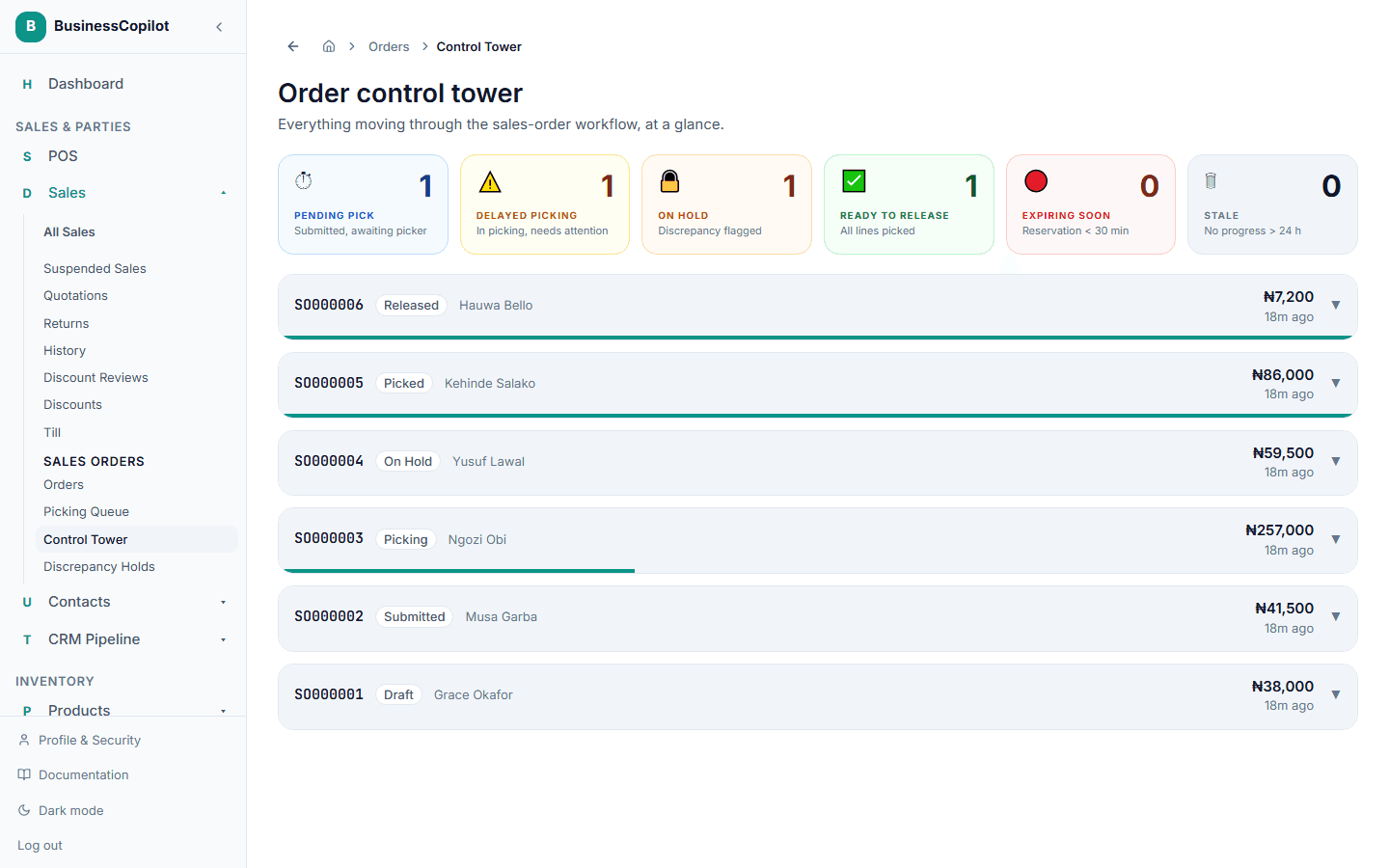
The metric tiles
Six tiles give you an instant health check on your order pipeline:
| Tile | What it shows |
|---|---|
| Pending Pick | Orders submitted but not yet assigned to a picker |
| Delayed Picking | Orders in Picking status that need attention |
| On Hold | Orders with a discrepancy that must be resolved |
| Ready to Release | Orders fully picked and waiting for payment + release |
| Expiring Soon | Orders whose stock reservation expires in less than 30 minutes |
| Stale | Orders with no progress for more than 24 hours |
Click any tile to filter the order list below to just that category. Click it again to clear the filter.
Order panels
Each order appears as a collapsible card showing:
- Order number and status badge
- Customer name (if linked to a contact)
- Order total
- Time since creation
- A pick-progress bar showing how many lines have been picked
Expand a card to see:
- Lines — each product with its ordered quantity and pick status
- Audit trail — a timestamped history of every action taken on the order
- Payment summary and release controls (for orders in Picked status)
Releasing goods
When an order reaches Picked status, the Release goods button appears on the order's expanded panel.
Payment must be confirmed first
Goods cannot be released until the customer's payment covers the order total. BusinessCopilot checks:
Amount Paid + Approved Credit ≥ Order TotalIf there is an outstanding balance, the Release button is disabled and the shortfall is shown in red. Two paths forward:
Path 1 — Collect payment Record the payment against the order through the normal payment flow until the balance is cleared.
Path 2 — Approve credit (Owner / Manager only) If your business extends credit to this customer, an Owner or Manager can click Approve credit, enter the credit amount and an optional note, and click Grant credit. Once the credit covers the shortfall, the Release button becomes available.
Credit approval is a deliberate management action — it requires Owner or Manager role. Cashiers and Sales Representatives cannot approve credit.
Confirming release
Click Release goods and confirm in the dialog. BusinessCopilot will:
- Convert the order into a completed Sale record.
- Deduct the picked quantities from stock at each location.
- Post the accounting entry.
- Mark the order as Completed.
This action cannot be undone.
The audit trail
Every action on a sales order is logged with a timestamp and the name of the person who performed it — creation, submission, picker assignment, pick confirmation, discrepancy report, credit approval, and release. The audit trail is visible in the expanded order panel and is retained permanently.