Medication Therapy Review (MTR)
What MTR is in the Clinical Suite, who uses it, and how the six-step guided workflow moves from patient selection to a documented care plan.
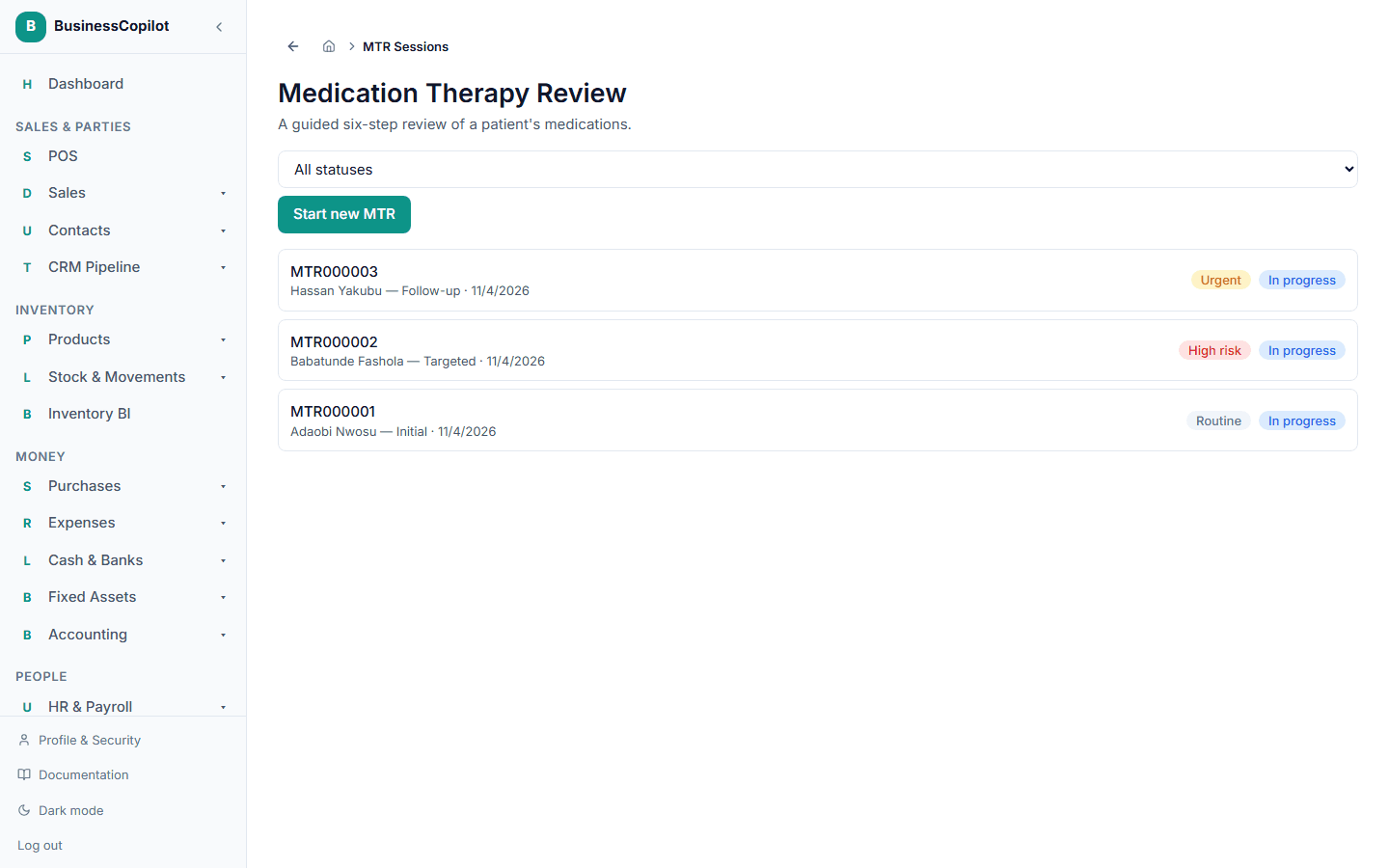
A Medication Therapy Review (MTR) — also called Medication Therapy Management (MTM) — is a structured session in which a pharmacist reviews all of a patient's medications together: looking for drug therapy problems, optimising the regimen, and producing a documented plan. The Clinical Suite walks you through this in a six-step wizard and stores the complete record against the patient.
When to use MTR
MTR is the right tool when you need a comprehensive, documented medication review — not just a quick interaction check or a note from a visit. Typical cases include:
- A patient on five or more medications
- A patient with a chronic condition whose regimen hasn't been reviewed in the last year
- Post-discharge review (patient leaving hospital on a new regimen)
- A CareSync case that uncovered multiple medication concerns
For a quick interaction look-up only, see Drug Interaction Checker.
The six steps
Every MTR session follows these steps in order. The system enforces the sequence — you can't sign off on step 6 before completing step 1. You can, however, edit any earlier step's data at any time while the session is open.
Step 1 — Patient selection
Choose the patient. The session is linked to their full record: their allergies, known conditions, vital signs, and active medications are all visible throughout the review. You don't re-type anything that's already on file.
Step 2 — Medication history
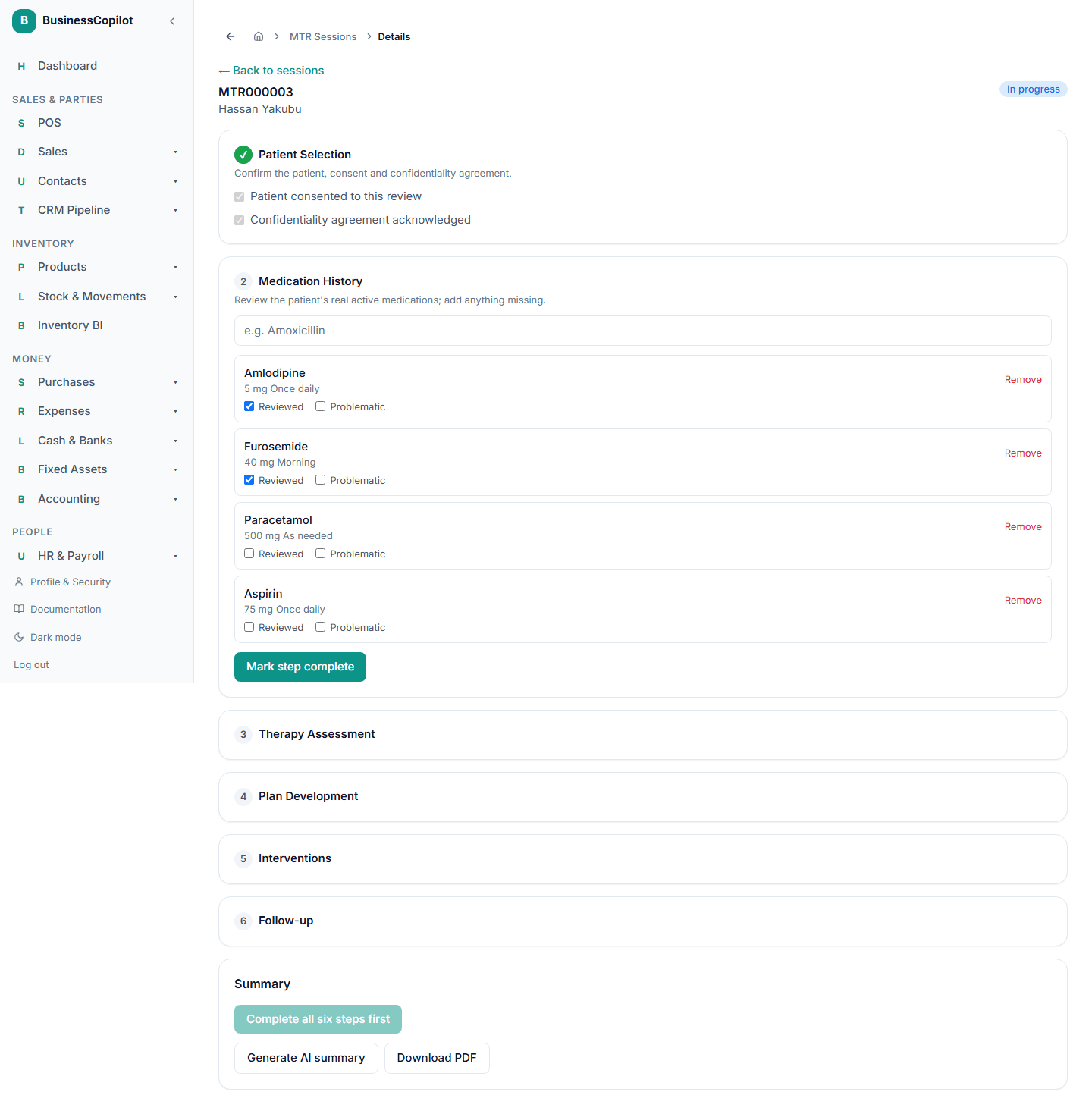
Review the patient's active medications one by one. For each one, mark it reviewed (you've gone through it) or problematic (you want to flag it for a drug therapy problem in step 3). If the patient mentions a drug not on the system, add it using the drug search — it will be created as a real medication on their record, not just a note.
Step 3 — Therapy assessment
This is where you identify Drug Therapy Problems (DTPs) — clinical issues that need addressing. For each DTP you log:
- Category (unnecessary medication, needs additional medication, wrong medication, suboptimal dosage, adverse drug reaction, non-adherence)
- Type (more specific, within the category)
- Severity and evidence level
- A description of the problem and your proposed resolution
You can log as many DTPs as the session needs. Each one becomes a trackable record that appears on the patient's DTPs tab and in the Clinical Interventions list.
Step 4 — Plan development
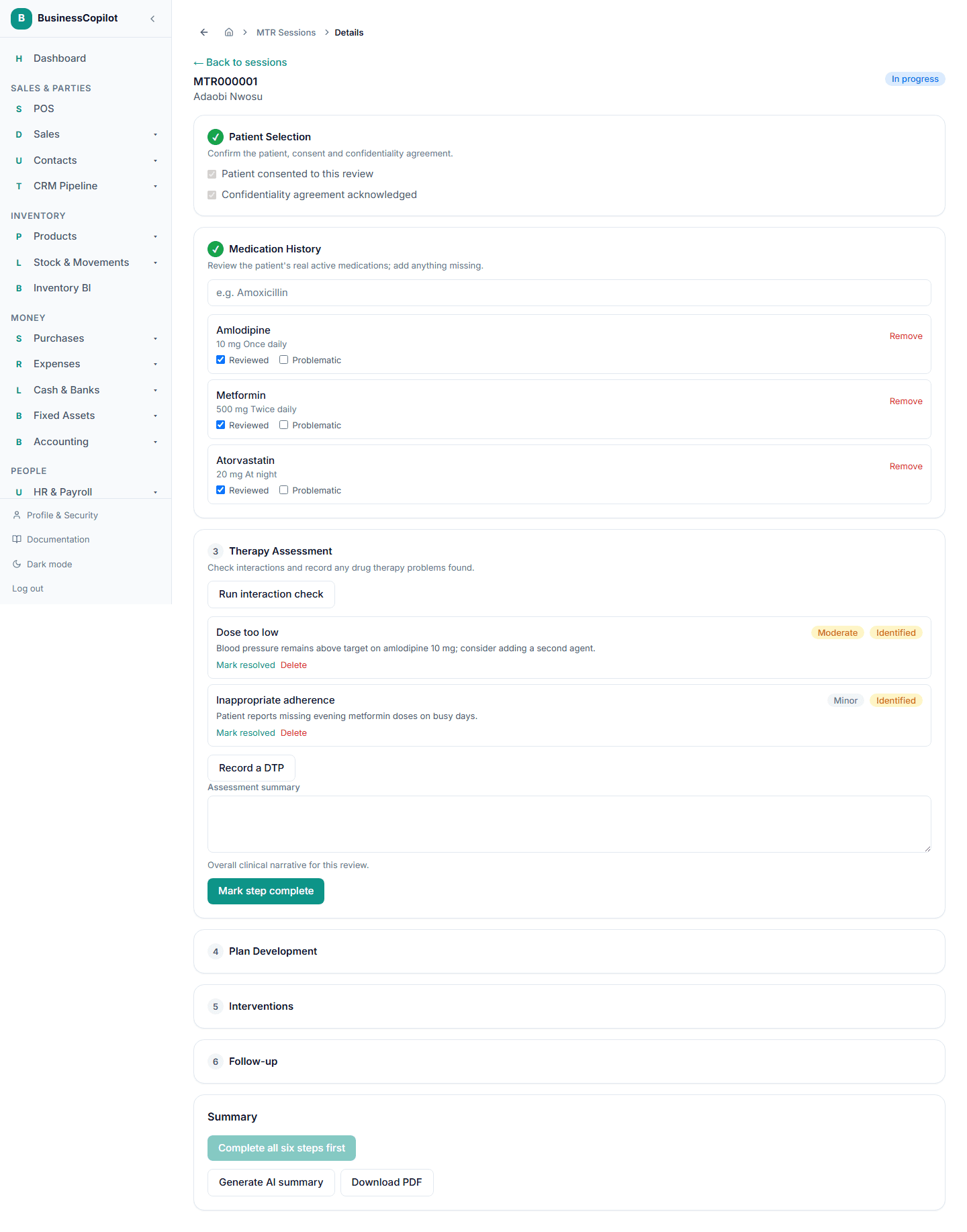
Build the pharmacist care plan: your recommended changes to the medication regimen, monitoring parameters, goals for therapy, and patient education priorities. This is free text — write what the patient actually needs to know and do.
Step 5 — Interventions
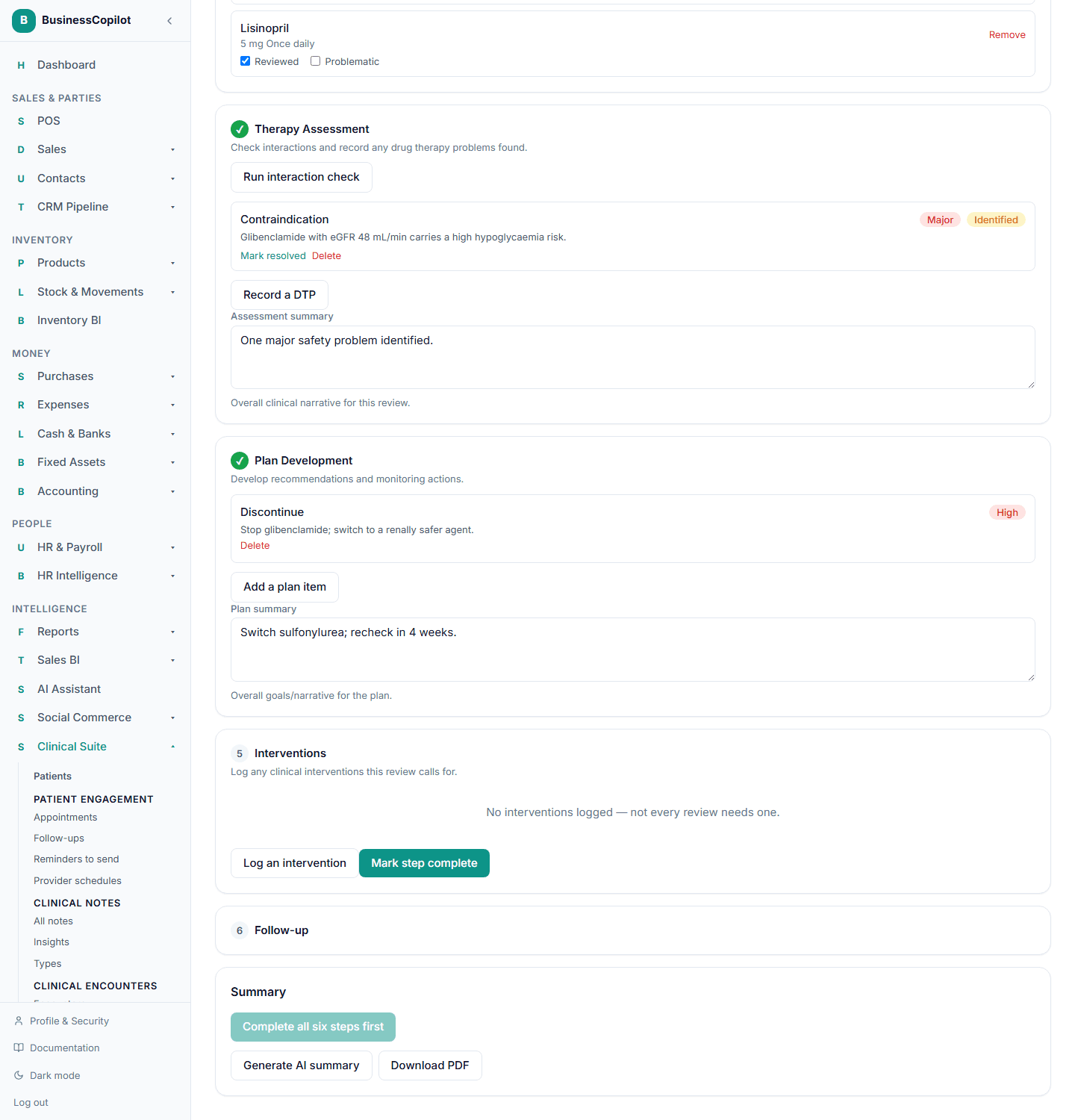
Any DTP that requires an active intervention (a dose change, a physician referral, a switch to an alternative) becomes a Clinical Intervention here. Select Create intervention next to a DTP; the system creates a real intervention record (visible in Clinical Interventions) linked to this session.
Step 6 — Follow-up
Schedule any follow-up needed after this session. Select Schedule follow-up to create a follow-up task (visible in Follow-ups) linked to this session. Set the type, priority, due date, and any objectives for the next visit.
Once all six steps are marked complete, select Complete session to close the review.
AI session summary
After completing a session, select Generate AI summary. The AI reads the full session — the patient's medications, your identified DTPs, the care plan, the interventions created, and the follow-up scheduled — and writes:
- An executive summary (what was the clinical picture coming in)
- Key findings (the most important things you identified)
- Recommendations (what you decided)
- Risk assessment (what still needs watching)
- Counselling points (what to tell the patient)
This requires the Clinical AI Usage add-on. See Clinical AI: enabling it and managing tokens.
📸 Screenshot needed: the AI summary panel showing all five sections.
Drug interaction check
The therapy assessment step includes a Check interactions button. Selecting it runs the patient's full medication list (including anything you added in step 2) through MedSafe's interaction database. The flagged pairs are shown on screen and saved against the session. You must view the results before the therapy assessment step is marked complete.
PDF export
From the completed session page, select Download PDF to save or print the full MTR report — all six steps, the session summary, and the AI summary (if generated). The PDF can be filed physically, shared with the prescriber, or sent to the patient.
Finding past sessions
From the Clinical Suite sidebar, select MTR Sessions to see all sessions in the workspace. Filter by patient, status (Draft, In Progress, Completed), or date. A patient's own sessions are also on their MTR Sessions tab.
Permissions
The MTR permission line controls access. View lets you read sessions; Create starts one; Edit updates any step on an open session; Delete removes a session to the Recycle Bin.
Related
Adverse Drug Reaction (ADR) Reporting
How to report, review, and submit adverse drug reaction cases to NAFDAC using the Clinical Suite's built-in ADR workflow.
AI-Assisted Lab Interpretations
How to submit lab results for AI interpretation, review and approve findings, escalate urgent cases, and export lab interpretation reports in the Clinical Suite.