Adding a patient
Create a patient record — identity, contact details, insurance, allergies, known conditions and emergency contacts.
Every patient gets their own record. You can fill in as much or as little as you know right now, and add the rest later.
Steps
- Go to Clinical Suite → Patients.
- Select Add New Patient.
- Fill in the form, working down the sections below.
- Select Add Patient.
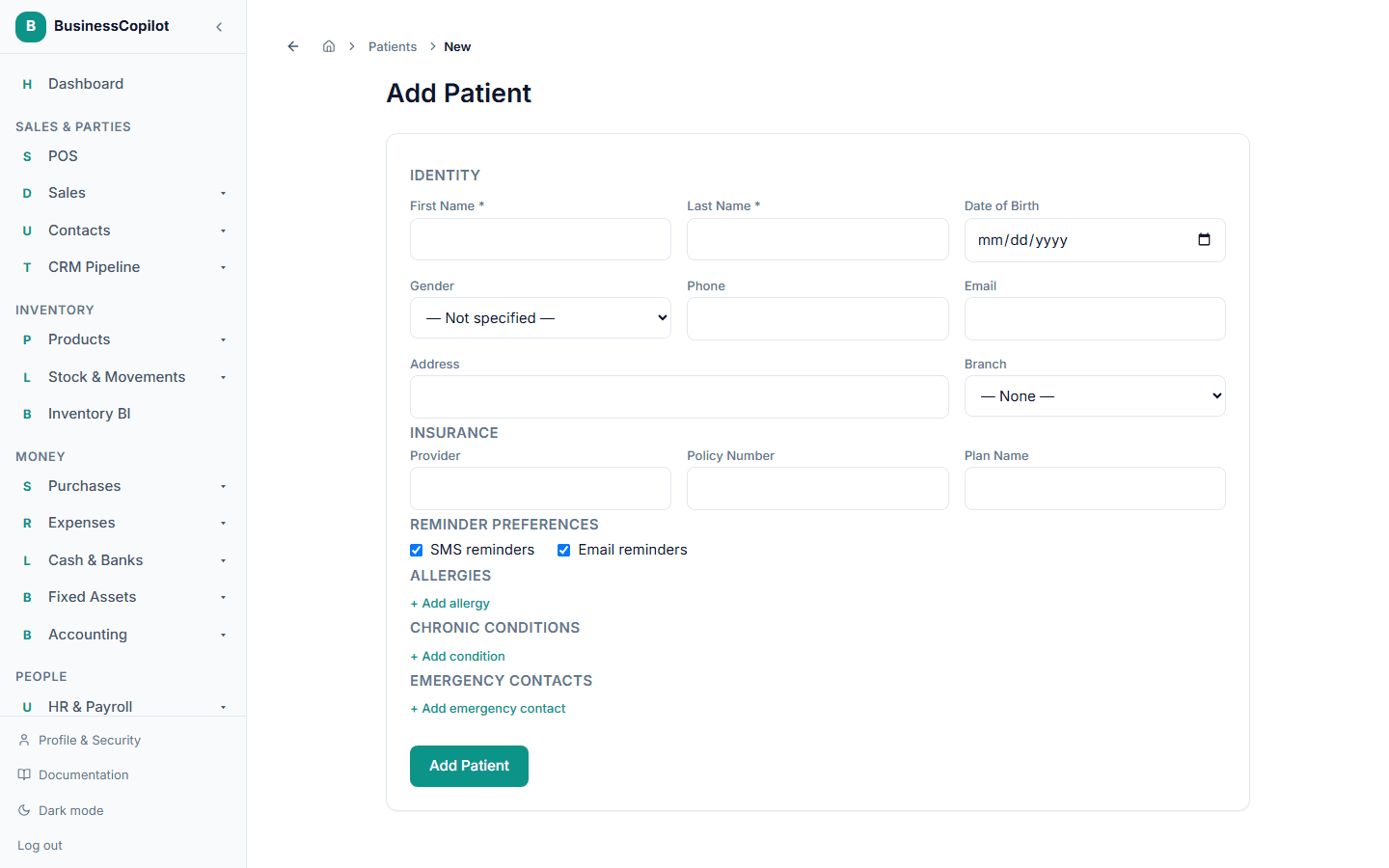
You need the Create permission on Patients to see the Add New Patient button.
Identity
| Field | Notes |
|---|---|
| First Name * | Required. |
| Last Name * | Required. |
| Date of Birth | Optional. Used to show the patient's age. |
| Gender | Male, Female or Other — or leave it as — Not specified —. |
| Phone | Used for SMS reminders. Use a normal Nigerian number, for example 0803 123 4567. |
| Used for email reminders. | |
| Address | Shown as the patient's Location on the list. |
| Branch | Which of your branches this patient belongs to. Leave it as — None — if they aren't tied to one. |
Insurance
Three optional fields: Provider, Policy Number and Plan Name — for example an HMO's name, the member number and the plan the patient is on. They appear on the patient's Dashboard.
Reminder Preferences
Two tick boxes, SMS reminders and Email reminders, both ticked by default. Untick one if the patient doesn't want that kind of message. See Patient reminders.
Allergies
Add one row per allergy:
- Allergen * — required (for example "Penicillin").
- Reaction — for example "Rash".
- Severity — Mild, Moderate or Severe.
Select + Add allergy for another row; each row has a remove control.
Chronic Conditions
One row per condition:
- Condition * — required (for example "Type 2 diabetes").
- Status — Active, Managed or Resolved.
- A date field for when the condition was diagnosed.
Select + Add condition for another row.
Emergency Contacts
One row per contact:
- Name * — required.
- Relationship — for example "Spouse" or "Mother".
- Phone.
Select + Add emergency contact for another row.
The MRN is made for you
You never type a MRN (medical record number). BusinessCopilot gives each new patient the next number automatically — for example MRN000001, then MRN000002. Two patients can never end up with the same one, even if two of your staff add patients at the same moment.
After you save
You're taken to the patient's record. From here you can log vitals, book an appointment and see everything at a glance — see The patient record.
If something goes wrong
- "Choose a…" or a red message under the form — a required field is missing. Fix it and select Add Patient again.
- Not sure if the patient is already in the system? Search first — see Finding patients.