Sending reminders by hand
Work through the list of text reminders that couldn't go out automatically.
When a text reminder can't be sent automatically, it waits on the Reminders to send page. Someone on your team sends it from their own phone, then marks it done. You need the View permission to see the list and Edit to act on it.
Finding the list
- Go to Clinical Suite → Reminders to send (Web and Desktop), or the Reminders chip (mobile app).
- A number badge on the Reminders to send tab shows how many are waiting, on every Appointments page.
- A yellow banner on the calendar says "N patient reminders are waiting to be sent by SMS manually" with a Send them now link.
- The same reminder also appears in your Alert Center, one alert per branch, so it can't be forgotten.
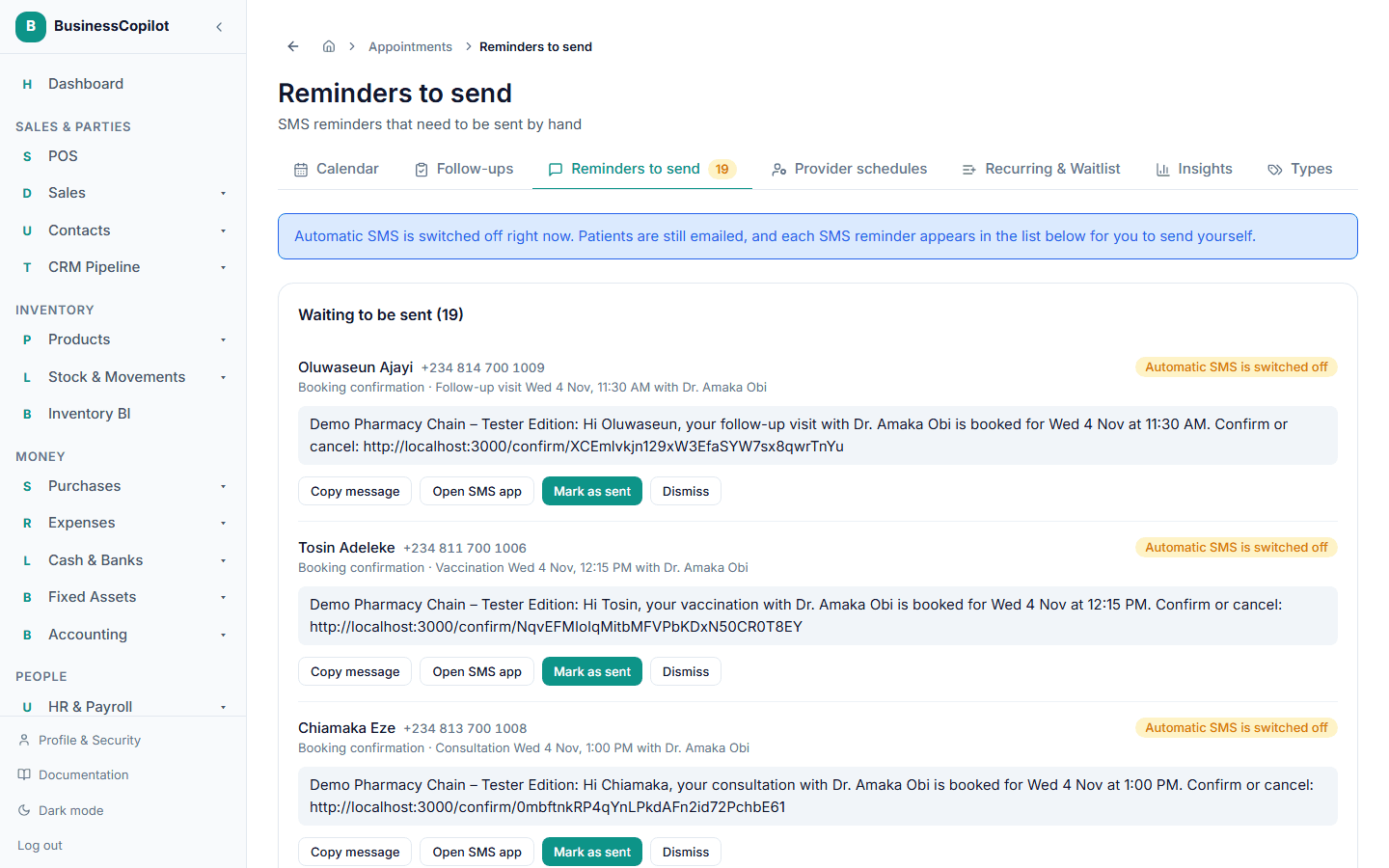
At the top: why they're waiting
Above the list, a blue banner explains why texts are in the list right now, for example:
- "Automatic SMS is switched off right now. Patients are still emailed, and each SMS reminder appears in the list below for you to send yourself."
- "Your SMS sender ID "GreenPharm" is still waiting for approval, so SMS reminders can't be sent automatically yet. Patients are emailed, and each SMS appears below for you to send by hand."
Sending one
The list is titled Waiting to be sent (N). Each item shows:
- The patient's name and phone number.
- What it is — for example 24-hour reminder — and the appointment it's about (type, date and time, provider).
- A yellow pill with the reason it's here.
- The full message text, ready to send.
- If an automatic attempt failed, "Last attempt: …" with why.
To send it:
- Select Copy message, then paste it into WhatsApp, SMS or wherever you message the patient — or select Open SMS app to open your phone's messaging app with the number and message already filled in. (On the mobile app the buttons are Share / copy, which opens your phone's share sheet, and Open SMS app.)
- Send it.
- Come back and select Mark as sent. It leaves the list.
If you decide it doesn't need sending — the appointment was moved, or you called the patient instead — select Dismiss.
When there is nothing left you'll see "Nothing to send — every reminder has gone out."
Things to know
- Cancelled and moved appointments clean up after themselves. If an appointment is cancelled or rescheduled, any waiting reminders for it are withdrawn, so you won't text someone about a slot that no longer exists.
- Time matters. A "2-hour reminder" that's still waiting after the appointment has started is no use — dismiss it.
- The alert clears itself. Once the list is empty, the Alert Center entry resolves automatically.
On the mobile app
The Reminders chip opens the same list. Share / copy and Open SMS app replace Web's Copy message, but do the same job.