Browsing products by category and brand at the till
Find the product a customer wants quickly, even when you stock hundreds of items across many categories and brands.
When you sell many kinds of product, the product browser on the checkout screen lets you narrow the list by Category or by Brand instead of scrolling through everything or typing.
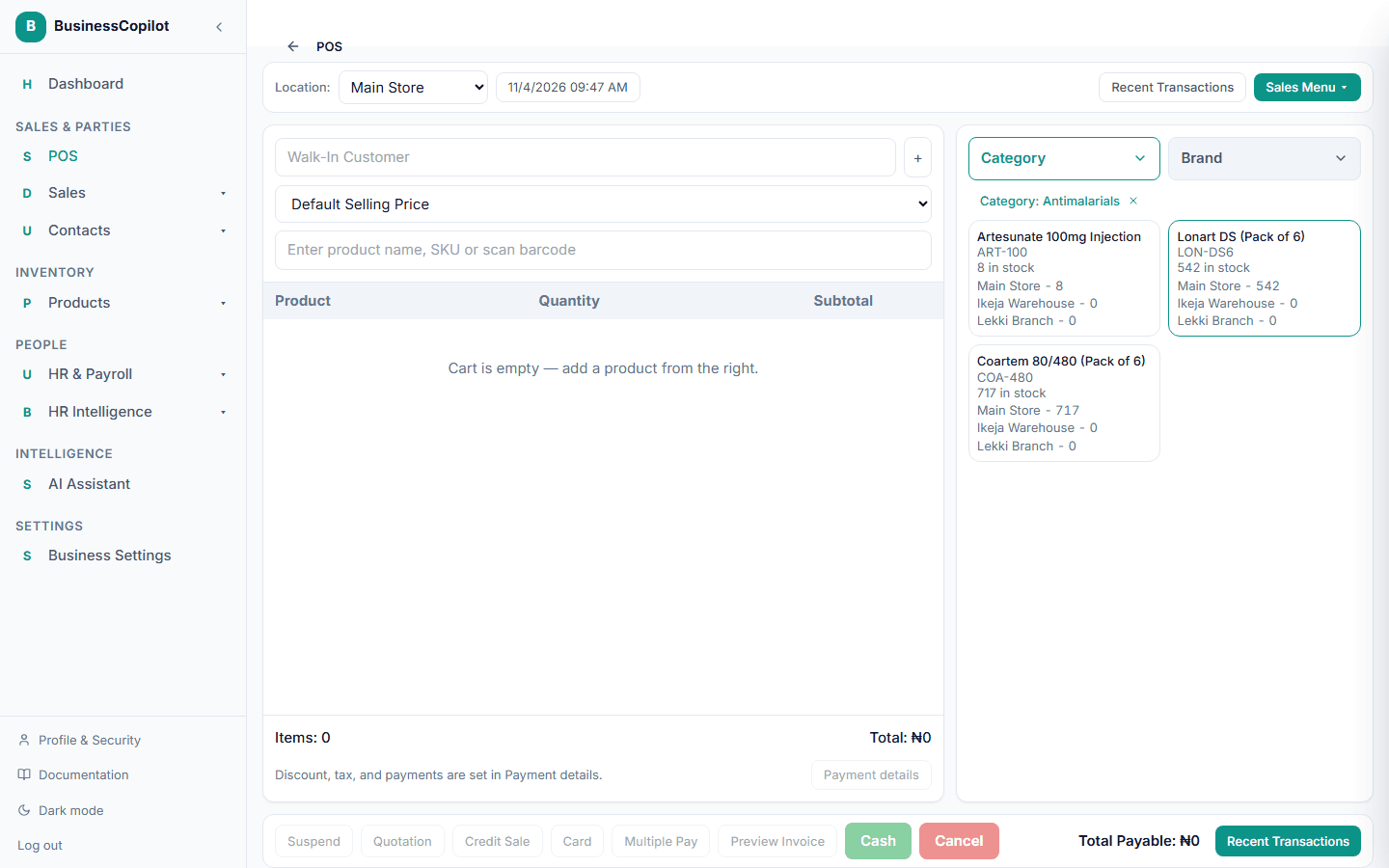
What you'll see
The product browser has two buttons at the top: Category and Brand. Each one shows what you have chosen. When nothing is chosen, you see every product.
When you choose a category or brand, a chip appears above the products, for example Category: Analgesics ×. Use the × on the chip to clear it and see all products again.
Choosing a category or brand
- Select Category or Brand.
- A panel opens with the full list, with All categories (or All brands) at the top.
- Type in the search box at the top of the panel to find one quickly. For example, type
antito see every category starting with those letters. - Select the category or brand you want.
- The panel closes and the products are filtered to that choice. The chip shows what you picked.
- Select a product to add it to the sale.
To change your choice, select the button again and pick another entry, or select All.
How it works on each device
- Web and desktop app: the panel slides in from the right over the checkout. Press Esc, select the × in the panel, or click outside the panel to close it without choosing.
- Phone app: the panel opens as a sheet from the bottom of the screen. Tap outside the sheet or select the × button to close it without choosing.
The brand list covers all the brands you have set on your products, not just the ones on the current page of results. If you're working offline on the desktop app, the brand list comes from the products stored on that computer, so a brand you added very recently may not appear until you're back online.
Category and brand filters are applied to the whole catalog, so the results are complete even when you have thousands of products.
Tips
- Set a category and a brand on your products when you create or import them — that's what makes this browser useful. See Adding a new product and Importing products from a CSV file.
- Stock is shown under each product, and for multiple branches you can see the quantity at each one.
- The browser and the search box work together: a search narrows whatever category or brand you have chosen.