Prefixes
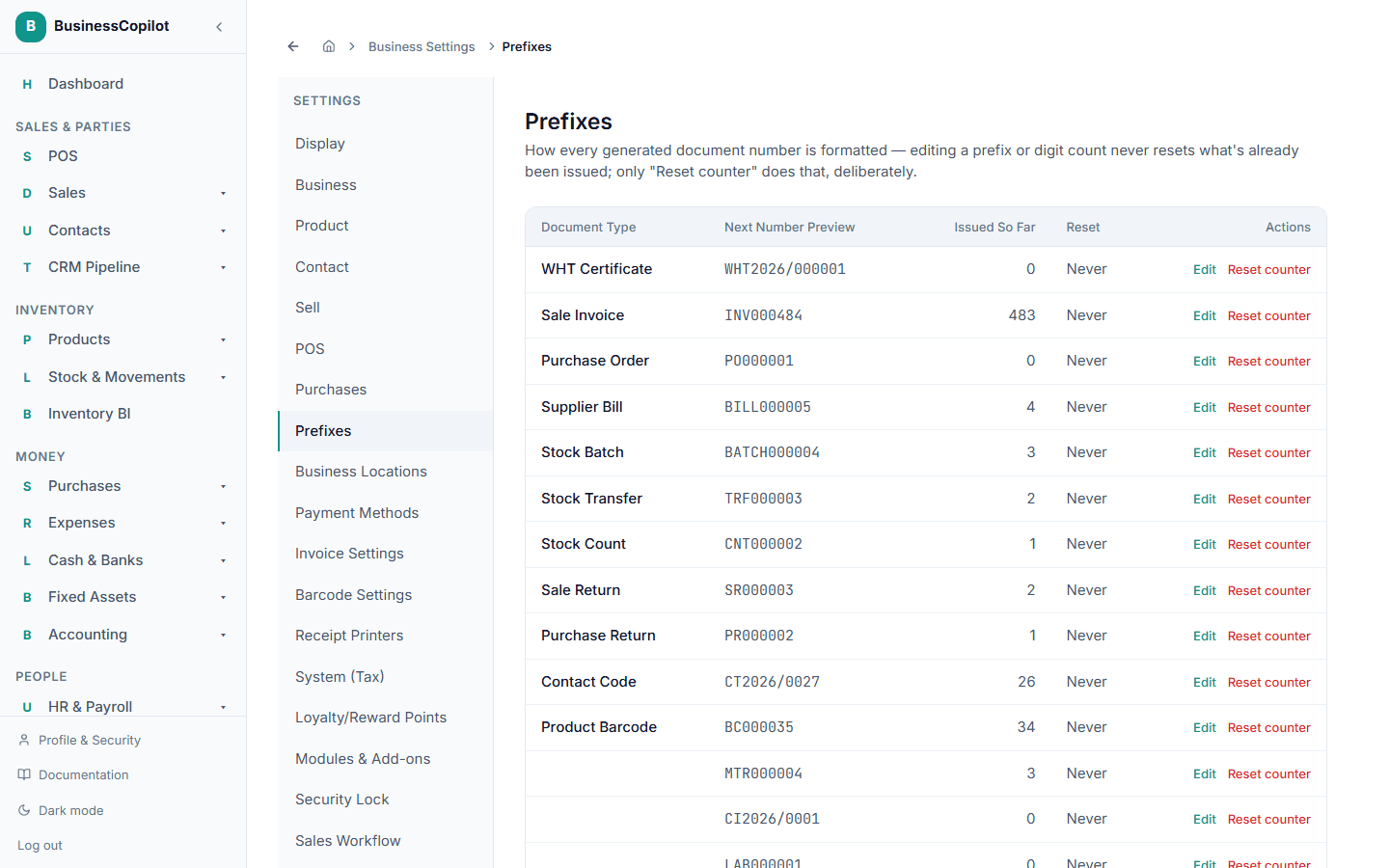
How every auto-generated document number is formatted — invoices, purchase orders, stock transfers, and more, all in one place.
Settings → Prefixes is where every document number the app generates for you is formatted — one place for all of them, instead of hunting through each module.
Document types
| Document | Where you'll see the number |
|---|---|
| WHT Certificate | Withholding tax certificates |
| Sale Invoice | Every sale's receipt number |
| Purchase Order | Every purchase order's reference |
| Supplier Bill | Every supplier bill number |
| Stock Batch | Batch numbers created on Goods Receipt |
| Stock Transfer | Stock transfer numbers |
| Stock Count | Stock count numbers |
| Sale Return | Sale return numbers |
| Purchase Return | Purchase return numbers |
| Contact Code | Auto-generated customer/supplier codes |
| Product Barcode | Auto-generated product barcodes |
For each, the list shows the Next Number Preview (exactly what the next one issued will look like) and Issued So Far (how many have been generated).
Editing a number format
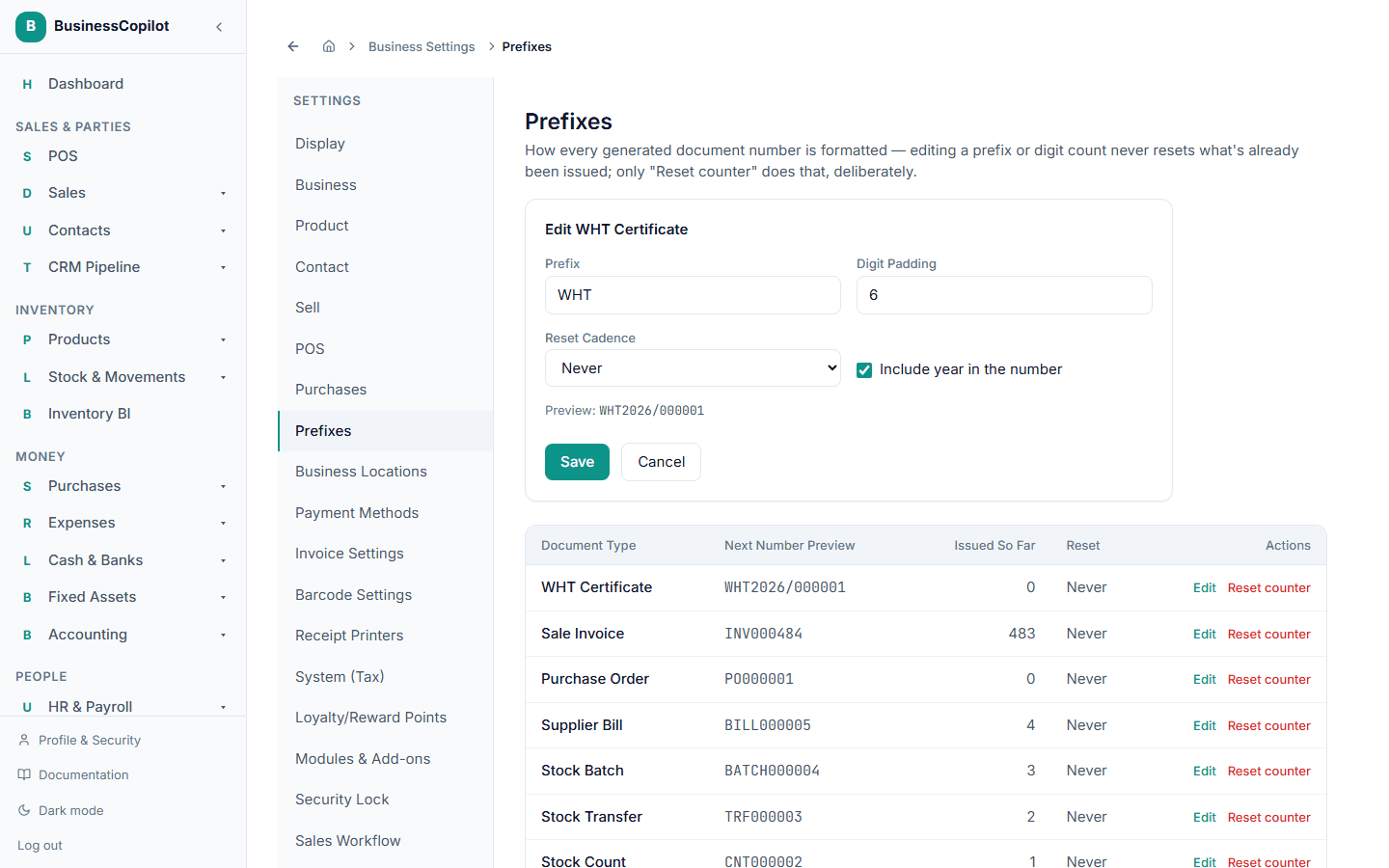
Click Edit next to any document type:
- Prefix — the letters at the front, e.g.
INV. - Digit Padding — how many digits the counter is padded to (1–10). A padding of 6 turns
42into000042. - Reset Cadence — Never, or Yearly (the counter restarts at 1 every January).
- Include year in the number — adds the current year into the formatted number.
A live preview at the bottom of the form shows exactly what the next number will look like as you change these.
Important: changing the prefix, padding, or reset cadence never resets what's already been counted — your next invoice picks up right where the last one left off, just in the new format. Numbers already issued are never changed.
Resetting a counter
Click Reset counter to start a document type's numbering back at 1. This is separate from editing the format on purpose — you have to make a deliberate choice to reset, since it can't be undone. You'll be asked to confirm before it happens.