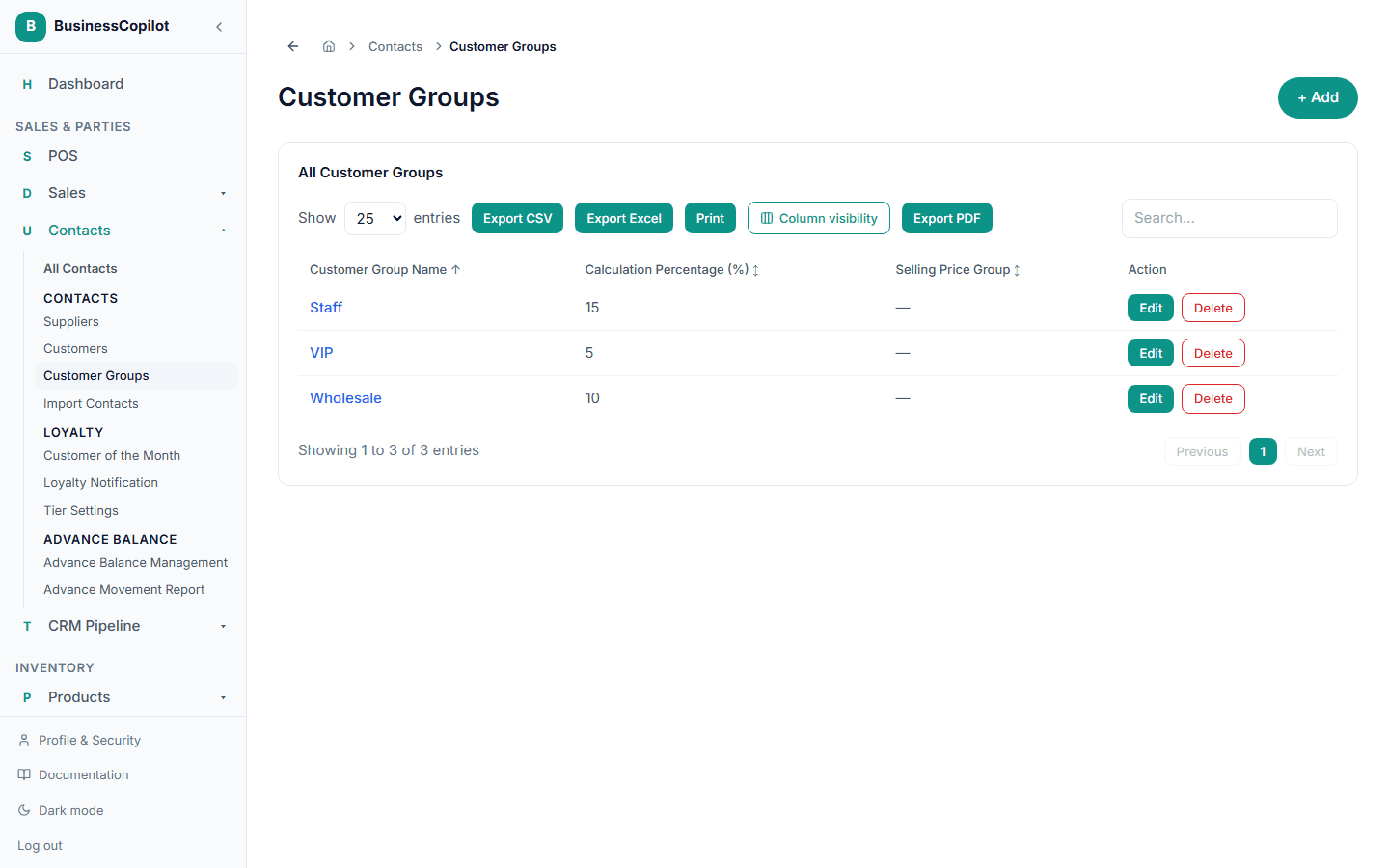
Setting up customer groups
Give a set of customers an automatic discount — a flat percentage, or your own price group — every time they buy.
A customer group is a savings rule you assign to a contact once, so every future sale to them applies automatically — you never have to remember to apply a discount by hand.
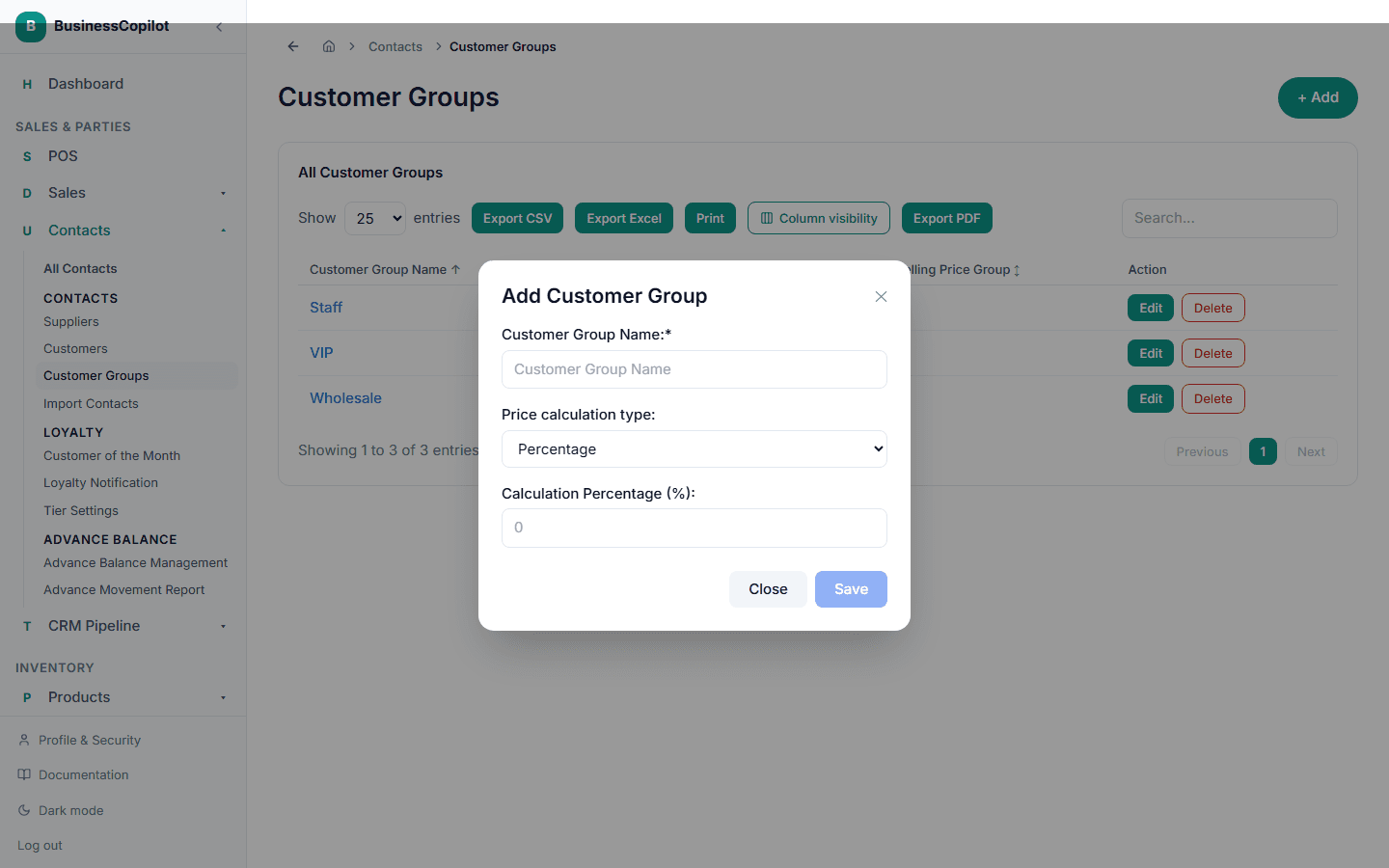
Creating a customer group
- Go to Contacts → Customer Groups.
- Select + New Customer Group (or Add).
- Give it a name (for example "VIP" or "Staff").
- Choose how it calculates savings:
- Percentage — a flat discount off the normal selling price (for example 10%).
- Price Group — instead of a percentage, use one of your existing price groups as this customer group's price.
- Select Save.
Assigning a customer group to a contact
Open the customer's own contact page, and set their Customer Group from the edit form. From then on, every sale you record for them uses that group's savings automatically — you don't select it again at checkout.
Managing your customer groups
The Customer Groups list shows every group you've created, its calculation type, and (for a Price-Group-based group) which price group it uses. From here you can:
- Edit a group's name or calculation.
- Deactivate a group without deleting it, so it stops applying to new sales but its history stays intact.
- Delete a group you no longer need.
- Export the list as CSV or Excel, or Print it.