Understanding the Chart of Accounts
Every account BusinessCopilot posts to, where it comes from, and what you can change.
The chart of accounts is the full list of accounts your books are built from — every asset, liability, equity, income, and expense account BusinessCopilot can post a journal entry against.
The starter chart
Every workspace is seeded with a starter chart of accounts built for a Nigerian SMB retail/pharmacy business — Cash, Bank, Accounts Receivable, Accounts Payable, Inventory, Sales Revenue, Cost of Goods Sold, and so on, each with a code (e.g. 1200 for Accounts Receivable), a type, and a normal balance (debit or credit).
Go to Accounting → Chart of Accounts to see the full list.
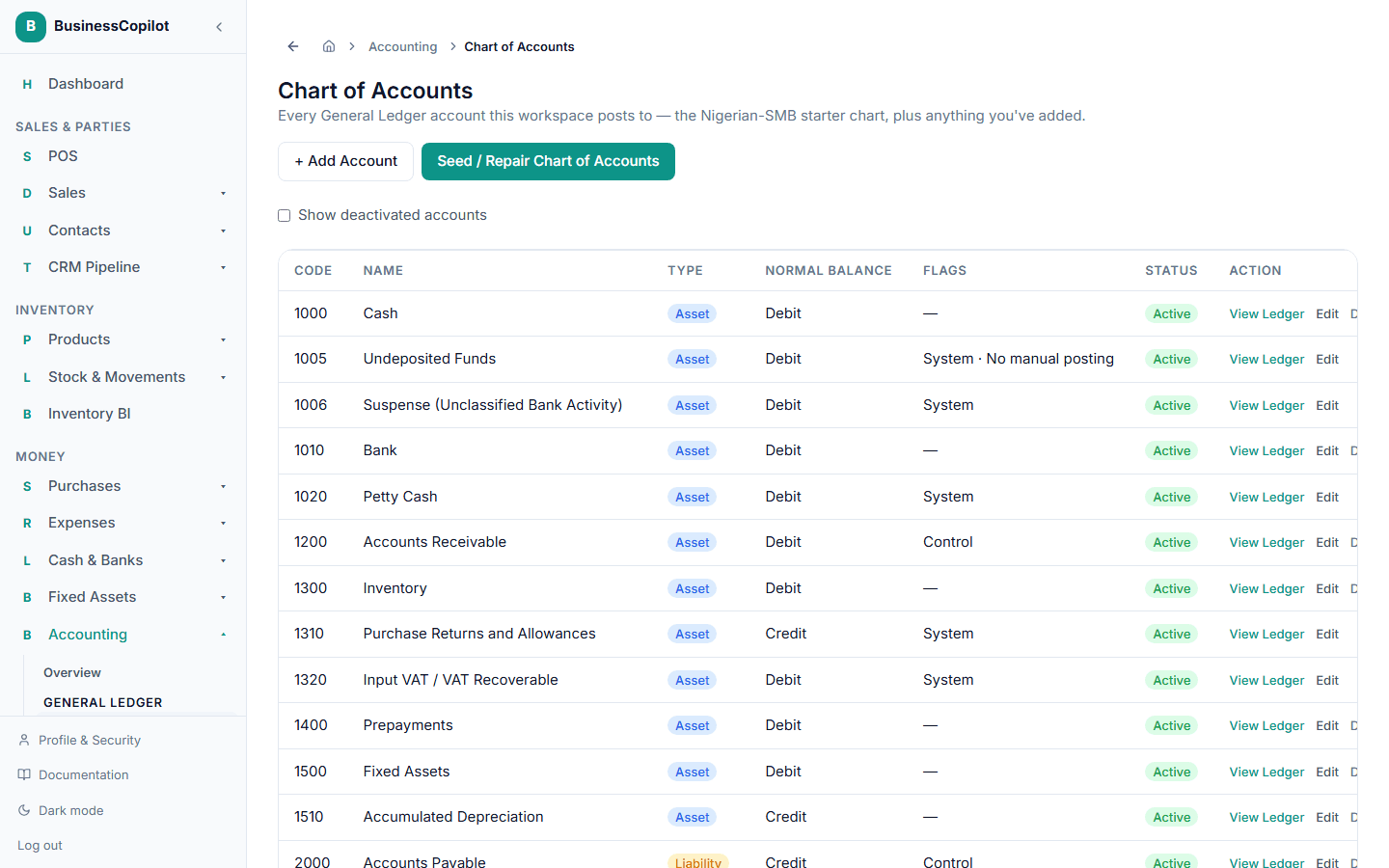
If a workspace is ever missing an account it should have — most often because it was created before an account existed, or in an unusual data state — select Seed / Repair Chart of Accounts. This only ever adds what's missing; it never touches or changes an account you already have.
Adding your own account
Select + Add Account to create one beyond the starter chart — useful for something specific to your business, like a "Staff Advances" asset account.
- Enter a Code (your own numbering — the starter chart leaves gaps for exactly this).
- Enter a Name.
- Choose a Type — Asset, Liability, Equity, Income, or Expense.
- Choose its Normal Balance — Debit or Credit.
- Optionally set a Subtype and Description.
- Optionally mark it a Control account (a summary/roll-up account) or turn off Allow manual journal posting if it should only ever be posted to automatically.
- Save.
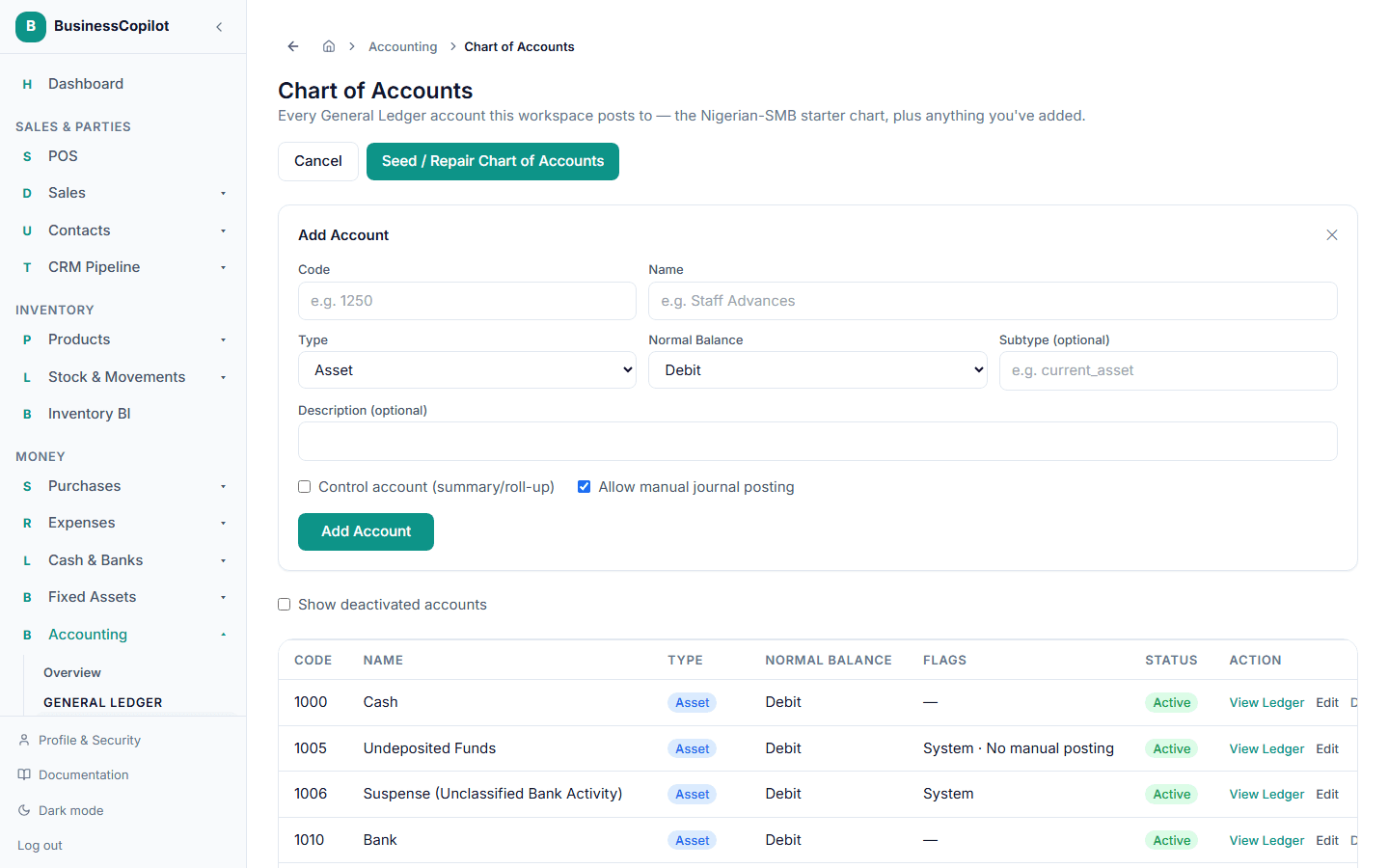
Code, Type, and Normal Balance can't be changed once an account is created — they're relied on elsewhere in BusinessCopilot as stable identifiers. Name, description, and the reporting flags stay editable any time.
Deactivating an account
You can't delete an account, but you can deactivate one you no longer use — select Deactivate on its row. A deactivated account keeps its full history; it just won't appear as an option when posting a new journal entry. Turn on Show deactivated accounts to see it again.
Viewing an account's activity
Select View Ledger on any account to jump straight to its entry in the General Ledger.