Moving between reports
Jump from one report to a related one without going back to the sidebar, and find your way back to where you came from.
Most reports are grouped into families — the Sales BI reports, the core accounting reports, the HR analytics pages. You can move between the reports in a family directly, and every report you open from another one remembers where you came from.
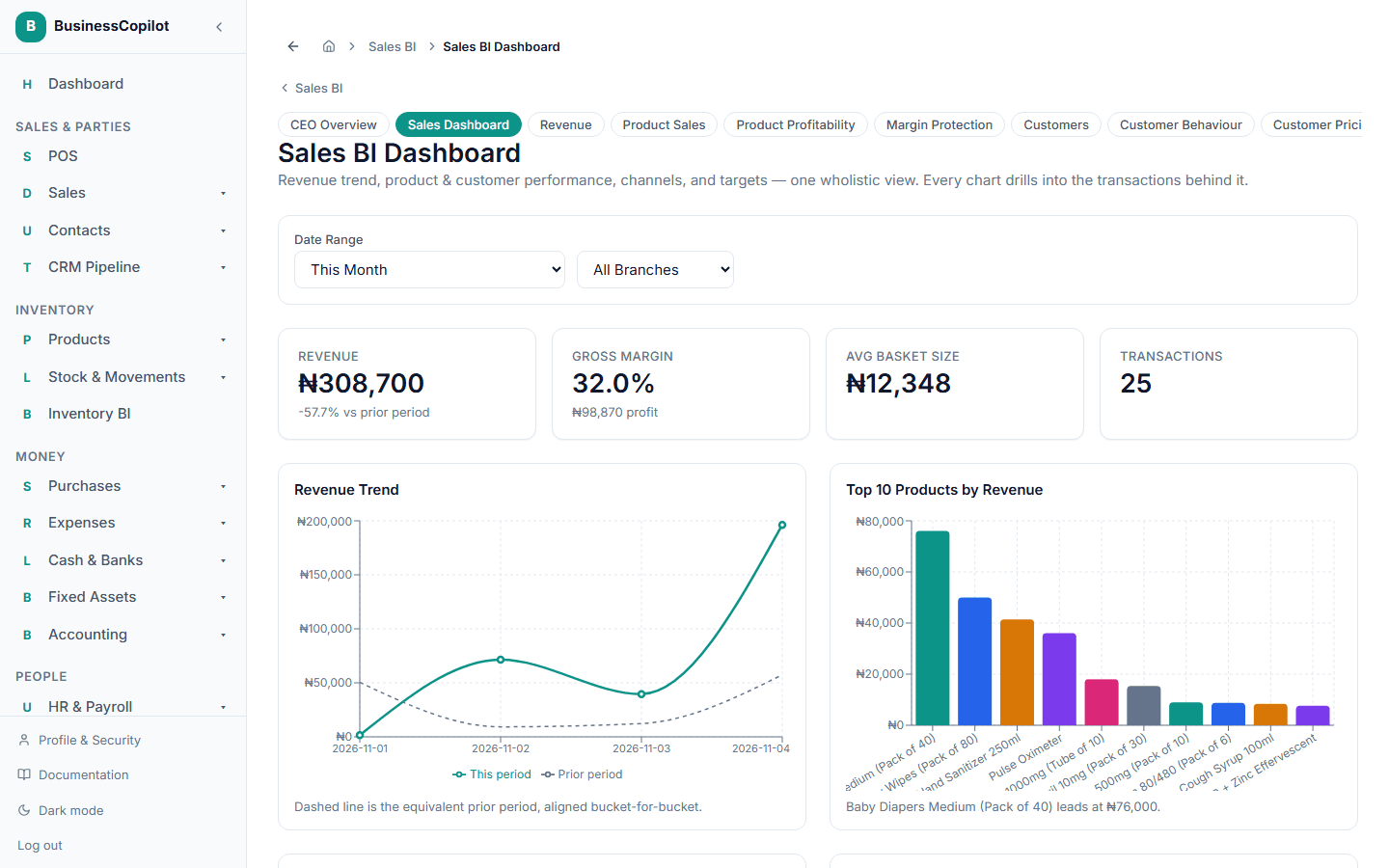
The related-reports row
Every report in a family shows a row of buttons across the top listing the other reports in that family. The report you are on is highlighted.
- Select any button to open that report. You stay in the same family, so you never need the sidebar to switch reports.
- On a narrow screen the row scrolls sideways to show the rest.
Families and what they contain:
- Sales BI — CEO Overview, Sales Dashboard, Revenue, Product Sales, Product Profitability, Margin Protection, Customers, Customer Behaviour, Customer Pricing, Credit Sales, Branch, Salesperson, Payment, Market, Transaction Risk, Lost Sales, and Forecast.
- Accounting reports — Overview, Profit & Loss, Balance Sheet, Cash Flow, Trial Balance, General Ledger, Receivables, Payables, Customer Statements, and Supplier Statements.
- HR analytics — HR Dashboard, KPIs, Appraisals, Warnings & Discipline, Succession Planning, Training & Development, and Daily Task Checklists.
Back links
Whenever a report opens from another report, a Back link names the page you came from, for example Back to Revenue or ‹ Back to Profit & Loss. Select it to return there with the same date range and filters.
This happens in three places:
- Drill-downs. Opening the transactions behind a figure shows Back to the report it came from. See Drilling into a number.
- Account links in the accounting reports. On Profit & Loss, Balance Sheet, Cash Flow, and Trial Balance, selecting an account opens the General Ledger for that account with a back link to the report. From Receivables and Payables, selecting a party opens its statement with a back link.
- Inventory BI. The Total Inventory Value and Gross Profit figures open Inventory Valuation and Profit & Loss, and both show Back to Inventory BI.
Using the phone app
The phone app works the same way with a few differences:
- Tapping a related report in the row replaces the current screen. Pressing the device's back button takes you to the page before the family, not to each report you looked at.
- In the accounting reports, the row switches sections on the same screen.
- Where a back link appears in the phone app, it returns you to the report that opened it. It only appears when you arrived from that report.