Chronic Disease Management
How to track a patient's long-term conditions, record structured review visits, monitor readings against clinical targets, and set up custom condition configurations in the Clinical Suite.
The Chronic Disease Management module gives you a structured, per-patient toolkit for managing ongoing conditions — hypertension, diabetes, asthma, heart failure, and more. It tracks readings against clinical targets, flags conditions as controlled or uncontrolled, and links every visit to your existing patient record so nothing lives in a separate silo.
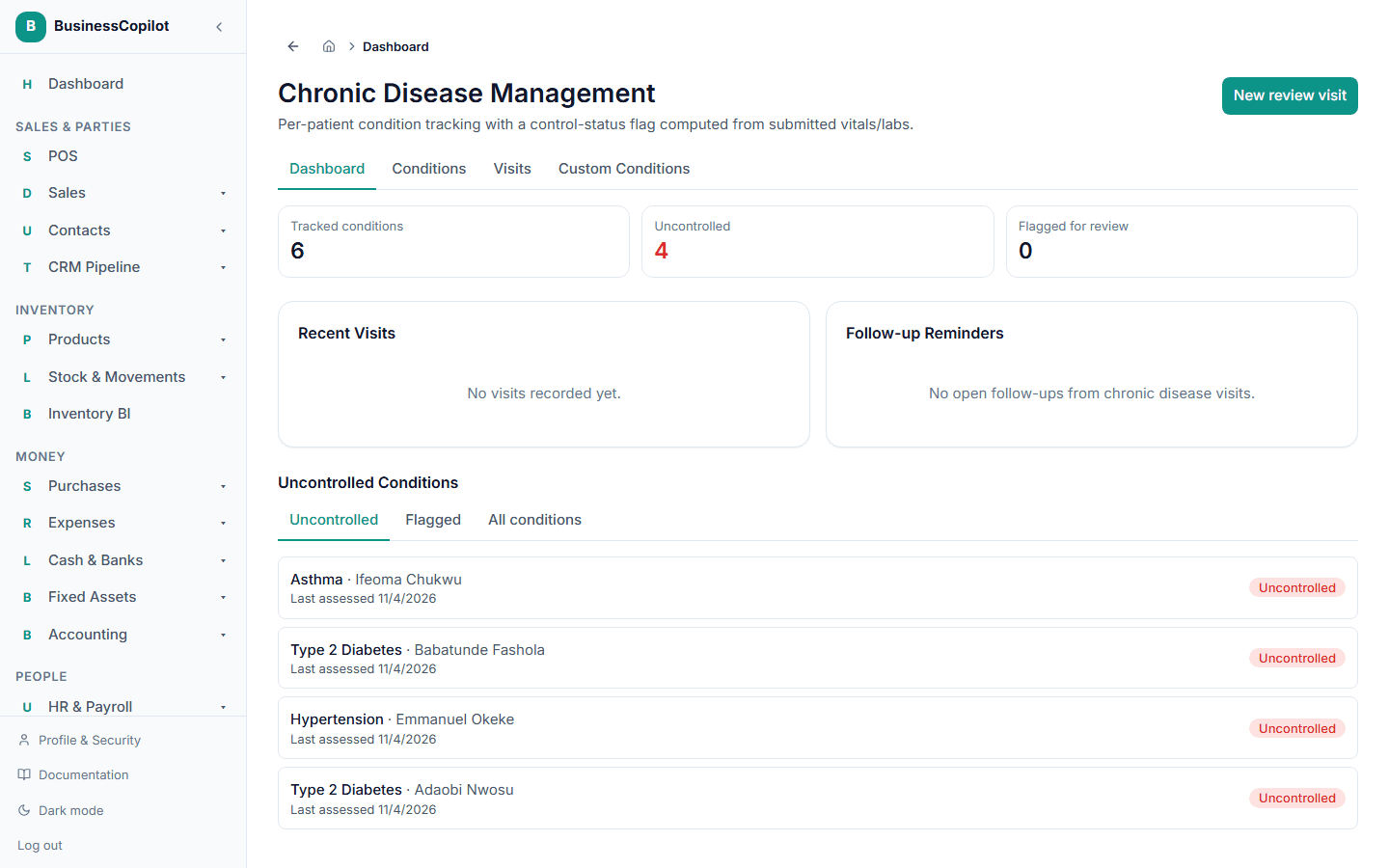
Opening Chronic Disease Management
Go to Clinical Suite → Chronic Disease (Web and Desktop sidebar), or tap Chronic Disease in the mobile Clinical Suite sub-nav.
The main page shows a workspace dashboard: uncontrolled conditions across all patients, recent visits, upcoming follow-ups, and overall stats.
To manage a specific patient's conditions, open their patient record and select the Chronic Disease tab.
The nine built-in conditions
The following nine conditions are pre-configured with built-in clinical thresholds and evaluation rules (Nigeria Standard Treatment Guideline–aligned, as a starting point — they have not been independently validated and should be reviewed before relying on them for prescribing decisions):
| Condition | Key metrics monitored |
|---|---|
| Hypertension | Systolic BP, Diastolic BP |
| Type 2 Diabetes | Fasting blood glucose, HbA1c |
| Asthma | Peak flow rate, symptom frequency, rescue inhaler use |
| Heart Failure | Ejection fraction, BNP/NT-proBNP, 6-minute walk distance |
| COPD | FEV1, FEV1/FVC ratio, CAT score |
| CKD (Chronic Kidney Disease) | eGFR, serum creatinine, urine ACR |
| Dyslipidaemia | Total cholesterol, LDL, HDL, triglycerides |
| Epilepsy | Seizure frequency |
| Hypothyroidism | TSH, Free T4 |
Registering a condition for a patient
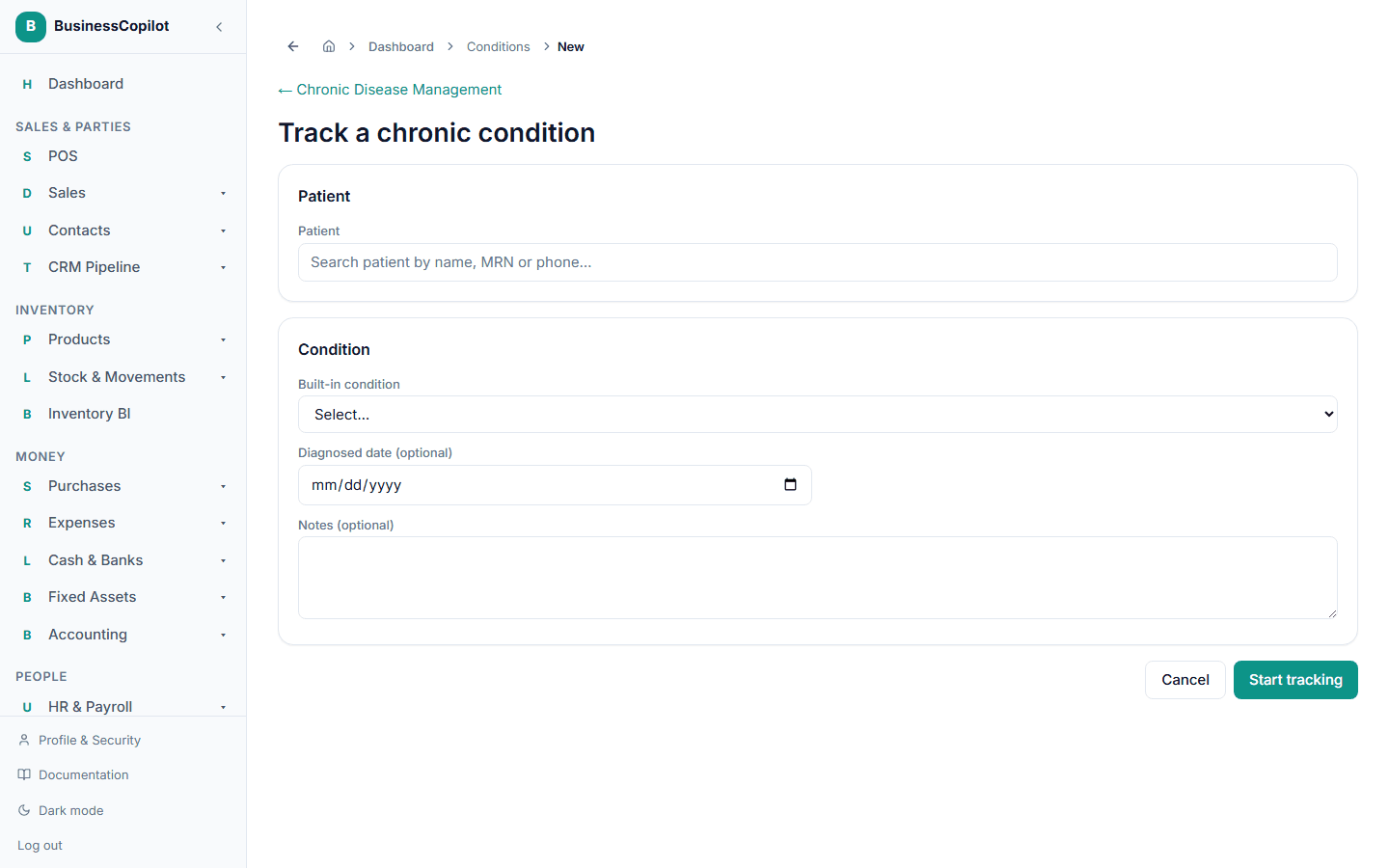
On the patient's Chronic Disease tab, select Register condition:
- Choose the condition from the list (or a custom condition — see below).
- Set the status (Active, Managed).
- Enter the diagnosed date and optionally the diagnosing provider.
- Save.
Once registered, the condition appears on the patient's condition list with its current control status.
Logging a reading
To log a single reading outside of a visit:
- On the patient's Chronic Disease tab, select the condition.
- Select Log reading.
- Enter the metric values (e.g. systolic 148, diastolic 92 for hypertension).
- Add any notes, then save.
The system evaluates the reading against the built-in thresholds and updates the condition's control status (Controlled / Uncontrolled). An uncontrolled condition triggers an alert on the workspace feed.
Recording a structured visit
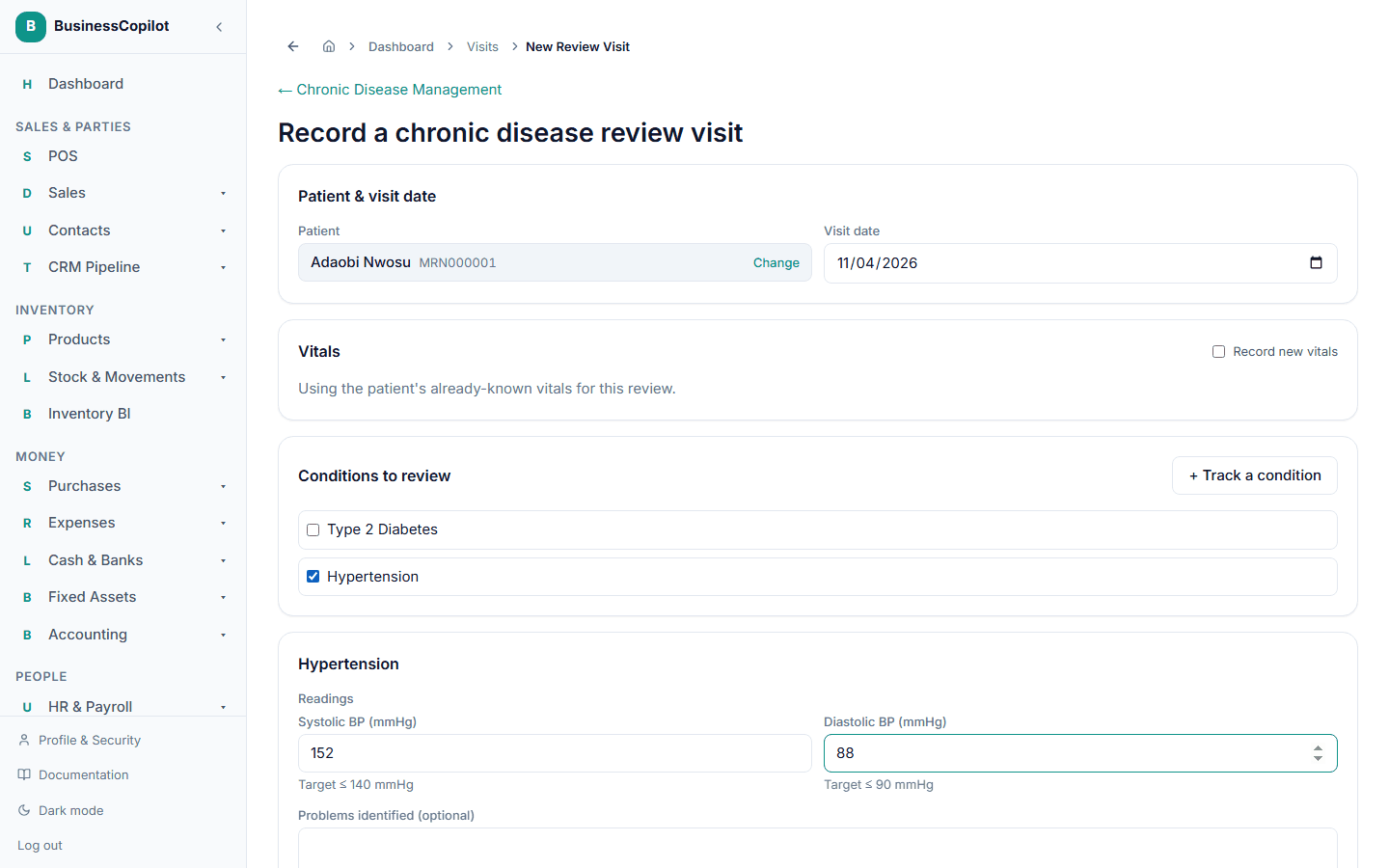
A visit is a more complete review session that can cover multiple conditions at once. On the patient's Chronic Disease tab, select Record visit to open the visit wizard:
Step 1 — Select conditions to review
Pick one or more conditions to review in this visit. You don't have to review all conditions at every visit.
Step 2 — Vital signs
Log the patient's vital signs. These create real entries on the patient's vitals history (they appear on the Vitals tab too, not just here).
Step 3 — Per-condition metrics
For each condition you selected, enter the relevant metric values. The system evaluates each one immediately and shows whether the reading is within target.
Step 4 — Identified problems and interventions
If the visit reveals a clinical problem requiring follow-up action, log it here. Select Create intervention to link it to a real Clinical Intervention record.
Step 5 — Follow-up
Schedule a follow-up task for this patient. This creates a real Follow-up task linked to this visit.
Step 6 — Overall notes
Any final observations or instructions from the visit — free text.
Select Submit visit to save. All the metric entries, interventions, and follow-up tasks created during the visit are committed at once.
Condition trends
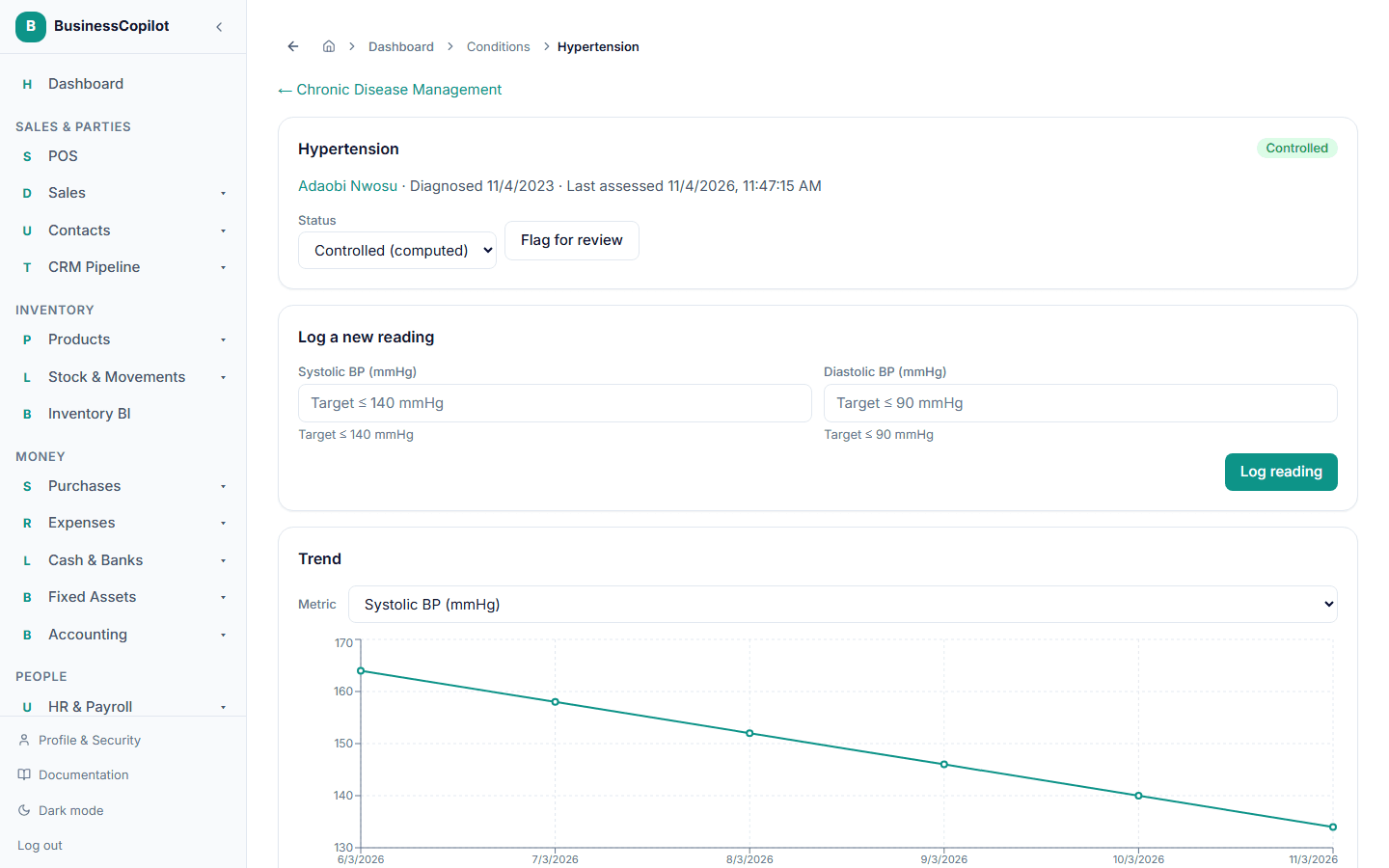
Select any condition from the patient's list to see its trend view — a chart of all readings over time (Web and Desktop show a line chart; mobile shows a readings list). Each data point shows the value and whether it was in target, making it easy to see whether the patient's control is improving or deteriorating.
Auto-detection from medications
When a new medication is added to a patient's record, the system automatically checks whether the drug class suggests an unregistered chronic condition. For example, if a patient has metformin added to their medications but no diabetes registered, the system suggests adding Type 2 Diabetes to their condition list.
Auto-detection covers the nine built-in conditions only. Custom conditions are never auto-suggested.
Custom condition configurations
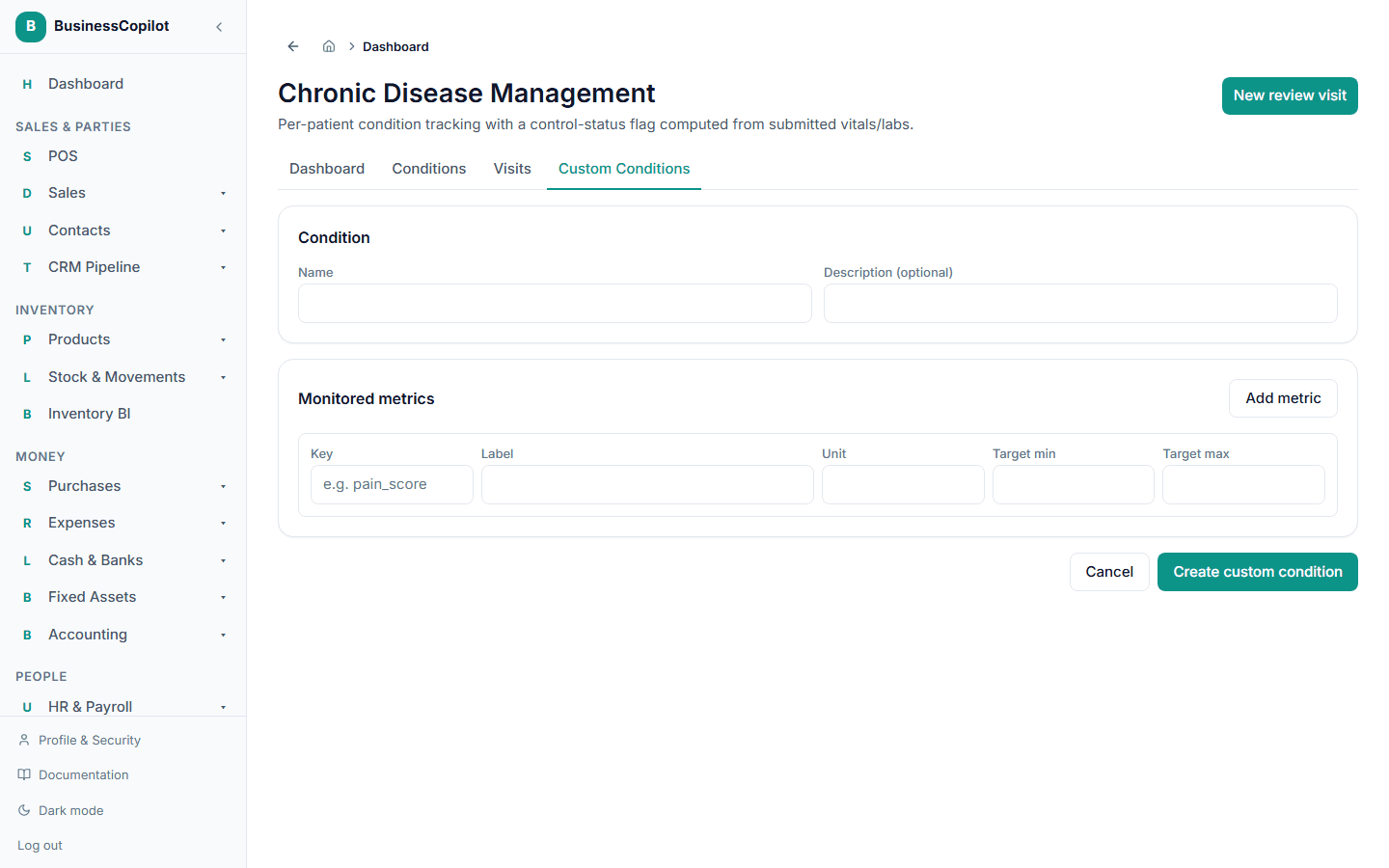
Your workspace can add its own conditions beyond the nine built-in ones. Go to Chronic Disease → Custom conditions (a tab on the Chronic Disease page) and select New configuration:
- Give the condition a name and description.
- Add the metrics you want to track for it: each metric has a name, unit (e.g. mg/dL), and target range (minimum and maximum).
Custom conditions follow the same visit/reading/trend workflow as built-in ones. The control-status engine evaluates them against the target ranges you define.
Visits tab on the patient record
The patient's Visits tab shows all visits — both chronic disease visits from this module and clinical encounters from the Clinical Encounters module — merged into one timeline. You can see the patient's full visit history across both modules in one place.
Permissions
The Chronic Disease permission line controls access. View lets you read conditions, readings, and visit records; Create registers a condition and records visits; Edit updates condition status, readings, and custom configurations; Delete removes a record to the Recycle Bin.
Related
AI-Assisted Lab Interpretations
How to submit lab results for AI interpretation, review and approve findings, escalate urgent cases, and export lab interpretation reports in the Clinical Suite.
CareSync: AI-Assisted Diagnostic Case Management
How CareSync works — opening a case, getting an AI diagnostic result, reviewing and acting on it, linking lab interpretations, and managing follow-up in the Clinical Suite.