Logging vitals
Record a patient's blood pressure, heart rate, temperature, weight and height, and read the history.
Vitals are kept as a history: each time you log them, a new line is added with the date and time. Nothing is overwritten, so you can see how a patient's numbers change.
Logging a set of vitals
- Open the patient's record and select the Vitals tab.
- Under Log Vitals, fill in whichever you measured:
- BP Systolic and BP Diastolic — the top and bottom blood pressure numbers (for example 120 and 80).
- Heart Rate — beats per minute.
- Temp °C — temperature in degrees Celsius.
- Weight kg and Height cm.
- Select Log Vitals.
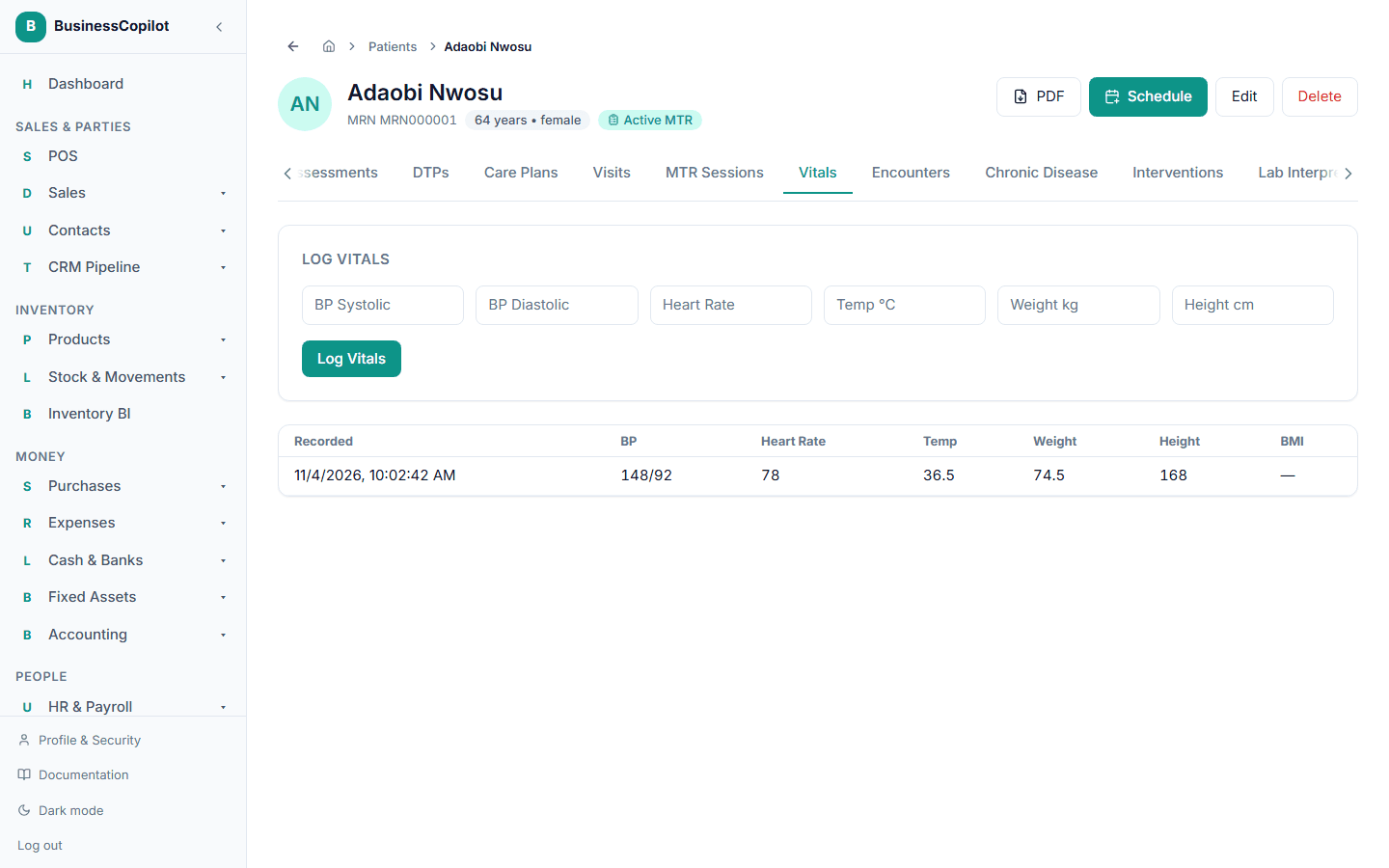
You don't have to fill in every box — record only what you measured. You need the Edit permission on Patients to log vitals.
BMI is worked out for you
If you enter both Weight kg and Height cm, BusinessCopilot calculates the BMI and shows it in the history. You never type it.
Reading the history
Below the form, a table lists every entry, newest first:
| Column | Meaning |
|---|---|
| Recorded | When it was logged. |
| BP | Shown as systolic/diastolic, e.g. 120/80. |
| Heart Rate | Beats per minute. |
| Temp | °C. |
| Weight | kg. |
| Height | cm. |
| BMI | Worked out from weight and height. |
A dash (—) means that value wasn't recorded on that entry. With no entries at all it says "No vitals logged yet."
Where else vitals show up
- On the patient list, the Vitals column shows the latest blood pressure, heart rate and BMI.
- On the patient's Dashboard, Patient Summary → Latest vitals shows the most recent set.