Clinical Calculators
How to use BusinessCopilot's built-in clinical calculators — renal, dosing, risk scoring, lab interpretation, and more — from within the Clinical Suite.
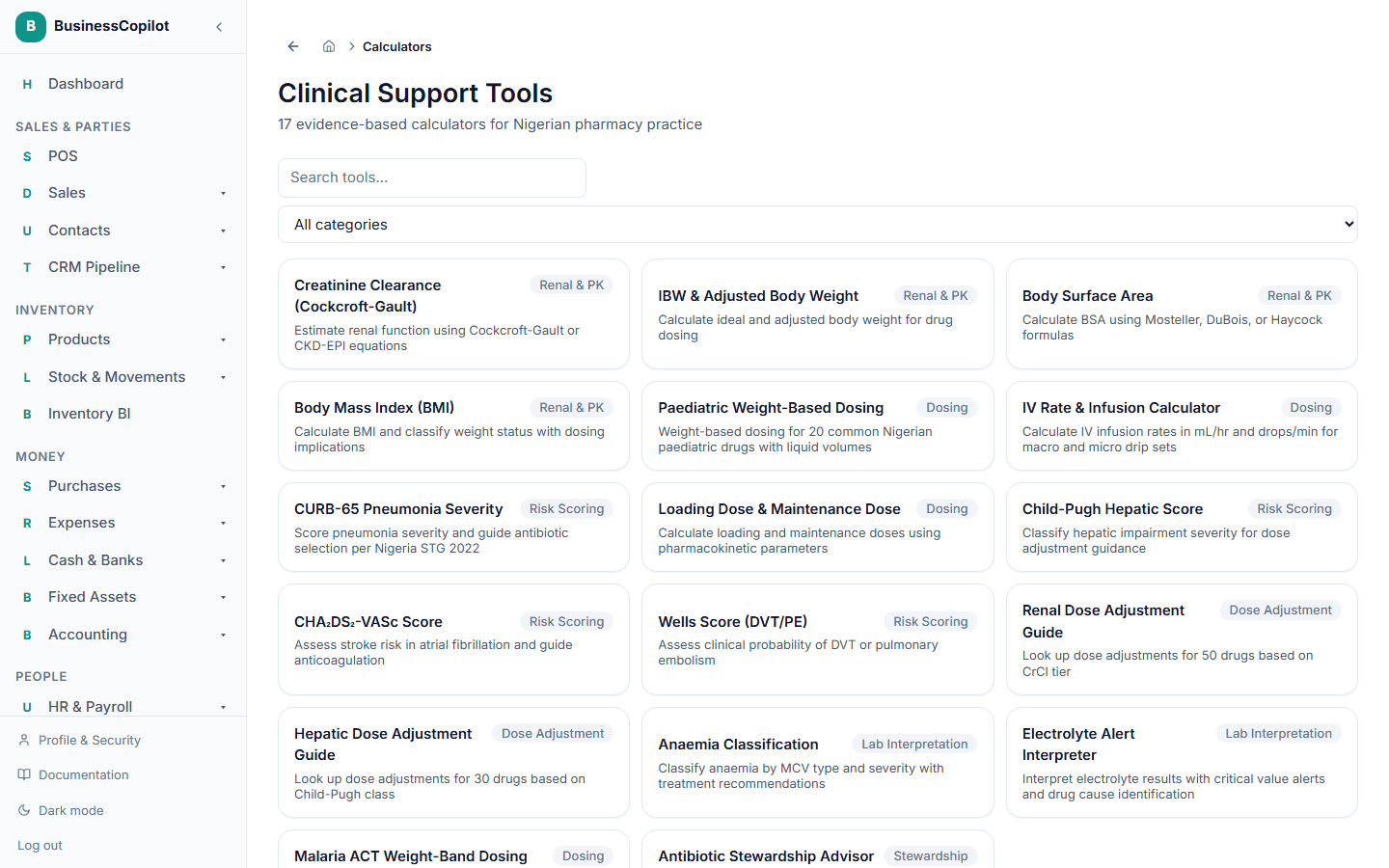
The Clinical Support Tools section gives you 17 purpose-built clinical calculators that run entirely inside BusinessCopilot. There is no switching to a separate app or website. Every calculation can be saved to your history, optionally linked to a patient, and interpreted by AI.
Finding a calculator
Go to Clinical Suite → Calculators (Web and Desktop sidebar), or tap the Calculators chip on the mobile app's Clinical Suite sub-nav.
The index page lists all 17 tools. Use the search box at the top to filter by name, or browse by category:
| Category | Tools |
|---|---|
| Renal / PK | Creatinine Clearance (Cockcroft-Gault and CKD-EPI), Ideal & Adjusted Body Weight, Body Surface Area, BMI |
| Dosing | Paediatric weight-based dosing, IV rate & infusion, Loading & maintenance dose, Malaria ACT weight-band dosing |
| Risk scoring | CURB-65 (pneumonia severity), Child-Pugh (liver disease), CHA₂DS₂-VASc (stroke risk), Wells score (DVT and PE — both modes on one page) |
| Dose adjustment | Renal dose adjustment (drug lookup), Hepatic dose adjustment (drug lookup) |
| Lab interpretation | Anaemia classification, Electrolyte critical-value panel |
| Stewardship | Antibiotic stewardship advisor |
Using a calculator
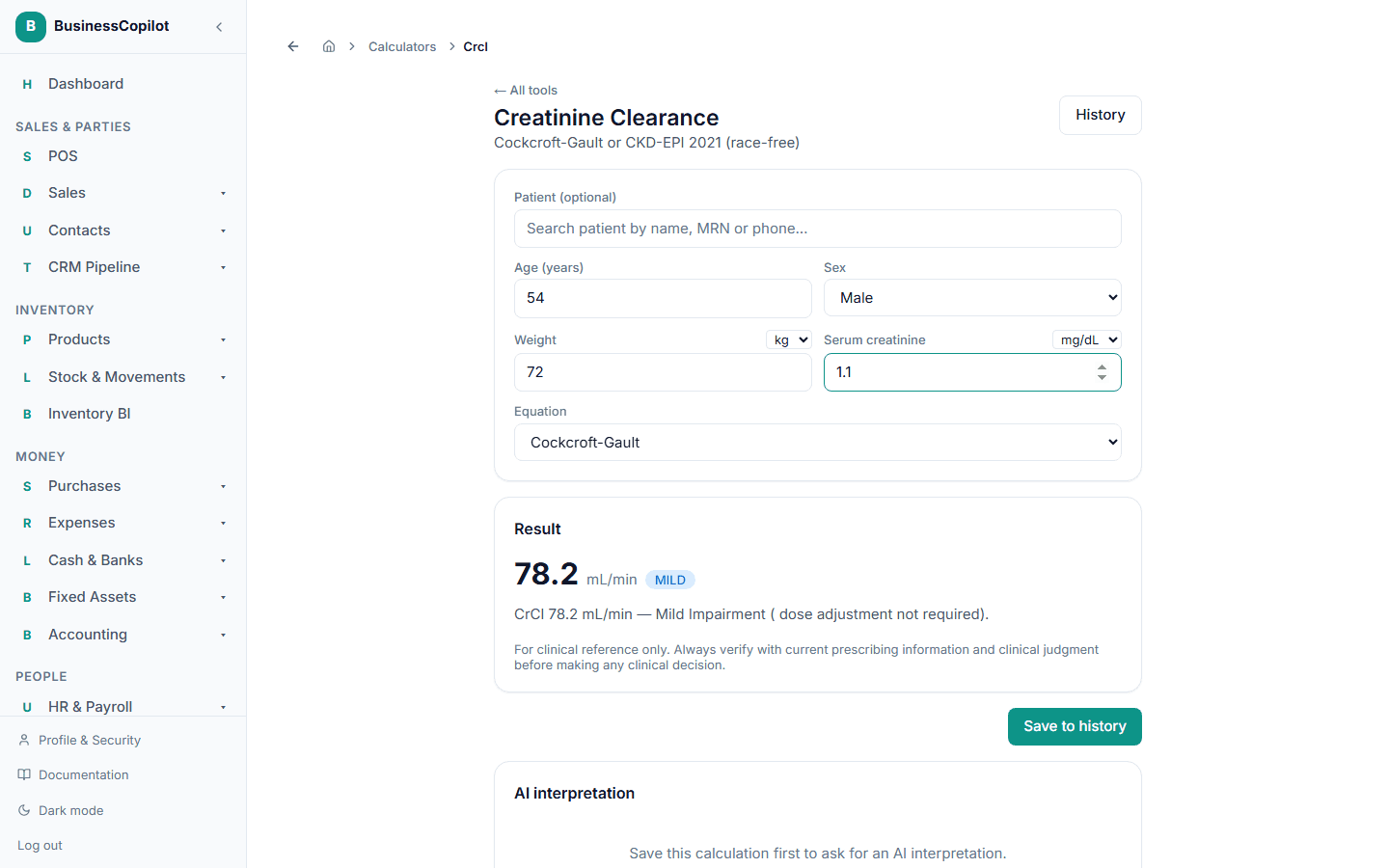
- Select the tool you want from the index or from search results.
- Fill in the inputs on the left side of the screen. Required fields are marked.
- The result appears instantly on the right as you type — no submit button needed for most tools.
- Read the result card: it shows the computed value, a classification (normal / mild / moderate / severe, etc.), and any clinical guidance for that tier.
Attaching to a patient
You can optionally link a calculation to a patient in your records. Select the patient picker near the top of the calculator page and search for the patient by name or MRN. The calculation then appears on that patient's own history as well as yours.
Attaching to a patient is optional — quick one-off calculations do not need a patient link.
Dose adjustment look-up tools
For Renal and Hepatic Dose Adjustment, type a drug name in the search box. The system looks up that drug in its built-in dataset and returns the recommended adjustment for the patient's current function tier. Select the appropriate tier from the dropdown (e.g. GFR range for renal, Child-Pugh score tier for hepatic) before reading the recommendation.
Wells score — PE and DVT mode
The Wells score calculator has a PE / DVT toggle at the top. Switch it before you start filling in the score, as the criteria and probability thresholds differ between the two modes.
Electrolyte panel
The Electrolyte panel lets you add multiple electrolytes at once — select Add electrolyte, choose the analyte, enter the value and unit, and repeat. The panel shows the severity of each individual result, plus an overall urgency level (Normal, Caution, Urgent, Critical) across all the values you entered.
Saving a calculation
When you're done, select Save to history. The calculation (inputs, result, and the time) is stored in your personal history log for this tool.
A "Blocked" result — for example, a paediatric weight below the safe threshold for a malaria dosing regimen — cannot be saved. Resolve the input issue first.
The history is yours, not branch-shared. A calculation you save is only visible to you (and to anyone with admin access to your account).
Calculation history
Select History (a drawer button near the top of each calculator page) to see your past saves for that tool. Each entry shows the inputs, the result, and the date. Select any entry to expand it and see the full detail.
You can delete individual history entries. Deletion is permanent — clinical calculations are a personal scratch log, not a recoverable business record (unlike, say, clinical notes, which go to the Recycle Bin).
AI interpretation
After a result appears, an Interpret with AI button is available. Select it to ask the system's clinical AI to explain what the result means for this specific patient and suggest relevant next steps.
Before the AI call runs, you'll see a preview of exactly what is sent — the tool name, your inputs, and the result. No patient name, MRN, date of birth or contact detail is ever included.
AI interpretation requires the Clinical AI Usage add-on and consumes one token from your workspace's daily allowance. See Clinical AI: enabling it and managing tokens.
The interpretation, once generated, is saved with the calculation in your history.
📸 Screenshot needed: an AI interpretation panel open beneath a BMI result card.
Clinical disclaimer
All results are for clinical decision support only. They do not replace professional judgement or local clinical guidelines. Reference datasets (renal dosing tables, paediatric drug doses, malaria weight-band dosing, antibiotic guidance) are aligned with Nigerian STG and NAFDAC guidance as of the time this system was built — they have not been independently validated, and you should treat them as a starting point, not a final authority.
Permissions
The Clinical Tools permission line controls access:
- View — opens the index page and runs calculations. Results are not saved without Create.
- Create — saves calculations to history and triggers AI interpretation.
- Delete — removes individual history entries.
Related
CareSync: AI-Assisted Diagnostic Case Management
How CareSync works — opening a case, getting an AI diagnostic result, reviewing and acting on it, linking lab interpretations, and managing follow-up in the Clinical Suite.
The Clinical Suite on each platform
Everything is available on Web, the Desktop app and the mobile app — here's how the layout differs on each.