Your own appointment and follow-up types
Add your own kinds of appointment (with a usual length) and follow-up next to the built-in ones, rename them, and switch them off when you stop using them.
BusinessCopilot comes with a fixed set of appointment types and follow-up types. If your business does something they don't cover — wound dressing, blood pressure checks, a diabetes clinic, a delivery call-back — add your own.
You need View on Patient Engagement (Appointments) to see the list, Create to add a type, and Edit to rename or switch one off.
The built-in types
| Appointment types | Usual length |
|---|---|
| Consultation | 30 minutes |
| Medication review | 60 minutes |
| Follow-up visit | 20 minutes |
| Vaccination | 15 minutes |
| Other | 30 minutes |
| Follow-up types |
|---|
| Post-visit check, Refill request, Adherence check, Lab review, Other |
The built-in types can't be changed or removed.
Adding your own
- Go to the Types tab on any Appointments page (Web and Desktop), or the Types chip on the mobile app.
- In Appointment types, select Add appointment type (or Add follow-up type under Follow-up types).
- Type a Name — for example "Wound dressing".
- For an appointment type, set the Usual length (minutes) — for example 45. This is filled in whenever the type is picked; you can still change the length for any single booking.
- Select Add.
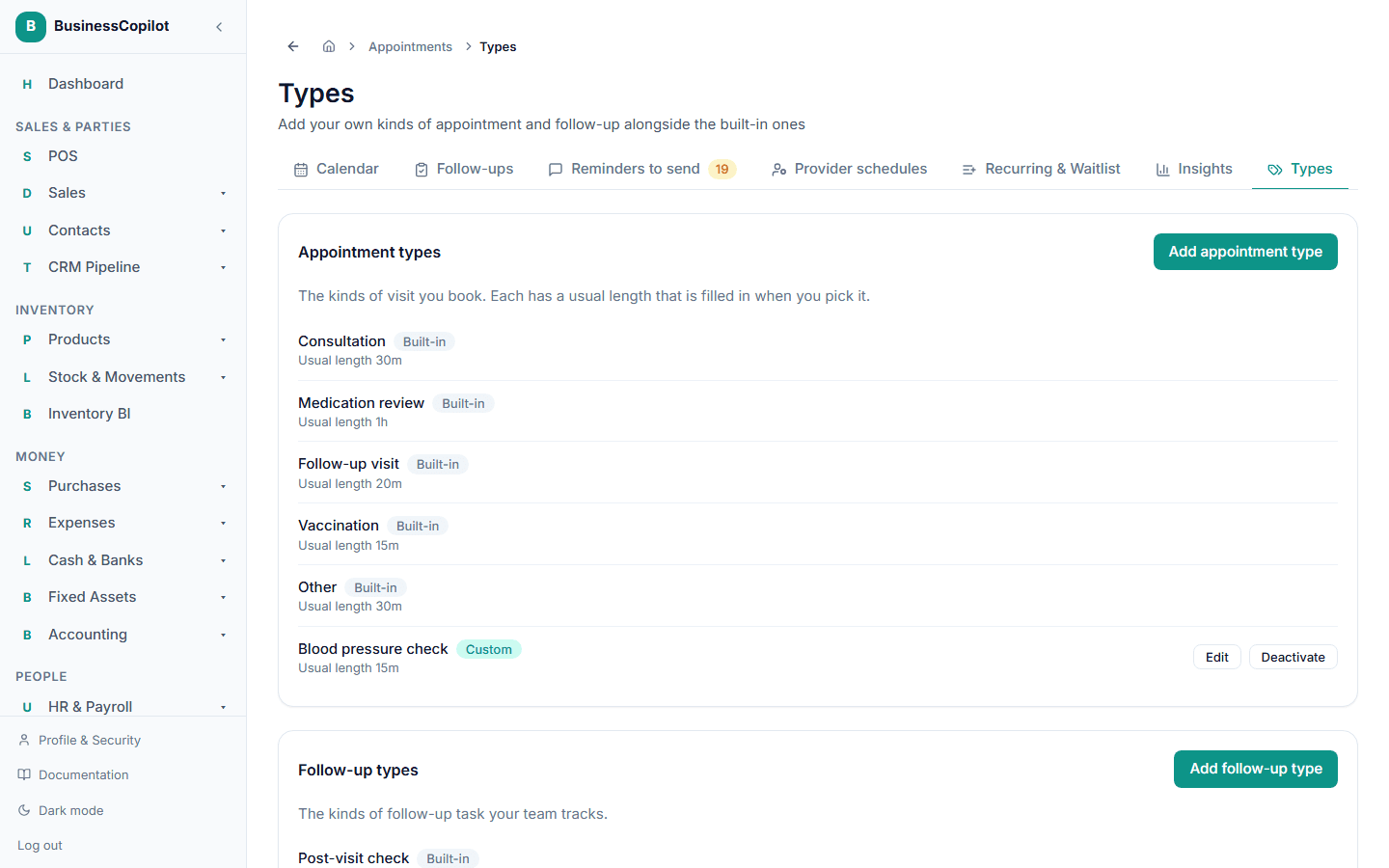
Your type now appears at the end of the Type list when you book an appointment, add a follow-up, or add someone to the waitlist, marked Custom on the Types page.
Rules for names
- 2 to 60 characters.
- It can't repeat a built-in name ("Consultation") or another of your own, in any capital letters.
- The same name may exist once as an appointment type and once as a follow-up type — they're separate lists.
- You can have up to 50 custom types of each kind.
Using a custom type
- Booking: pick it from the Type list. The length fills in from the type's usual length. It works everywhere a type is chosen — the calendar booking form, recurring appointments, the waitlist, and turning a follow-up into an appointment.
- On screen: its name is shown on the calendar, in lists, on the patient record, on the patient's confirmation page and in Insights → By appointment type.
- In messages: reminders use your name in lower case — "…your wound dressing with Ade Bello is booked for…".
- Follow-up types work the same way. (Only the built-in Refill request shows the Medication and Quantity boxes.)
Renaming
- On the Types tab, select Edit next to your type.
- Change the Name (and, for an appointment type, the Usual length).
- Select Save.
The new name shows everywhere straight away — on old appointments too, because they point at the type, not a copy of its name. Changing the usual length only affects future bookings.
Switching a type off
You can't delete a type, because appointments and follow-ups already use it. Instead, select Deactivate:
- It disappears from the pick-lists, so nobody books it by mistake.
- Everything that already uses it is unaffected — you can still open, reschedule and complete those appointments, and a recurring series that uses it carries on.
- It stays on the Types tab, marked Inactive, and Reactivate brings it back.
Good to know
- Types are per workspace. Other businesses never see yours.
- Nothing changes for your existing appointments when you add types. They keep their original type.
- If someone deactivates a type while you have its booking form open, you'll get "appointment type … is not valid" when you save. Pick another type.