Clinical AI — Enabling It and Managing Tokens
How to turn on Clinical AI features for your workspace, understand the token system, buy top-up tokens, and control daily usage in the Clinical Suite.
Several features across the Clinical Suite are powered by AI — clinical reasoning in encounters, patient history summaries, follow-up progress summaries, counselling points, AI-assisted lab interpretation, MTR session summaries, drug counselling from monographs, calculator interpretation, and CareSync diagnostic reasoning. This page explains how to enable those features and how token consumption works.
What you need
Two things must be true before any Clinical AI feature works:
- The Clinical AI Usage add-on is active on your workspace's subscription.
- Clinical AI assistance is switched on in your workspace settings.
Both are required. Having the add-on but switching AI off means the AI features don't run. Switching AI on without the add-on means nothing runs either — you'll see a message asking you to activate the add-on first.
Activating the add-on
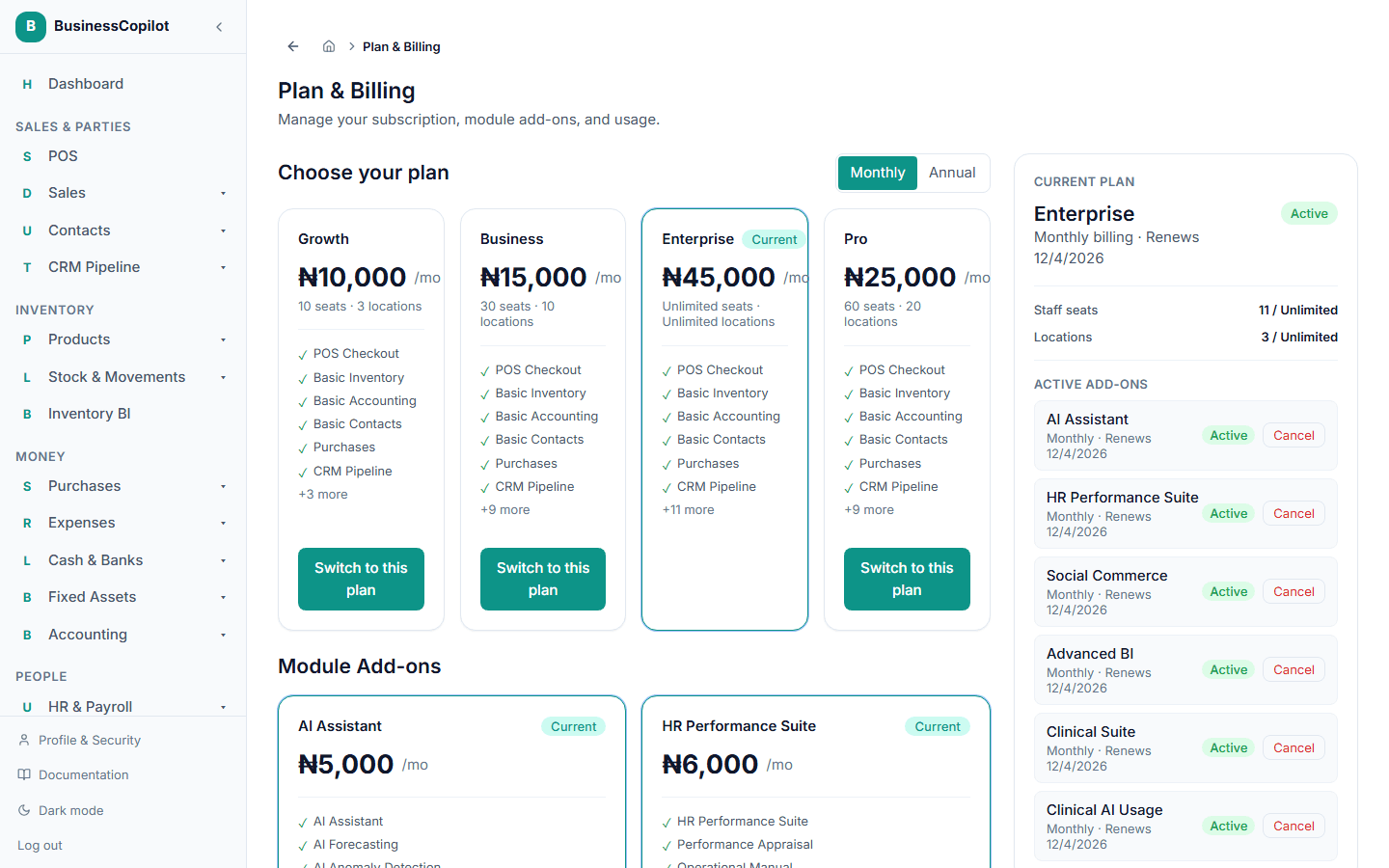
Go to Settings → Subscription (or Plan & Billing from the top navigation on Web). Find the Clinical AI Usage add-on in the add-ons list and select Activate.
You'll be taken through the payment flow. Once payment is confirmed, the add-on is active immediately.
Switching AI on
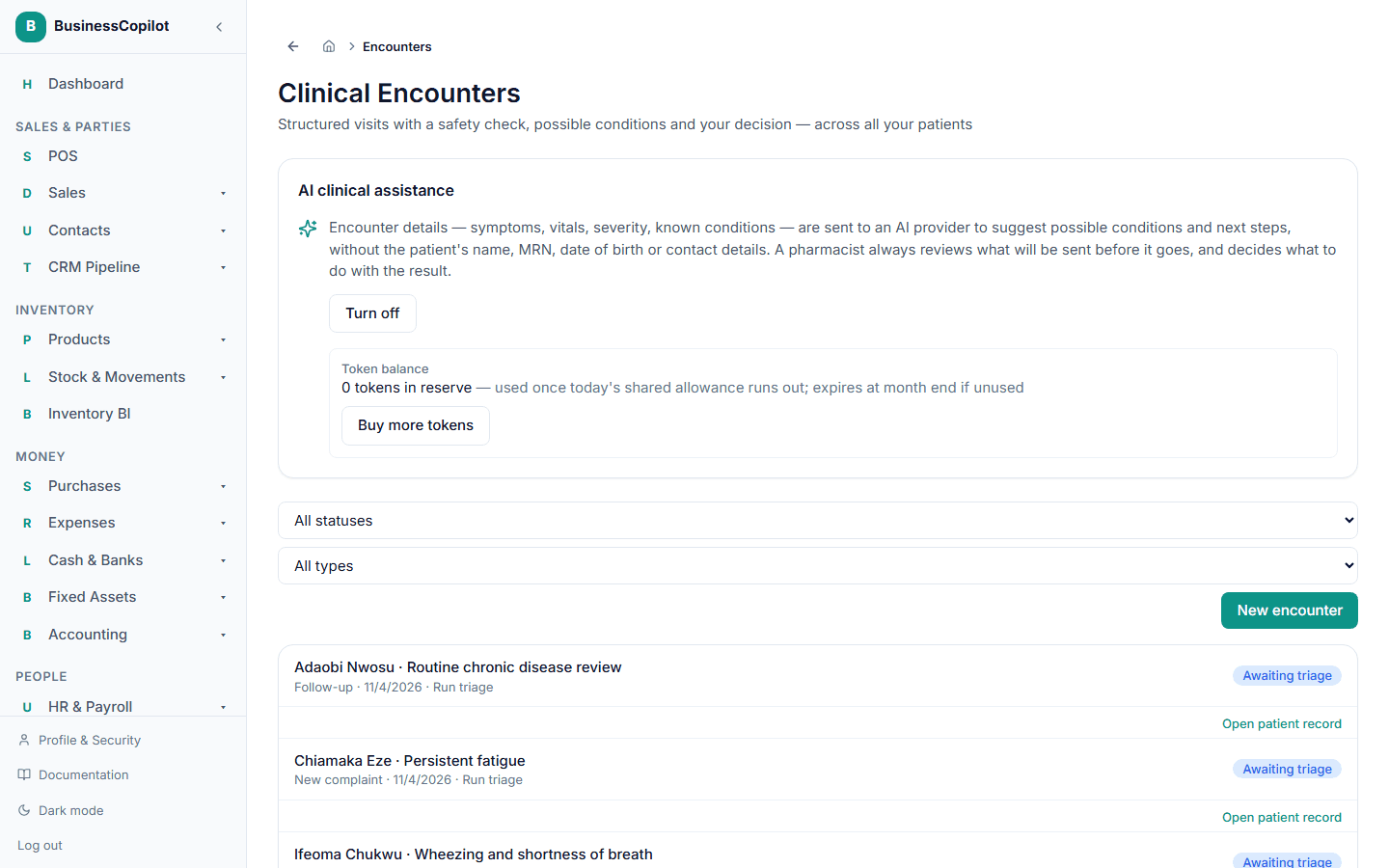
Once the add-on is active, go to Clinical Suite → AI Settings (or Settings → Clinical AI on Web and Desktop). Find the Clinical AI assistance toggle and turn it on.
Only Owners and Managers can change this setting.
How the token system works
Clinical AI usage is metered by tokens. Each time one of the Clinical AI features runs (regardless of which feature), it consumes one token from a shared daily pool.
Two-tier system:
- Daily allowance — your plan includes a fixed number of AI tokens per day. This resets to its full amount every day at midnight. Unused daily tokens do not roll over.
- Purchased token balance — when your daily allowance runs out mid-day, the system automatically draws from your purchased token balance instead.
Purchased tokens roll over day to day but expire at the end of the calendar month — they don't accumulate indefinitely.
The AI Settings card (or the Subscription page) shows:
- Today's remaining daily allowance
- Your current purchased token balance
- The expiry date for your purchased tokens
Buying more tokens
When your daily allowance is exhausted, select Buy tokens from the AI Settings card or the Subscription page. You'll see the price per bundle and how many tokens you get. Select the quantity, proceed to payment, and the tokens are added to your balance immediately on confirmation.
📸 Screenshot needed: the buy-tokens panel showing bundle options and a checkout button.
What happens when tokens run out
If both the daily allowance and the purchased balance are zero, any attempt to run a Clinical AI feature will show a clear message explaining that the daily allowance is exhausted and offering a link to buy more tokens. The rest of the Clinical Suite (appointments, notes, encounters, etc.) is unaffected — only the AI features are paused.
Which features use tokens
Every Clinical AI feature consumes one token per run, regardless of feature:
| Feature | Where it appears | Tokens per call |
|---|---|---|
| Clinical Reasoning + Management Considerations | Clinical Encounter, assessment step | 1 |
| AI SOAP draft improvement | Clinical Encounter, sign step | 1 |
| Patient History Summary | Patient Dashboard tab | 1 |
| Follow-up Progress Summary | Clinical Encounter (follow-up type), assessment step | 1 |
| Follow-up Completion Note Draft | Follow-up task, close dialog | 1 |
| Counselling Points | Clinical Encounter, sign step | 1 |
| AI Interpretation (Calculators) | Each calculator, after result | 1 |
| MTR AI Summary | MTR session, completion screen | 1 |
| Drug Counselling (monograph-based) | Drug Information Center, drug detail page | 1 |
| Drug Interaction AI Second Opinion | Drug Interaction Checker | 1 |
| Lab Interpretation AI | Lab Interpretations module | 1 |
| CareSync AI Diagnostic Reasoning | CareSync case | 1 |
What is sent to the AI
No feature ever sends a patient's name, MRN, date of birth, phone number, email address, or any other identity detail to the AI. Before every AI call, the system redacts identifiers from the data and assembles a de-identified bundle of clinical facts only — symptoms, vitals, conditions, medication names, etc.
For the calculator and lab interpretation features, you can preview exactly what will be sent before the AI call runs.
Data privacy
All AI calls are routed through BusinessCopilot's own AI Gateway. No data is stored by the AI provider for training purposes. The AI gateway applies the same security and privacy standards as every other part of the platform.
Permissions
Only Owners and Managers can turn the Clinical AI toggle on or off or purchase token top-ups. Any staff member with access to a relevant Clinical Suite feature can trigger an AI call (as long as the add-on is active and AI is switched on).
Related
Diagnoses
A patient's diagnoses, recorded from an encounter or directly — with how sure it is, its status, and no codes to learn.
Patient History Summary and Follow-up AI Features
How the AI-generated patient history summary, follow-up progress comparisons, completion note drafts, and counselling points work in the Clinical Suite.