Purchase order approvals
Control which purchase orders need a second person's approval before they go to your supplier, set the amounts that trigger it, and edit orders safely before they are sent.
Approvals stop large or unplanned spending from going to a supplier without a second person checking it. You decide which purchase orders need approval, and who can approve them.
The three ways an order gets approved
- Always — the Submit for Approval button. When someone selects Submit for Approval on a purchase order, it goes to Pending Approval, whatever its amount.
- Automatically — the approval setting. If Require approval before sending to supplier is on, any purchase order created through the quick Add Purchase shortcut goes to approval.
- Automatically — an amount threshold. If the order's total reaches a Purchase order amount threshold you have set, that order goes to approval.
Orders created through the quick Add Purchase shortcut are approved straight away unless option 2 or 3 applies. Orders you submit yourself with the button always need approval.
Step 1 — Turn the approval setting on or off
- Go to Settings → Purchases. On the phone app, go to Settings → Business → Purchases.
- Switch on Require approval before sending to supplier to make every quick-created order need approval, or switch it off to rely on the thresholds.
- Save your change.
Step 2 — Set approval thresholds
Thresholds decide when an amount needs a higher authority.
- Go to Roles & Permissions and open the Approval Thresholds tab.
- Select New Approval Threshold.
- Choose the type. For purchases, use:
- Purchase order amount — orders whose total reaches this value need approval.
- Purchase receipt amount — goods receipts above this value need approval.
- Enter the value (for example
500000). - Choose the approver role — the role allowed to approve anything above this value.
- Add a short description so the team knows what the rule is for.
- Save.
To change a threshold later, select it and edit it in place. To remove one, select Delete and confirm.
If you have no threshold set and the approval setting is off, nothing needs approval, so orders are approved as soon as they are submitted.
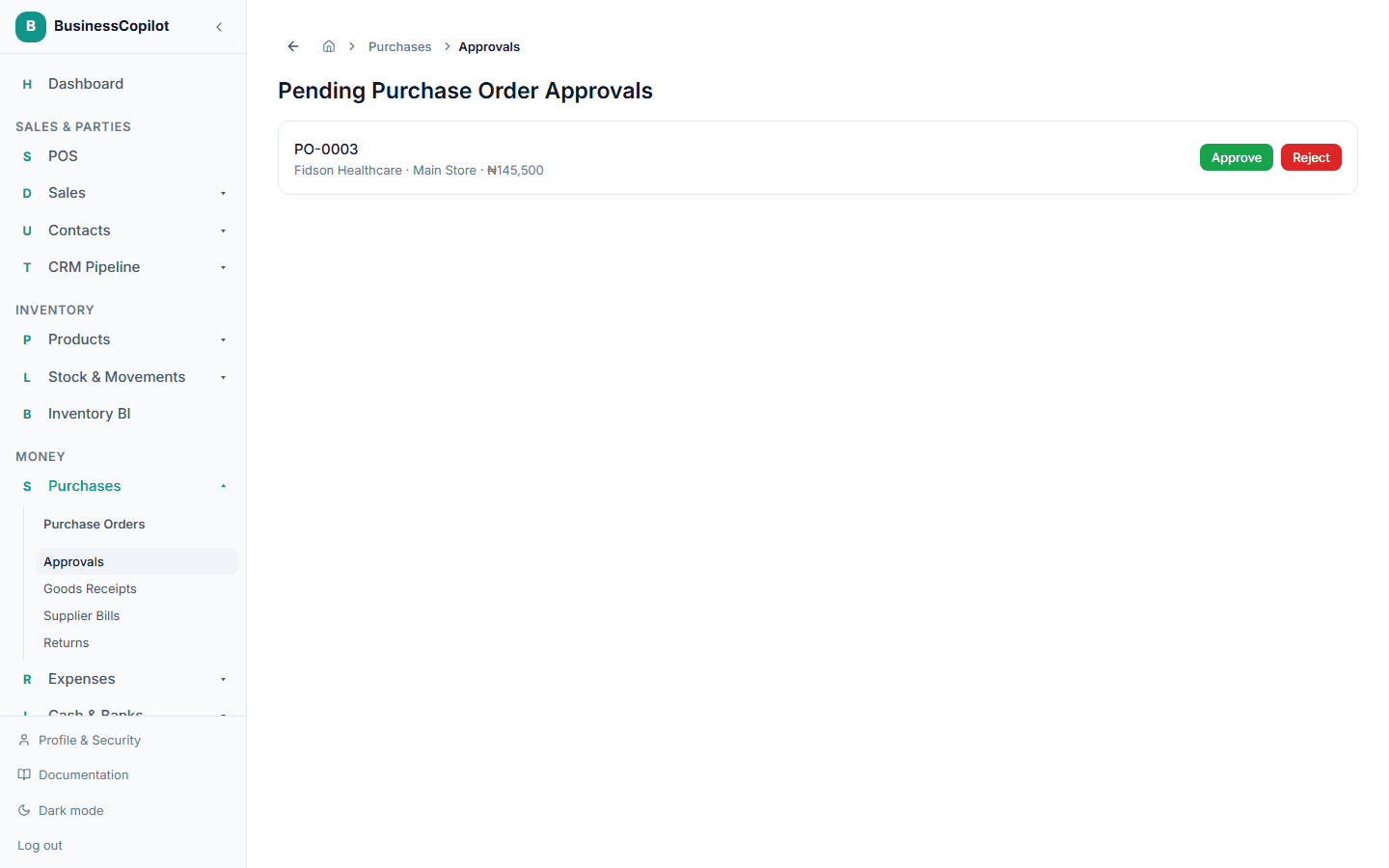
Step 3 — Approve or reject an order
- Open the purchase order in Pending Approval.
- Check the supplier, the lines, and the total.
- Select Approve to release it to the supplier, or Reject to send it back.
Only someone with the approver role for that threshold can approve it. Everyone else sees the order as pending. Pending orders also appear as alerts so they don't get missed.
Editing a purchase order before it is sent
You can change the lines of a purchase order only while it is a Draft or a Requisition. Once it has been submitted, or approved, its lines are locked.
- Open the draft or requisition.
- Select Edit Lines.
- Add, change, or remove lines, then save. The new list replaces the old lines in one step, so the order is never left half-edited.
If you need to change an order that is already pending or approved, reject it first (if you are the approver) or ask the person who submitted it.
Tips
- Start with one threshold for purchase orders, then adjust the amount once you've seen how often orders are caught.
- Use the description field on each threshold. It's the first thing a new approver reads.
- If an order is stuck in Pending Approval, check the approver role — the person assigned may not be the one you expected.