Processing a return
Handle a customer returning or exchanging something they bought.
Use Sale Returns when a customer brings something back.
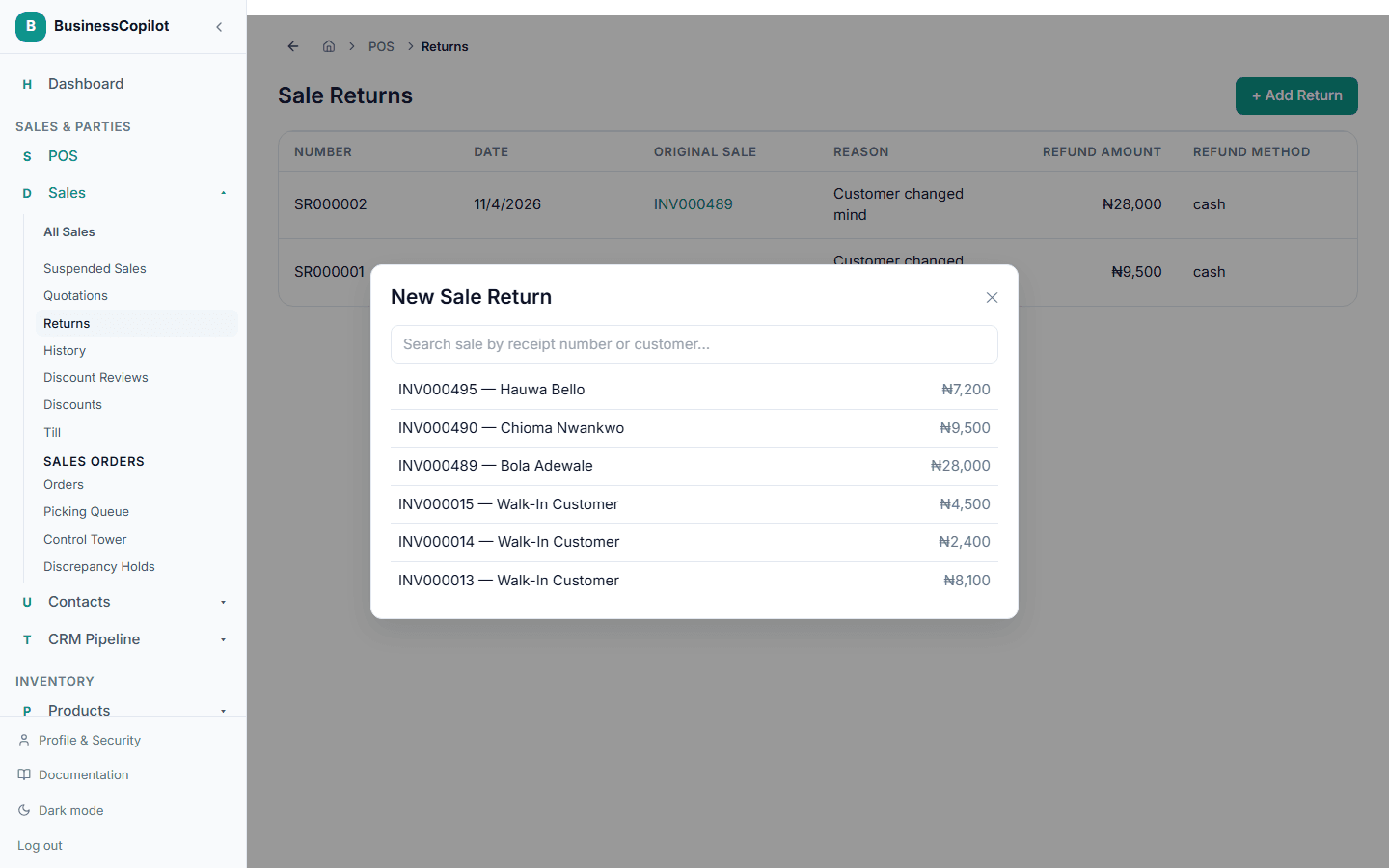
- From the Sales Menu, select Returns.
- Select + Add Return.
- Search for the original sale by receipt number or customer name and select it.
- For each item being returned, enter the return quantity — you can see how many were sold and how many have already been returned on that sale.
- Enter a Reason for the return.
- Choose a Refund method — Cash, Card, or Store credit.
- Select Process Return.
The returned quantity goes back into stock at the branch the sale was made from, and the return is logged against the original sale.
Related
- Understanding stock levels across branches — a return adds the item back into stock
- Viewing your sales history and receipts
- Purchase returns — for returning something you bought from a supplier, not a customer return