Patient History Summary and Follow-up AI Features
How the AI-generated patient history summary, follow-up progress comparisons, completion note drafts, and counselling points work in the Clinical Suite.
Beyond the Clinical Encounter AI panel, the Clinical Suite includes several patient-level AI features that orient your team at the start of a consultation or help close out a follow-up task.
All of these features require the Clinical AI Usage add-on and consume one token from your workspace's daily allowance. See Enabling Clinical AI and managing tokens.
Patient History Summary
The History Summary answers the question "what do I need to know about this patient before I start?" It appears on the patient's Dashboard tab and generates a short paragraph covering:
- Their known conditions and active diagnoses
- The outcomes of their most recent signed encounters
- Any recurring themes from recent clinical notes
The summary draws from the patient's Patients record, Diagnosis records, and the last 10 signed clinical notes and encounters. Confidential notes are never included in the summary — even if the viewing pharmacist has confidential-note access.
To generate it:
- Open the patient's record (any platform).
- On the Dashboard tab, find the Patient History Summary card.
- Select Generate summary.
📸 Screenshot needed: the patient Dashboard tab with the History Summary card showing a generated paragraph.
Each generation is fresh — the summary is not cached. If the patient record has changed since the last summary, you'll get up-to-date output.
The summary is visible to anyone who can view the patient record and has all three necessary permissions: clinical_patients.view, clinical_notes.view, and clinical_diagnosis.view.
Follow-up Progress Summary
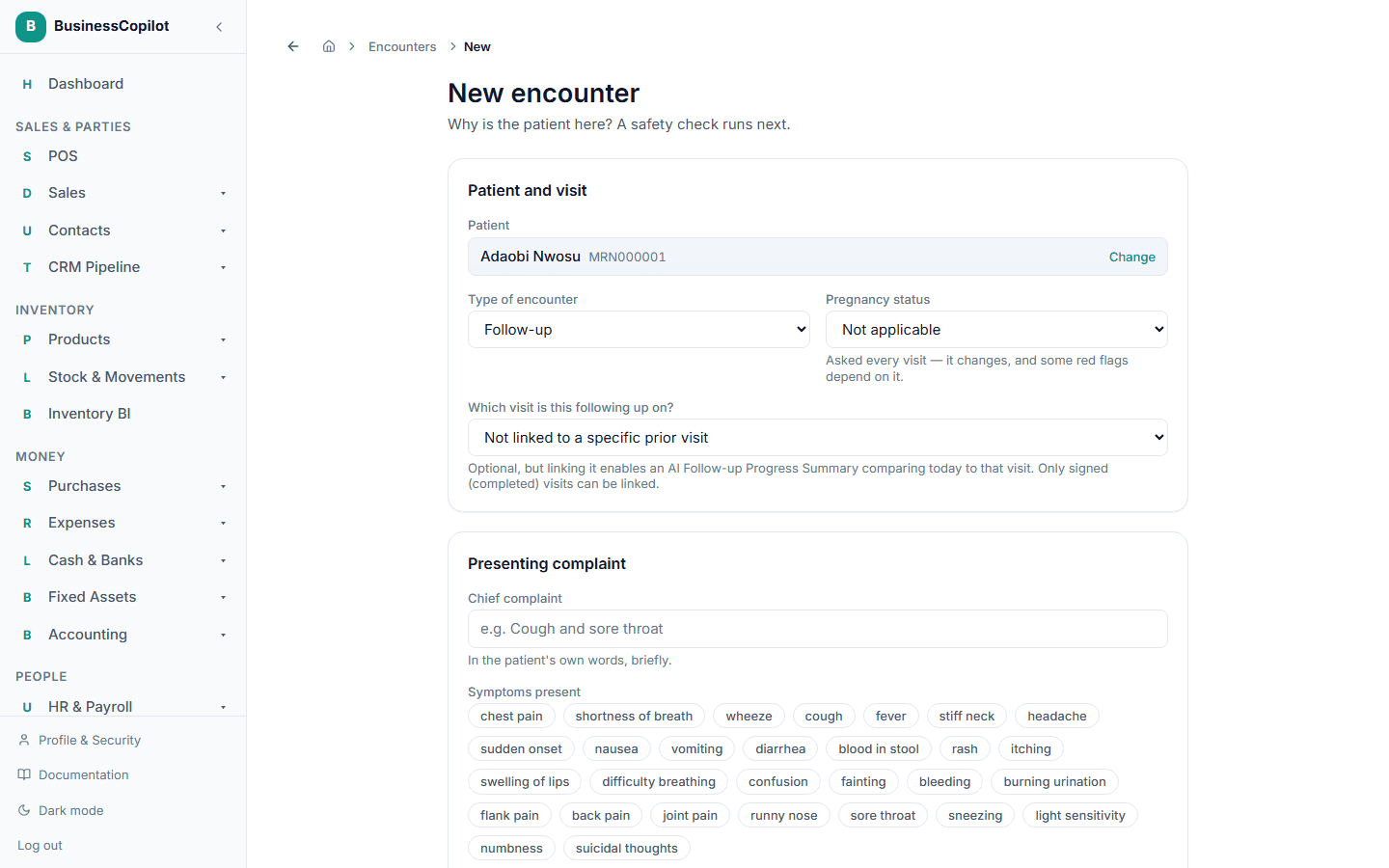
When a new Clinical Encounter is of type Follow-up and is explicitly linked to a prior encounter, the Follow-up Progress Summary panel appears at the assessment step.
The panel compares:
- The prior encounter's chief complaint, outcome, and relevant findings
- The current encounter's intake, vitals, and what's changed
Select Generate summary to ask the AI to produce a comparison: how the patient has progressed since the last visit, what has improved, and what still needs attention.
This summary is saved on the encounter once generated. You can view it in the encounter record even after the session is signed.
Linking a prior encounter
When creating a follow-up encounter, use the Prior visit picker in the intake form (shown only for follow-up encounter types) to select the relevant prior visit. Without this link, the Follow-up Progress Summary panel does not appear.
Follow-up Completion Note Draft
When closing out a Follow-up task, the Close dialog has a completion note field. An Ask AI button next to it generates a draft starting note based on:
- The follow-up task's own objective and trigger
- The linked encounter (if this follow-up came from an encounter, the encounter's complaint and outcome are used as context)
The draft is a starting point. Review and edit it before saving — it is never automatically committed.
📸 Screenshot needed: the follow-up close dialog with the "Ask AI" button and a draft note generated in the completion note field.
Counselling Points
At the sign step of a Clinical Encounter, a Generate counselling points button appears once a clinical decision has been recorded. Select it to get a list of speaking points for the pharmacist to relay to the patient out loud.
The counselling points adapt to the encounter type:
- Acute complaints — self-care instructions, when to come back, red-flag warning signs
- Chronic disease reviews — self-management guidance, monitoring reminders, adherence advice
Counselling points are not medication-specific — they are scoped to the condition or complaint, not to a specific drug. For drug-specific counselling, see Drug Counselling from a monograph.
The points are saved on the encounter and visible in the encounter record.
📸 Screenshot needed: the counselling points panel open on the sign step, showing a numbered list of patient-communication points.
Related
Clinical AI — Enabling It and Managing Tokens
How to turn on Clinical AI features for your workspace, understand the token system, buy top-up tokens, and control daily usage in the Clinical Suite.
Clinical Interventions
Track a drug therapy problem through the strategy you plan, who's doing it, and what happened.