Roles & what your team can see
The eight roles BusinessCopilot starts you with, and what each one can typically do.
How roles work
Every person you invite to your workspace gets a role, and their role decides what they can see and do — which modules they can open, whether they can just view something or also create/edit/delete it, and whether they're limited to one branch or can see your whole business.
BusinessCopilot starts every workspace with eight ready-made roles. They're a sensible starting point, not a fixed limit — as the Owner, you can adjust exactly what any role can do, or create entirely new roles, from your workspace's role settings.
The eight starting roles
Owner — Full access to every feature and action, including billing and subscription. This is automatically assigned to whoever signs up and creates the workspace.
Manager — Manages staff, inventory, and day-to-day operations across sales, purchases, expenses, HR, CRM, and reporting. Can delete records. Cannot manage the workspace's subscription or delete the business.
Accountant — Full access to accounting, financial reports, tax, budgets, cash and banks, and expenses. View-only in the modules outside finance, such as sales and purchases.
Cashier — Point-of-sale and sales operations only: recording sales and viewing/creating customer records at the till.
Sales Rep — Sales, CRM, and customer/party management, including marketing campaigns.
HR Officer — Full access to the HR module: staff records, attendance, leave, payroll, recruitment, and performance. Can delete HR records.
Auditor — View-only access across every module, for oversight and audit purposes. Can't create, edit, or delete anything.
Store Clerk — Inventory management and stock operations, plus the ability to view and create purchases.
Every role (except Owner and Auditor's view-only design) can also always see and manage their own profile, attendance, and leave requests, regardless of what else they're permitted to do.
Only the Owner, the Manager and the HR Officer can delete records by default, and every delete asks for a reason. See Deleting records and the reason log. Profit and margin figures are limited to people with accounting access. See Who can see profit and margin. People whose role does not include the business dashboard get a home page built for selling.
Restricting a role to one location
Independently of role, any team member can be restricted to a single branch when you invite them. See Branches / locations for what that changes.
Changing what a role can do
As the Owner, you can widen or narrow any of these roles, or build custom roles from scratch, from your workspace's role settings — for example, giving a specific Manager approval rights over discounts above a certain percentage, or letting an Accountant also view purchase orders.
Approval thresholds
For a few actions — purchase orders, expenses, and fixed asset disposals — you can set a value threshold above which the action needs a second person's sign-off before it goes ahead, rather than relying only on who has permission to create it in the first place.
Go to Roles & Permissions → Approval Thresholds to see and add these.
To add one:
- Select Add Threshold.
- Choose what it applies to — a discount percentage, an expense amount, or a purchase order amount.
- Enter the value it triggers at — for example, an expense over ₦50,000.
- Enter the exact name of the role that should approve it, as it appears on your Roles tab (for example, "Manager"). The Owner can always approve, regardless of what you enter here.
- Optionally add a description, then select Create.
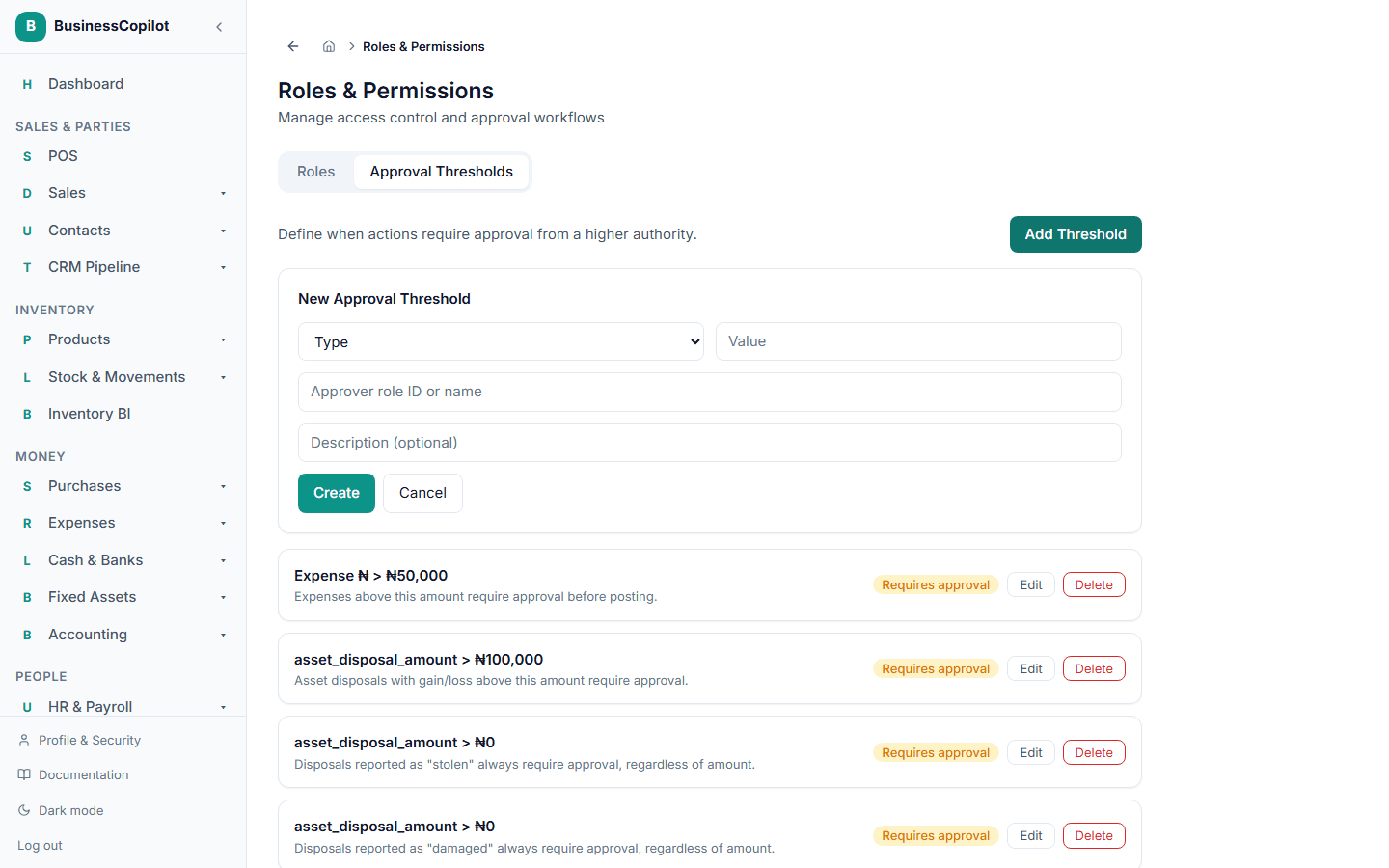
Once saved, anything that meets or exceeds that value is held as Pending Approval until someone holding the named role (or the Owner) approves or rejects it — it never goes ahead automatically.
If no threshold is set for something, it's approved automatically the moment it's submitted — there's no pending step, and nothing shows up waiting for anyone's sign-off. Add a threshold for anything you specifically want a second person to review first.
Related
- Your workspace, explained
- Branches / locations
- Recording a purchase from a supplier — purchase orders are one of the actions approval thresholds can apply to