Adverse Drug Reaction (ADR) Reporting
How to report, review, and submit adverse drug reaction cases to NAFDAC using the Clinical Suite's built-in ADR workflow.
An Adverse Drug Reaction (ADR) report documents a harmful or unintended response to a medication. The Clinical Suite provides a structured, NAFDAC-aligned reporting form so your team can capture, review, and record the submission of ADR cases — all inside BusinessCopilot.
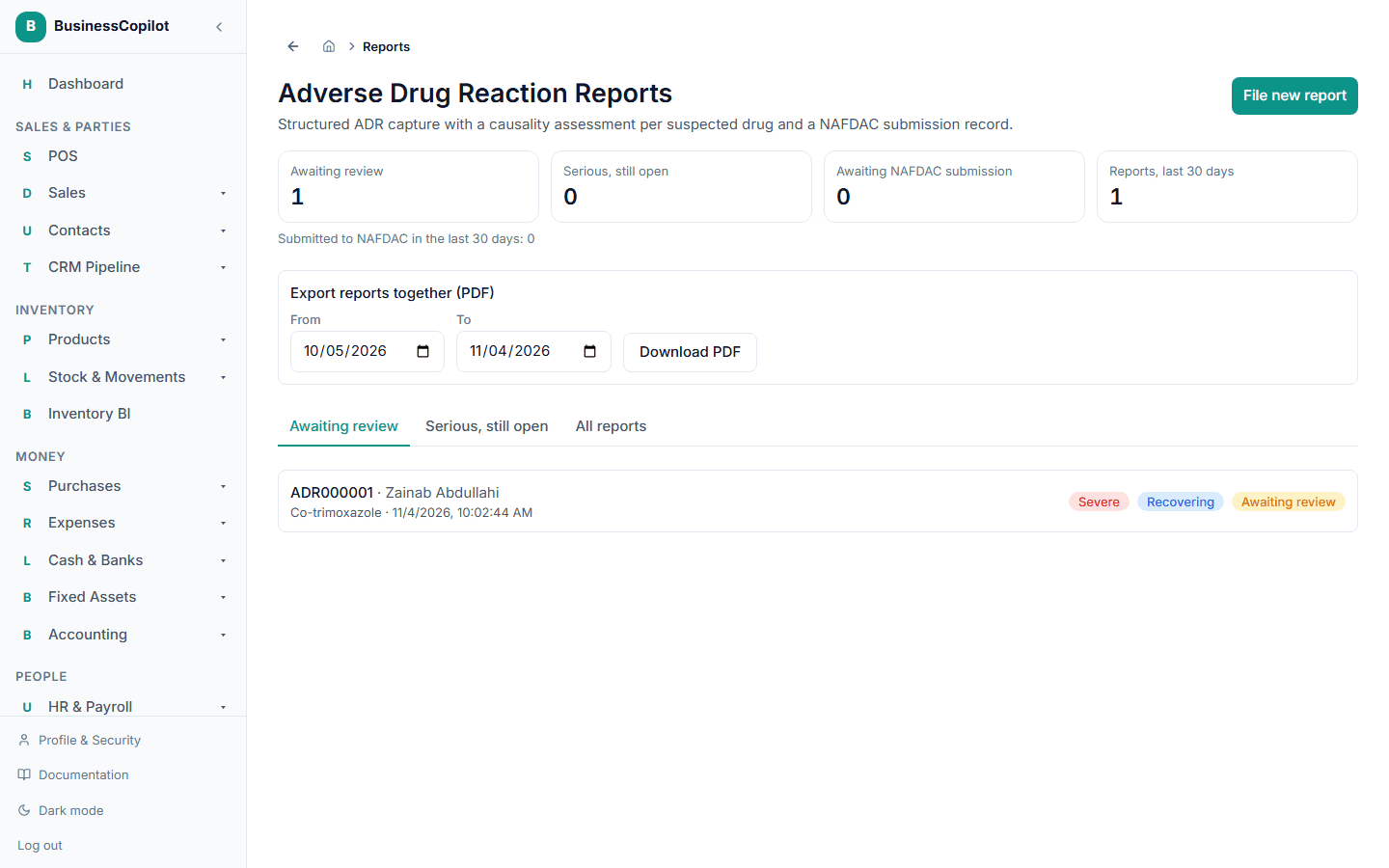
Opening ADR Reporting
Go to Clinical Suite → ADR Reporting (Web and Desktop sidebar), or tap ADR in the mobile Clinical Suite sub-nav.
Submitting a new ADR report
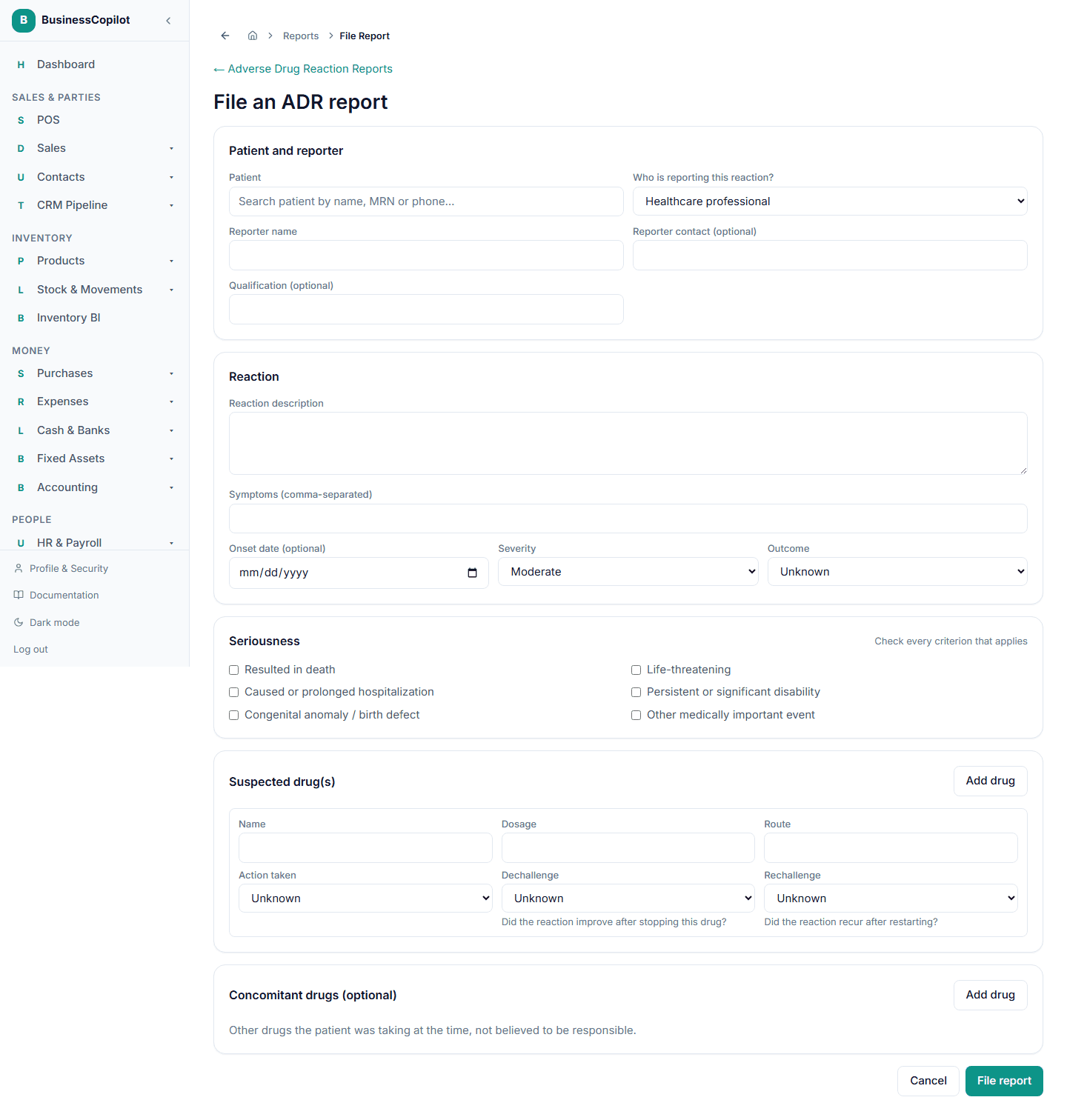
Select New report and work through the form:
Patient
Search for and select the patient this reaction occurred in. This is mandatory — all ADR reports must be linked to a patient in your system.
Reaction details
- Reaction description — describe the adverse event in your own words.
- Symptoms — list the symptoms observed (you can add as many as needed).
- Severity — how serious was the reaction? Choose from: Mild, Moderate, Severe, or Fatal.
- Outcome — what happened to the patient? Options include: Recovered, Recovering, Not recovered, Unknown, or Fatal.
- Reaction date — when the reaction first occurred.
Suspected drugs
Add every drug suspected to have caused or contributed to the reaction:
- Select Add suspected drug.
- Search for the drug by name. You can link it to the patient's medication management record if it appears there.
- Set the causality assessment (WHO-UMC classification): Certain, Probable, Possible, Unlikely, Conditional, or Unclassifiable. Each level has a one-line definition to help you choose.
- Fill in the dose, route, start date, and stop date (if stopped because of the reaction).
- Note whether the reaction recurred on rechallenge, and whether it resolved on dechallenge (stopping the drug).
- Add as many suspected drugs as needed — most reports involve one, but some reactions involve multiple suspected culprits.
Concomitant drugs
List any other medications the patient was taking at the time that are not suspected — they form the clinical background.
Seriousness criteria
If any of the following apply, tick the relevant boxes (these are the six standard regulatory seriousness criteria):
- Required hospitalisation or prolonged hospitalisation
- Life-threatening
- Resulted in death
- Caused a congenital abnormality
- Caused persistent or significant disability/incapacity
- Medically significant (a clinical judgement)
If at least one criterion is ticked, the report is automatically flagged as Serious — a separate, more urgent alert is raised on the workspace feed alongside the standard new-report alert.
Saving as draft vs. submitting
Select Save draft to keep the report in progress and return to it later. A draft does not generate any alerts or appear in the review queue.
Select Save report to complete the report and move it to the Pending review queue.
Reviewing ADR reports
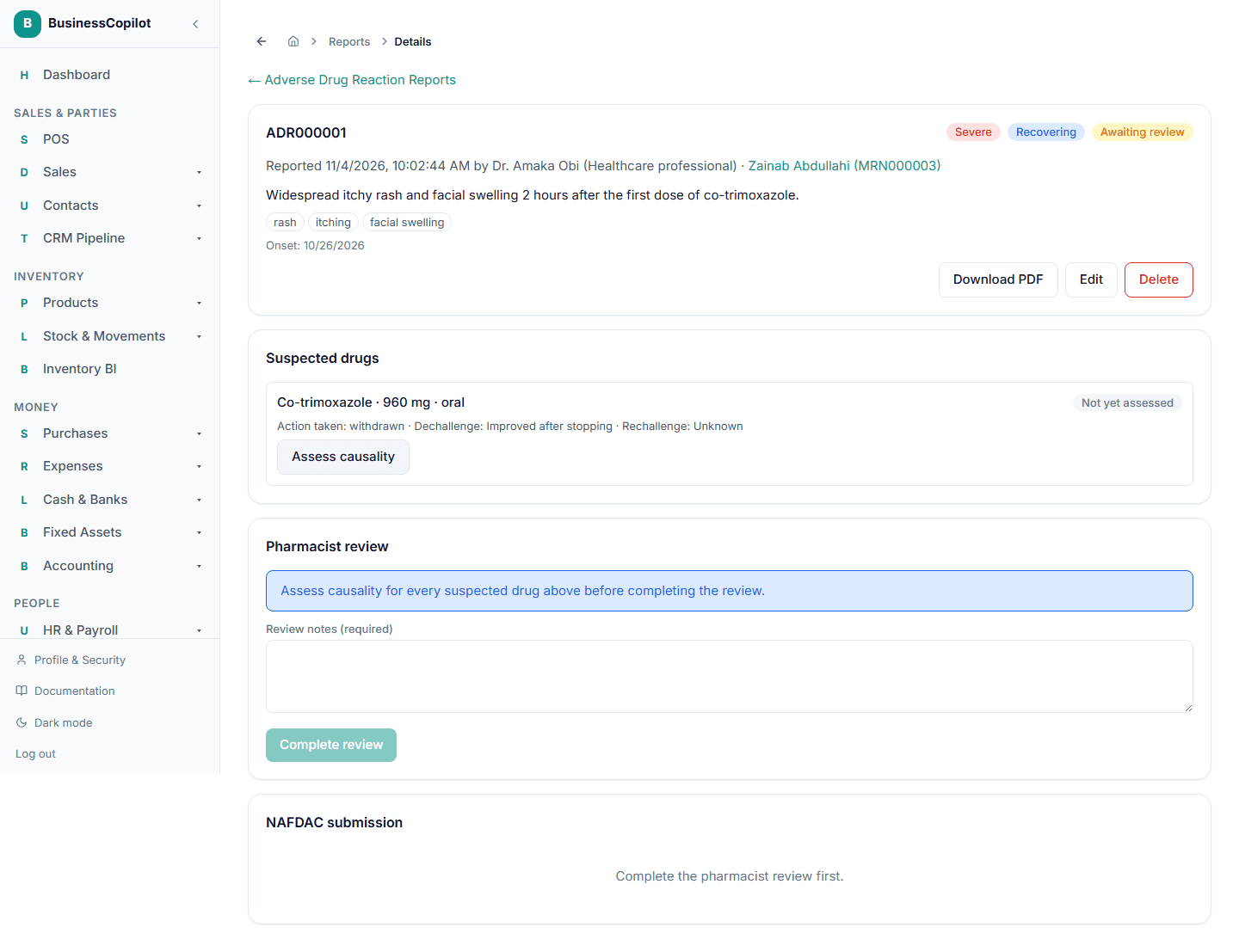
All completed reports appear in the Pending review queue for a designated reviewer. The reviewer reads through the report, confirms the data, and can edit any field before marking it reviewed.
Recording a NAFDAC submission
Once a report is ready for regulatory submission, open it and select Record NAFDAC submission. This does not send anything electronically — it records that you submitted the report to NAFDAC by another means (email, portal, or physical form) and captures:
- The NAFDAC reference number they gave you
- The date submitted
- Who submitted it
This record is stored permanently on the report so you always have proof of submission.
Exporting ADR reports
You can export a single report as a PDF for sending or filing. Open the report and select Export PDF.
For a batch export over a date range, select Export from the main ADR Reporting list page, choose your date range, and download.
Alerts
Every new ADR report raises an alert on the workspace feed — so the responsible person is notified even if they weren't the one who filed it. A Serious report raises a second, escalated alert separately.
Permissions
The ADR Reporting permission line controls access. View lets you read reports; Create files a new one; Edit updates draft or pending-review reports; Delete removes one to the Recycle Bin.
Related
Drug Interaction Checker
How to check for drug interactions, review the results, and get an AI second opinion on a patient's medication list in the Clinical Suite.
Medication Therapy Review (MTR)
What MTR is in the Clinical Suite, who uses it, and how the six-step guided workflow moves from patient selection to a documented care plan.