Understanding channel performance and ROI
See what a campaign actually earned back against what it cost.
Every campaign can be tied to one of your connected accounts — this is what lets BusinessCopilot tell you which channel is actually working.
Go to CRM → Campaigns and look at the Campaign ROI section below the campaign list.
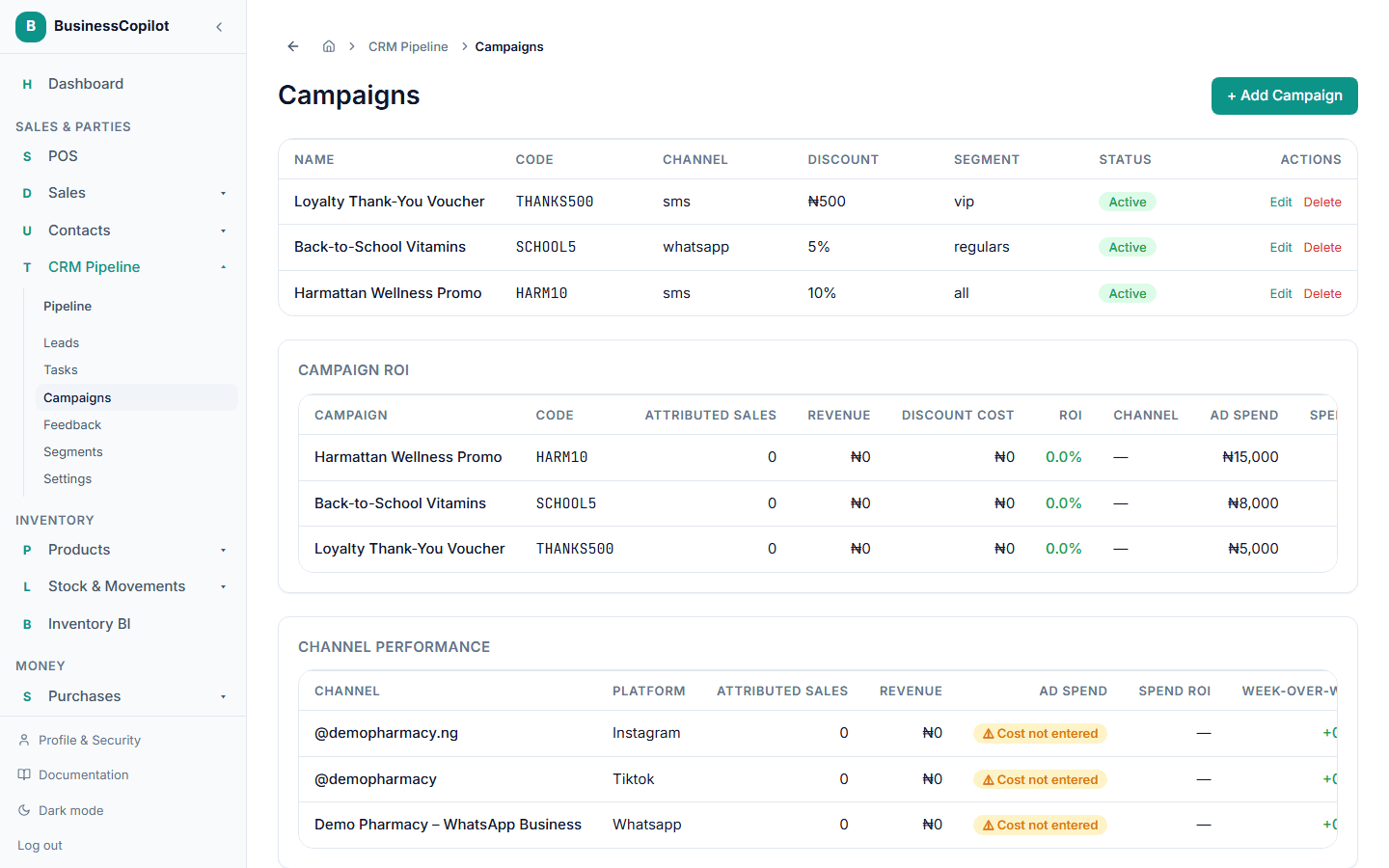
For each campaign, this shows the real revenue it's brought in — calculated from actual sales where a customer used that campaign's code — against what you spent on it, so you can see a real return, not a guess. If a campaign hasn't had any redemptions yet, it just won't have ROI data until it does.
Rolled up by channel
Below the per-campaign table, the Channel Performance section rolls that same data up by connected account — useful when you've run more than one campaign through the same channel and want the combined picture rather than reviewing each one separately.
For each channel, you'll see:
- Attributed Sales and Revenue — combined across every campaign run through that channel.
- Ad Spend and Spend ROI — if you entered a cost on at least one of the channel's campaigns. A channel with no cost entered anywhere shows Cost not entered instead of a misleading ₦0 or 0% ROI.
- Week-over-week — how this channel's attributed revenue this week compares to last week.
If one campaign on the channel is your best performer, it's called out above the table too.