Layaway and deposit sales
Reserve an item with a deposit and collect the rest by a due date.
A layaway sale is for a customer who wants to reserve an item now with a deposit, and pay off the rest by an agreed date before taking it home — the item is held for them in the meantime, and BusinessCopilot keeps track of what they still owe and when it's due.
Starting a layaway
A layaway always needs a named customer — BusinessCopilot needs someone to track the balance against.
On Web or Desktop:
- Go to the checkout screen and select a customer.
- Add the item(s) to the cart.
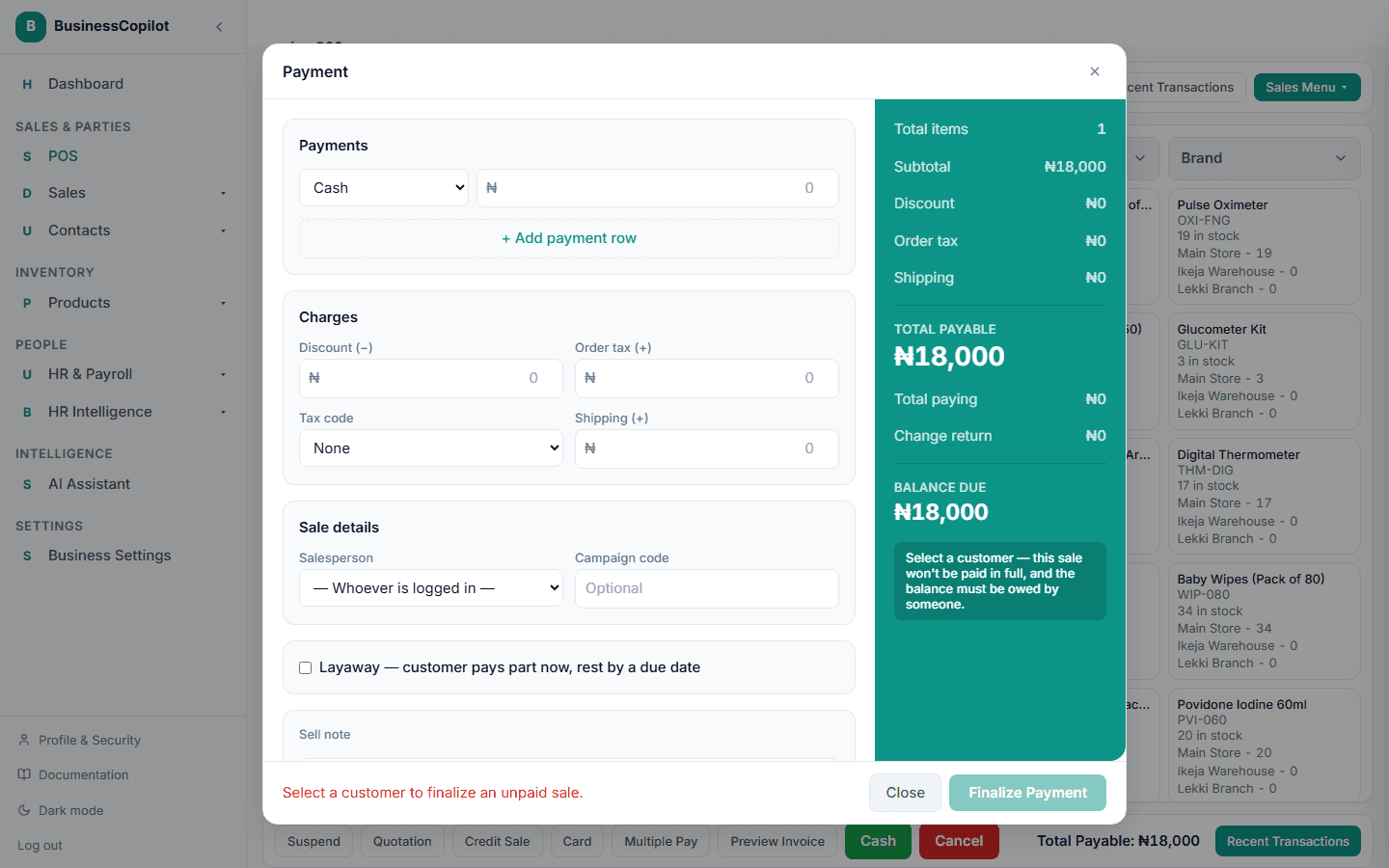
- Check Layaway — customer pays part now, rest by a due date.
- Optionally set a due date — leave it blank to use your workspace's default layaway period.
- Enter the customer's deposit under Multiple Pay and select Confirm Payment.
On mobile: use Add Sale (not the quick Checkout screen, which doesn't take a customer) — select a customer, add items, and check the same Layaway box under Status.
The sale saves as a layaway, the item is reserved out of your stock, and the balance remains due.
Collecting the rest of the payment
Open the layaway from Sales POS → All Sales (filter by Layaway pending to find it quickly) and select View Payments. Record each payment as the customer pays it down. Once the total is fully paid, BusinessCopilot completes the sale automatically — there's no separate "finish" step.
Cancelling a layaway
If a customer doesn't come back for it, open the sale and select Cancel Layaway. This releases the reserved item back into your available stock.