Setting up before you start
A short checklist to do once, so booking and reminders work properly from the first day.
You can add a patient straight away. But appointments and reminders need a few things in place first. Work through this list once.
The checklist
- Have your branches set up. Every patient and every appointment belongs to a branch. See Branches / locations.
- Invite your team. Anyone who will see patients — or be booked as a provider — needs a login. See Adding a staff member and Getting access to the Clinical Suite.
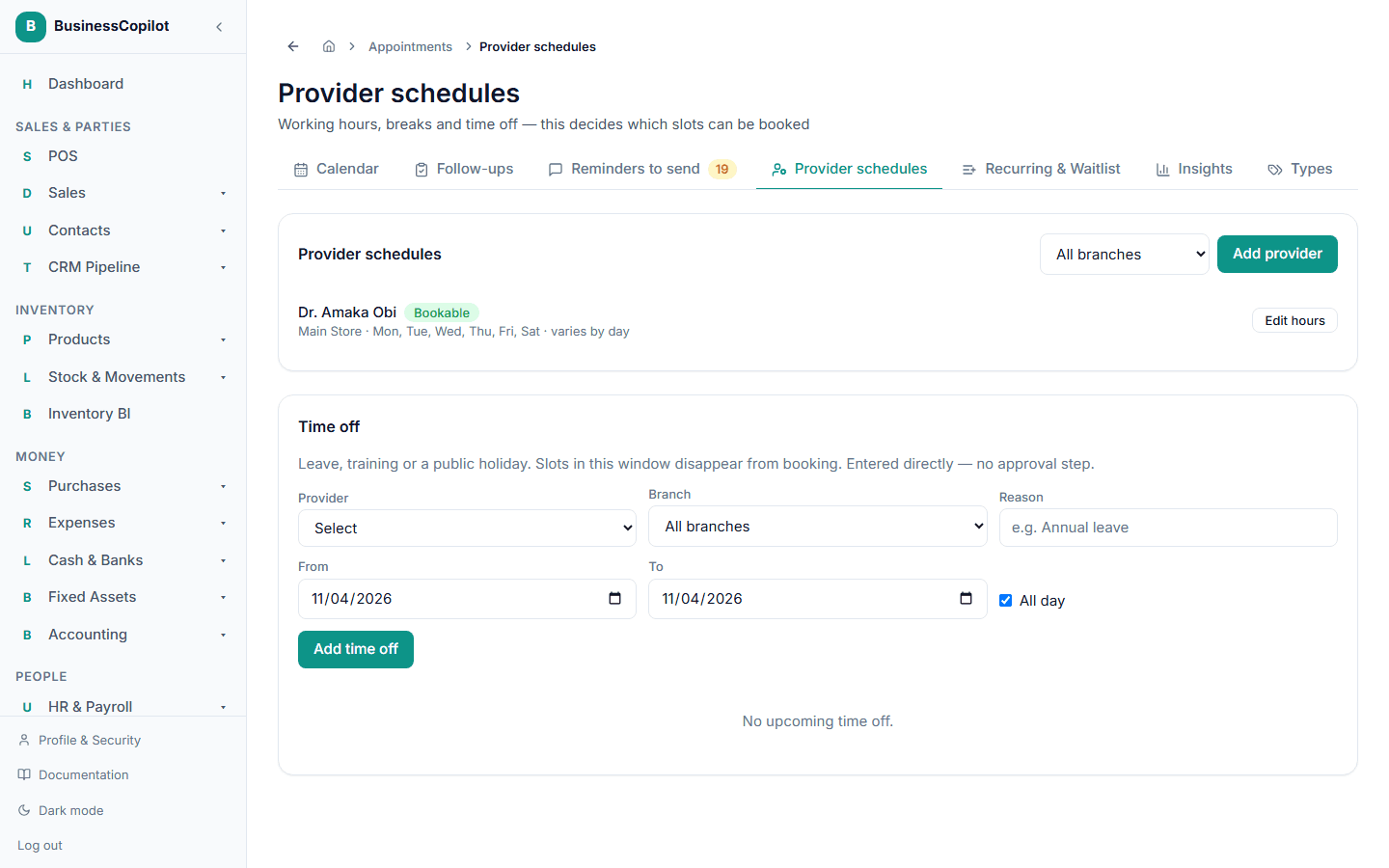
- Set each provider's working hours. Nobody can be booked until they have a schedule at a branch. See Setting provider schedules and time off.
- Request an SMS sender ID. This is the name patients see on your text reminders. Until it's approved, SMS reminders wait in a list for your team to send by hand. See Patient reminders.
- Add your patients. One at a time, or by importing a spreadsheet. See Adding a patient and Importing and exporting patients.
Why the order matters
- No schedule, no booking. The booking form only offers providers who have a schedule at the chosen branch. If you see "No provider has a schedule at this branch yet," go to Provider schedules first.
- Approve your sender ID early. Approval is done by our SMS provider, not instantly. Reminders still work in the meantime — they just go to your Reminders to send list instead of going out on their own.
- Times are always in Nigerian time. Every appointment time is shown and worked out in Africa/Lagos time (West Africa Time), whatever timezone the phone or computer you're using is set to. A nurse whose phone is set to another timezone still sees the right times.
Two settings to know about
The confirmation link needs your web address to be set up. Emails to patients include a "confirm or cancel" link. That link only appears if your workspace's web address has been configured for your account. If your patients' emails have no link, contact support.
Patients choose how they're reminded. On each patient's record there are two tick boxes — SMS reminders and Email reminders — both on by default. A patient with neither ticked gets no reminders at all.