Setting your opening stock
Bring in the quantity and cost of stock you already have, when you're just getting started.
If you're moving from another system (or just starting to track stock in BusinessCopilot), you need a way to tell it what you already have on hand — this is your opening stock.
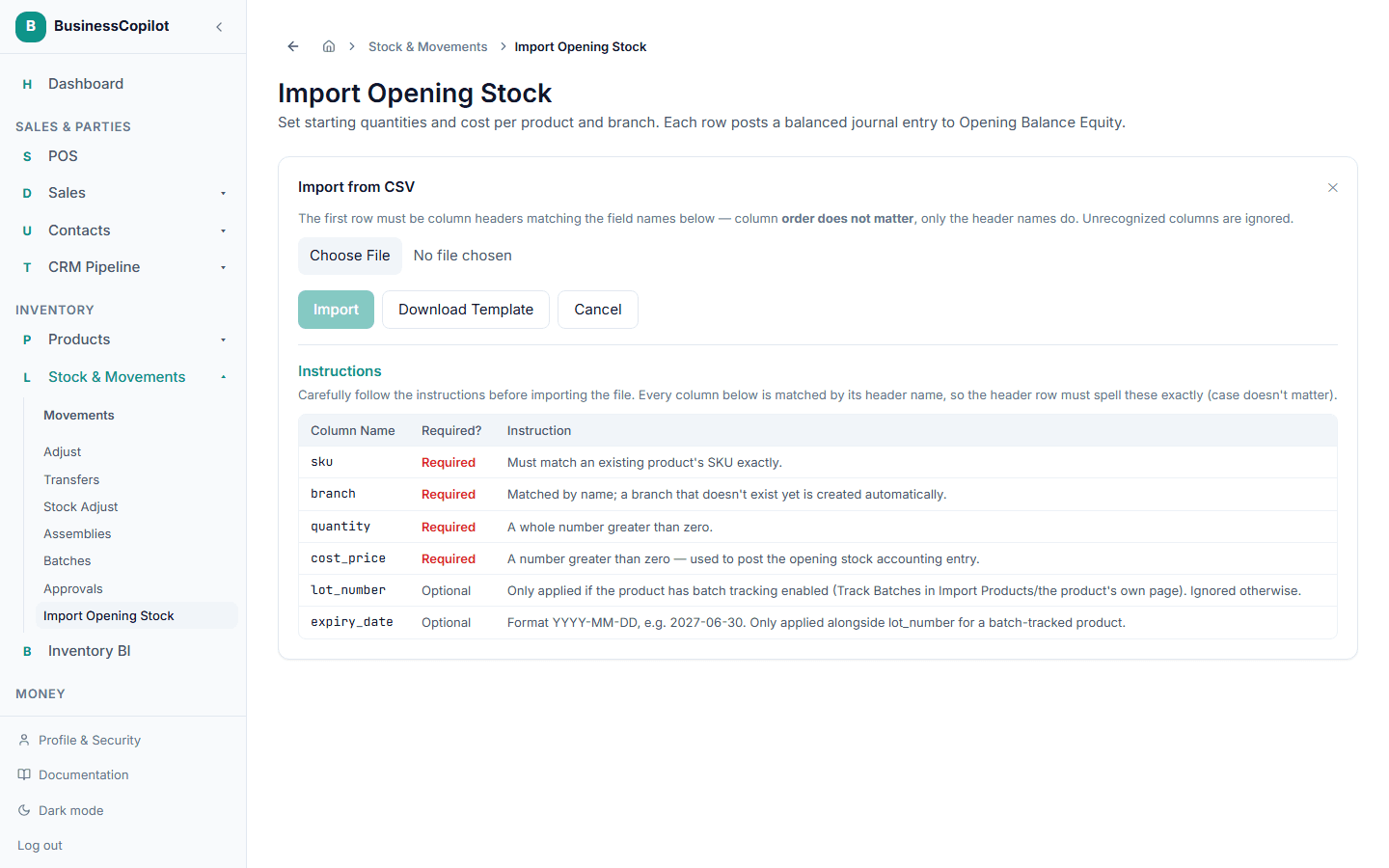
- Go to Stock & Movements → Import Opening Stock.
- Select Download Template to get a CSV file with the right column headers, and an instructions table showing exactly what each column means.
- Fill it in — one row per product per branch:
- SKU, branch, quantity, and cost price are all required — unlike other imports, the branch is never guessed or defaulted, since it directly sets how much stock value lands where.
- lot_number and expiry_date (format
YYYY-MM-DD) are optional, and only take effect for a product that has batch/lot tracking turned on (see Importing products'strack_batchescolumn) — they're ignored otherwise.
- Save the file, then select Choose CSV file and pick it.
- Review the preview, then select Import.
What happens next
Each row sets that product's stock quantity at that branch, and records its value as the opening balance for your inventory in your books — so your stock and your accounts agree from day one, the same as any other opening balance. For a batch-tracked product with a lot number, it also records that specific lot so you can track its expiry. Because it's a one-time starting point, importing the same product and branch a second time is skipped rather than added on top.
Setting it for one product at a time
The import above is for bringing in many products at once. For a single product, you don't need a spreadsheet:
- While creating a new product — enter a Quantity (and, if you have more than one branch, pick which one) directly on the New Product form. See Adding a new product.
- For a product that already exists — open its menu on the Products page and select Add/Edit Opening Stock, then choose a branch and quantity.
Both work the same way as the import above — they record real starting stock and post the matching opening balance to your books.