Editing and deleting notes
Change a note after you've saved it, see who changed what, and delete or restore a note.
Reading a note
Select a note in any list to open it. You see its title, patient, type and date, who wrote it and when, the vitals from the time it was written, each SOAP section that has text, its tags and its files.
Editing a note
You need Edit on Clinical Notes (and, for a confidential note, View and Edit on Confidential Clinical Notes).
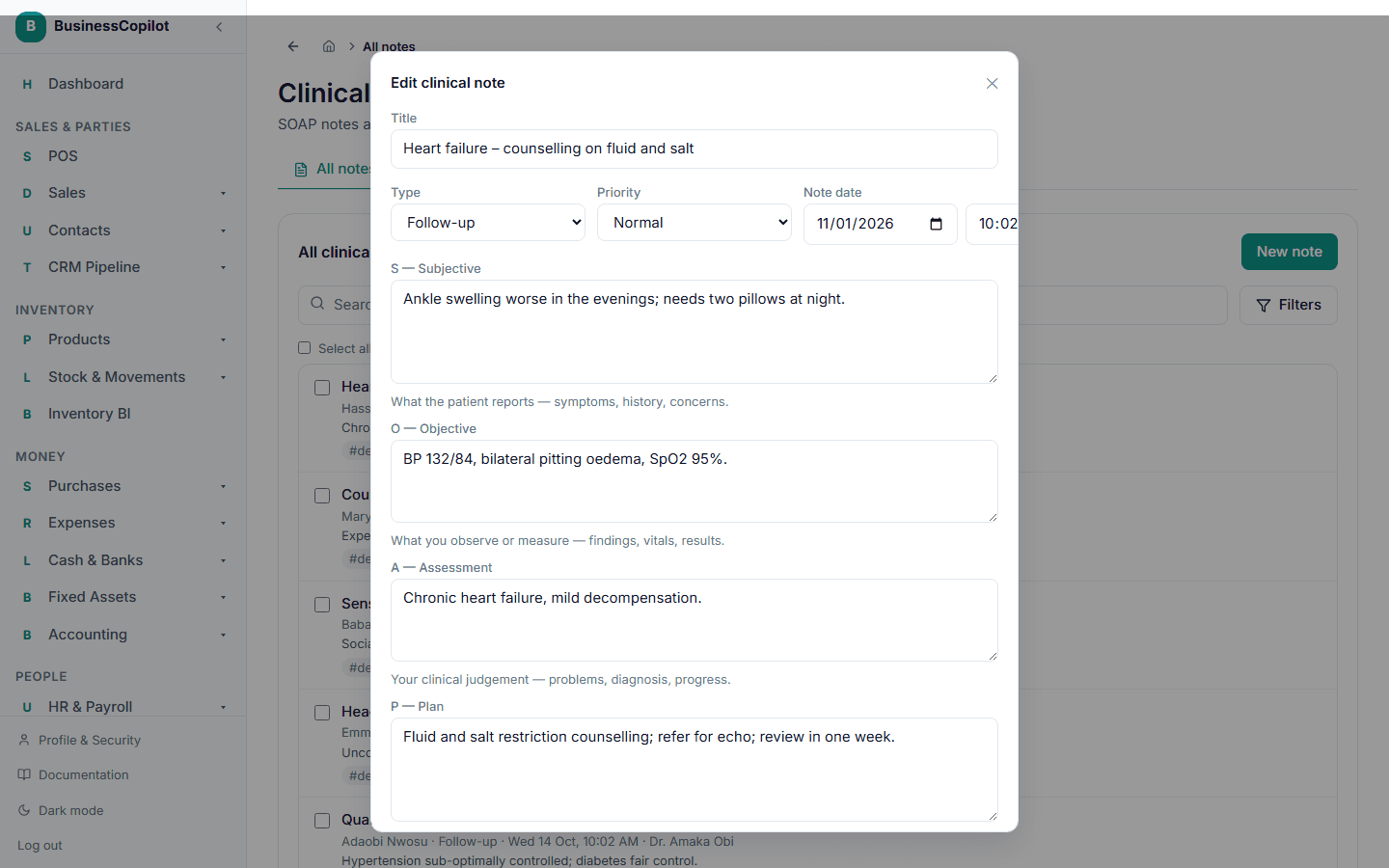
- Open the note and select Edit.
- Change what you need — the title, any SOAP box, the type, priority, date, tags, linked appointment or the confidential flag. You can also add and remove files.
- Select Save changes.
What you can't change
- The patient. A note stays with the patient it was written for. If it was written for the wrong patient, delete it and write it again on the right record.
- The vitals snapshot. It is a record of the moment the note was written and never changes.
- A note can't be emptied. At least one SOAP box must keep some text.
The edit trail
Notes have no "sign and lock" step, so every note stays editable — but changes are never silent:
- Once a note has been changed (more than a minute after it was written), it shows "Edited by … on …" beneath "Written by … on …".
- The workspace Activity feed records each edit, listing which parts changed (for example "plan, tags") — never the text itself, so confidential wording never leaks into it.
- Marking or unmarking a note confidential is recorded as its own event.
BusinessCopilot doesn't keep a copy of each earlier wording. If you need to correct something in a way others should notice, add it to the note's Plan or write a new note.
Deleting a note
You need Delete on Clinical Notes (and, for a confidential note, View and Delete on Confidential Clinical Notes).
- Open the note and select Delete, or select notes in a list and use Delete in the bar that appears.
- Confirm.
A deleted note goes to the Recycle Bin, not oblivion. In the Recycle Bin it appears as "Clinical note" with its date — never its title — and shows who deleted it and when.
Restoring
An Owner (or anyone your business allows) can restore it from the Recycle Bin. It returns exactly as it was, with its files and tags.
Deleting permanently
The Owner can delete a note from the Recycle Bin for good. That removes the note, its tags and its files, and can't be undone.