Understanding your product catalog
A tour of the Products page — the summary numbers, how to search and filter, how paging works on each device, and where to go next.
Go to Products to see everything you sell.
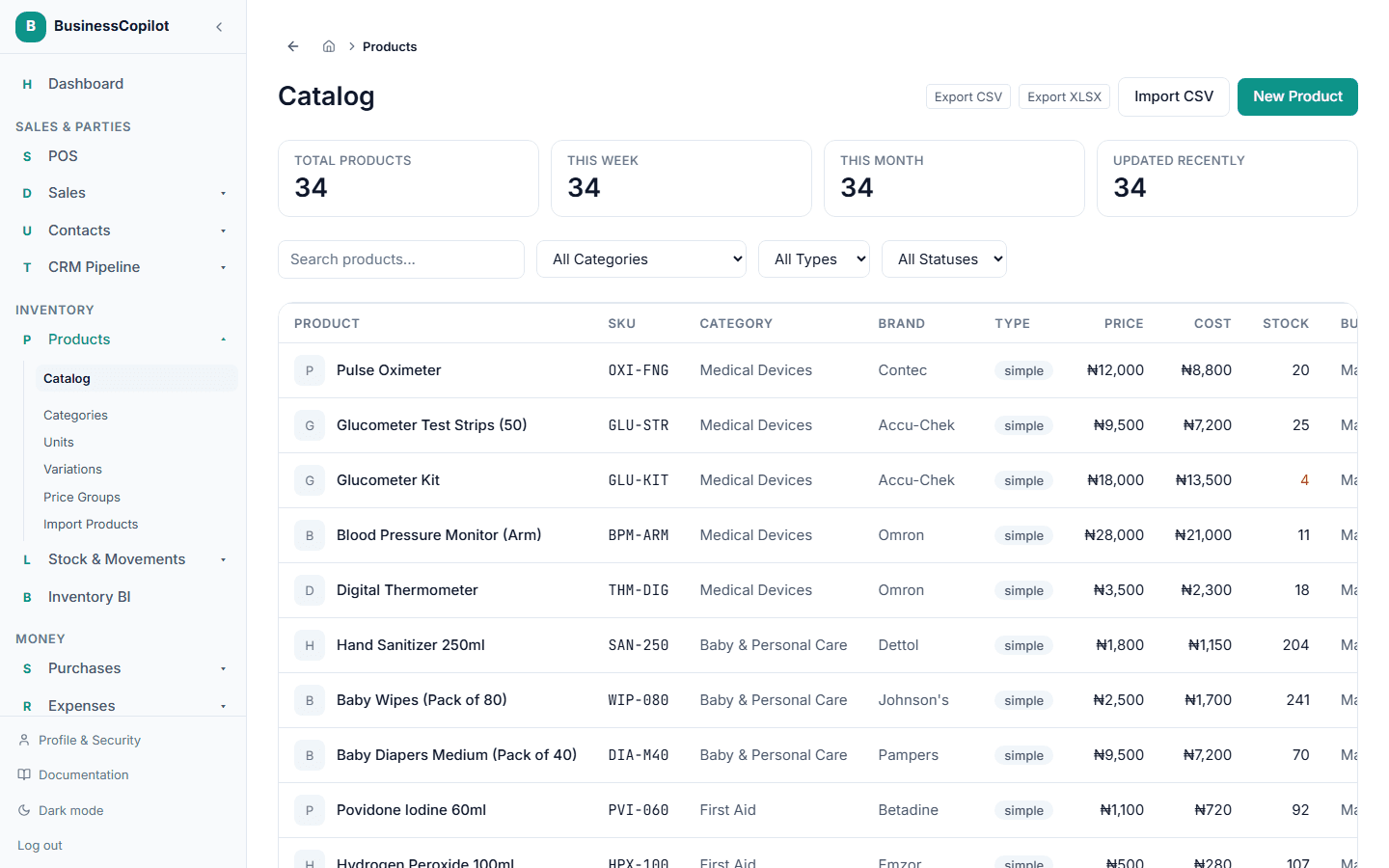
The summary cards
Across the top of the page are four numbers. They are worked out across your whole catalog on the server, so they stay correct whether you have 20 products or 5,000.
| Card | What it counts |
|---|---|
| Total products | Every product in your workspace |
| This week | Products added in the last 7 days |
| This month | Products added in the last 30 days |
| Updated recently | Products changed in the last 7 days |
On the phone app the header shows three numbers instead: Total, In stock (the total stock across all products), and Low (products whose stock is at or below their reorder level).
Searching and filtering
- Search matches a product's name, SKU, barcode, brand, and description. If your descriptions include the generic or active-ingredient name, searching that name finds the branded product too.
- Filter by category, type, and status:
- On the web, use the All Categories, All Types, and All Statuses menus above the list.
- On the phone app, tap Type or Status to open a menu and choose one option. The selected filter is highlighted. Choose the first option in each menu to clear it.
- On the desktop app, search and the status filter sit above the table.
- Status shows Active or Inactive products. Inactive products appear dimmed, with an INACTIVE tag on the phone app.
You can also reach one category's products from the Categories page with its View products action.
Paging through the list
How long the list is depends on the device:
- Web: 20 products per page. The line under the list reads Showing 1–20 of 5,000, and Prev and Next move between pages.
- Desktop app: the table has a page-size menu (10, 20, 50, or 100 per page) and page controls under the table. The totals always reflect the whole catalog.
- Phone app: the list loads 50 products at a time. Keep scrolling and the next batch loads by itself. Pull down on the list to refresh it.
If a product you expect isn't on the page you're looking at, search for it rather than paging through everything.
Opening a product
Select any product in the list to see its full detail page: its price, cost, description, stock at each of your branches, and (for a variable product) its variations.
On the phone app, the ⋮ button on a product opens quick actions, including changing the price and setting opening stock.
Creating and editing
- New Product (on the web and desktop) or New (on the phone app) creates a product. See Adding a new product.
- Changes you make to a product appear in the list and in the summary cards straight away.
Adding many products at once
Instead of creating products one at a time, import a whole batch from a spreadsheet. The import checks every row first and lists any that need fixing, before anything is created. See Importing products from a CSV file.
The Export button saves your current catalog as a spreadsheet file.