AI-Assisted Lab Interpretations
How to submit lab results for AI interpretation, review and approve findings, escalate urgent cases, and export lab interpretation reports in the Clinical Suite.
The Lab Interpretations module lets your pharmacist submit a patient's lab results — uploaded as images or PDFs, or typed in as free text — and get an AI-generated clinical interpretation with a differential diagnosis, risk factors, and recommended next steps. A pharmacist then reviews, edits if needed, and approves the interpretation before it becomes part of the patient's record.
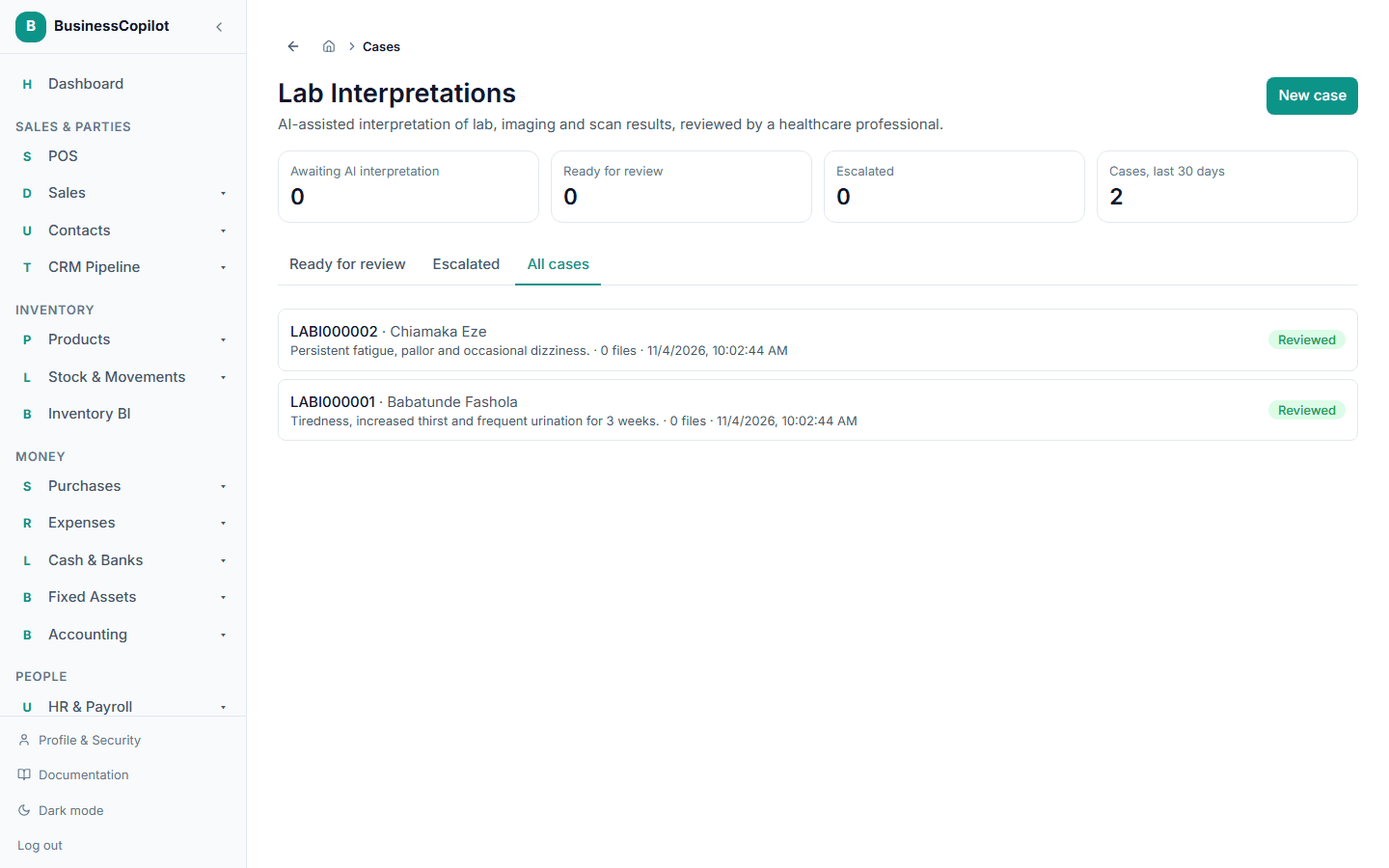
Opening Lab Interpretations
Go to Clinical Suite → Lab Interpretations (Web and Desktop), or tap Lab in the mobile Clinical Suite sub-nav.
Submitting a case
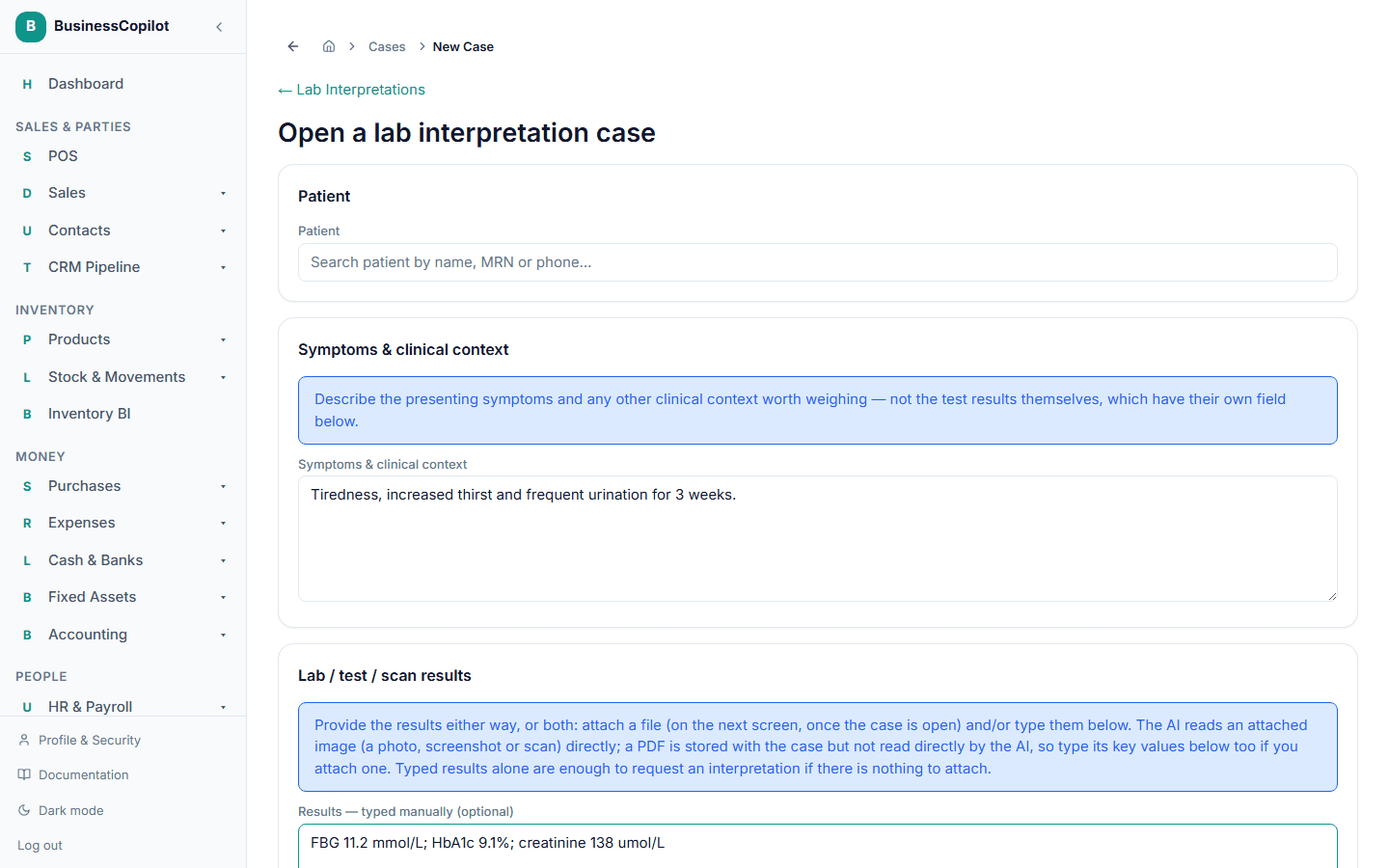
Select New interpretation and complete the form:
Patient and context
Search for and select the patient. The patient is mandatory — lab interpretations must be linked to a patient record.
Add clinical context: the presenting symptoms, duration, and any additional notes your team has from the consultation. This context is included in the AI prompt and improves the quality of the interpretation — the more relevant context you provide, the better.
Results text
If you have typed or copied results (e.g. from a lab report), paste them into the Results text field. You can describe multiple test results here.
Attachments
Attach the actual lab report as an image or PDF. Select Attach file and upload. Supported file types: JPEG, PNG, WebP, and PDF.
How AI reads your attachments:
- Images (JPEG, PNG, WebP) — the AI reads the image directly using vision. It sees the numbers, reference ranges, and flags exactly as they appear on the printed report.
- PDFs — the AI is told the filename and receives the typed results text, but does not read the PDF content directly. For best results with a PDF, also type or paste the key values into the Results text field.
Files are stored privately in a secure bucket — they are never public.
Consent
Check the Patient consent box before submitting. This confirms that the patient has consented to their lab data being processed by AI.
Select Submit.
How AI interpretation works
Once submitted, the system calls the AI gateway with a de-identified bundle: the clinical context you provided, the typed results text, and any uploaded images. No patient name, MRN, or contact details are sent.
The AI returns:
- Differential diagnosis — a ranked list of possible diagnoses, each with a confidence level (High / Moderate / Low) and a brief supporting rationale.
- Risk factors — findings that put the patient at elevated risk.
- Recommended investigations — further tests that would help confirm or rule out the leading diagnosis.
- Treatment and management recommendations — suggested clinical actions.
- Patient-friendly rewrite — the same interpretation rewritten in plain language, suitable for explaining to the patient (your pharmacist uses this as a speaking guide, not as text sent directly to the patient).
📸 Screenshot needed: an interpretation result with the differential diagnosis list expanded.
AI interpretation consumes one token from the Clinical AI daily allowance. See Clinical AI: enabling it and managing tokens.
Reviewing and approving an interpretation
Every interpretation goes through a pharmacist review before it is considered final:
- Open the case from the Pending review queue.
- Read the AI-generated interpretation.
- Approve as-is — if the interpretation is accurate.
- Edit then approve — if you want to correct, add to, or remove any part of the AI output before approving. Your edits are tracked (the original AI text and your revised version are both saved).
Once approved, the interpretation status changes to Reviewed and the case appears on the patient's Lab Results tab.
📸 Screenshot needed: the review panel with the "Approve" and "Edit & approve" buttons visible.
Escalating a case
If an interpretation reveals findings that need urgent clinical attention, select Escalate. Escalating:
- Changes the case status to Escalated.
- Raises a priority alert on the workspace feed.
- Lets you add escalation notes (required) explaining what needs immediate follow-up.
An escalated case remains escalated until someone explicitly resolves the escalation — this requires entering resolution notes.
Exporting a case
Open any reviewed case and select Export PDF to download a formatted report of the case — the clinical context, attachments list, AI interpretation, pharmacist edits (if any), and the patient-friendly rewrite.
CareSync link
If a lab interpretation is related to an open CareSync case, you can link them: open the interpretation and select Link to CareSync case. This makes the interpretation visible in the CareSync case timeline and in the patient's CareSync tab. See CareSync for details.
Finding past cases
The main list page has tabs for All, Pending review, and Escalated. A patient's lab interpretations are also on their Lab Results tab on the patient record.
Permissions
The Lab Interpretations permission line controls access. View lets you read cases; Create submits a new one; Edit covers approval, editing, and escalation; Delete removes a case to the Recycle Bin.
Related
Medication Therapy Review (MTR)
What MTR is in the Clinical Suite, who uses it, and how the six-step guided workflow moves from patient selection to a documented care plan.
Chronic Disease Management
How to track a patient's long-term conditions, record structured review visits, monitor readings against clinical targets, and set up custom condition configurations in the Clinical Suite.