Finding and searching notes
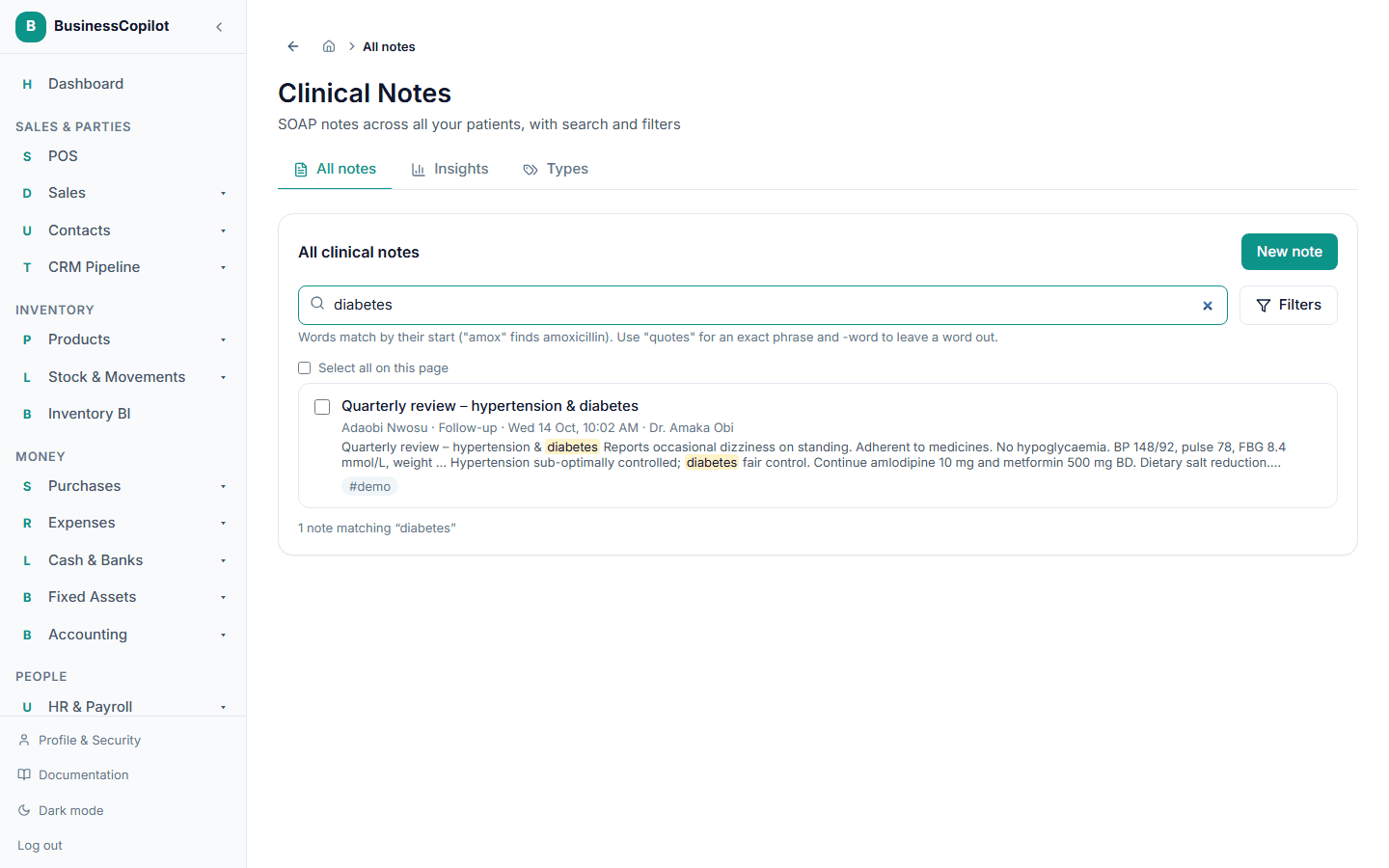
Search the text of your notes, narrow the list with filters, and work with several notes at once.
You can find notes in two places, and both work the same way:
- The Clinical Notes tab on a patient's record — only that patient's notes.
- Clinical Suite → Clinical Notes → All notes (on the mobile app, the Notes chip) — notes across all your patients, limited to the locations your role covers.
You need View on the Clinical Notes permission line.
Searching
Type in the search box. It looks through each note's title, its four SOAP boxes and its tags.
| You type | It finds |
|---|---|
amox | Notes containing a word that starts with "amox" — such as amoxicillin. |
chest pain | Notes containing both words, anywhere. |
"chest pain" | Notes with those two words together, in that order. |
fever -malaria | Notes about fever that don't mention malaria. |
130/85 | Notes containing that blood pressure. |
6.5 | Notes containing that figure — a decimal dose or a lab result. |
co-trimoxazole | Notes with that name, however it is hyphenated. |
Results are ranked so notes that are about your words come first — a match in the title or the Assessment counts for more than a passing mention. Each result shows a short excerpt with your words highlighted.
What to expect
- It matches the start of words, not endings. "headaches" won't find "headache". Search the shorter word ("headache") instead. This is deliberate: it keeps drug names, brand names and Nigerian names matching exactly as written.
- It searches note text, not patient names. To find a patient's notes, open the patient, or search for the patient first.
- A search made only of excluded words does nothing.
-malariaon its own asks for "everything except malaria", so add a word to look for.
Filters
Select Filters to narrow the list. You can combine them with a search:
- Type — for example only Counselling notes.
- Priority — Low, Normal, High or Urgent.
- Tag — pick from the tags you use most.
- Written by — one team member.
- From / To — notes dated within a range.
- Confidential only — see Confidential notes.
Clear filters resets them all. The list shows 20 notes at a time; use Previous and Next to move through.
Changing several notes at once
If your role can Edit or Delete notes, each note has a tick box (on the mobile app, long-press a note to start selecting). Select notes, and a bar appears:
- Set type, Set priority, Add tags, Remove tags — then Apply to selected.
- Delete — moves the selected notes to the Recycle Bin.
You can change up to 100 notes at once. A bulk change never touches a note's text or its confidential flag — those are always changed one note at a time.
If your selection includes a confidential note you can't change, it is skipped and left exactly as it was. If a note was already deleted by someone else, it counts as not found. The message after applying tells you how many were skipped and how many weren't found, alongside how many were changed.
When a locked entry appears in the list
If some notes are confidential and your role doesn't include confidential access, they appear as locked entries — see Confidential notes. Locked entries never appear in search results, and they disappear from the list whenever you use a search, a Type, Priority, Tag or Written by filter.