Getting access to the Clinical Suite
Turn on the add-on, then decide which roles can see patients and appointments.
Two things decide whether someone can use the Clinical Suite: whether your workspace has the add-on, and whether that person's role allows it.
Step 1 — Turn on the add-on (Owner)
- Go to Plan & Billing.
- Scroll to Module Add-ons.
- Find Clinical Suite and select Activate add-on.
- Complete the secure checkout. The price is shown next to the add-on.
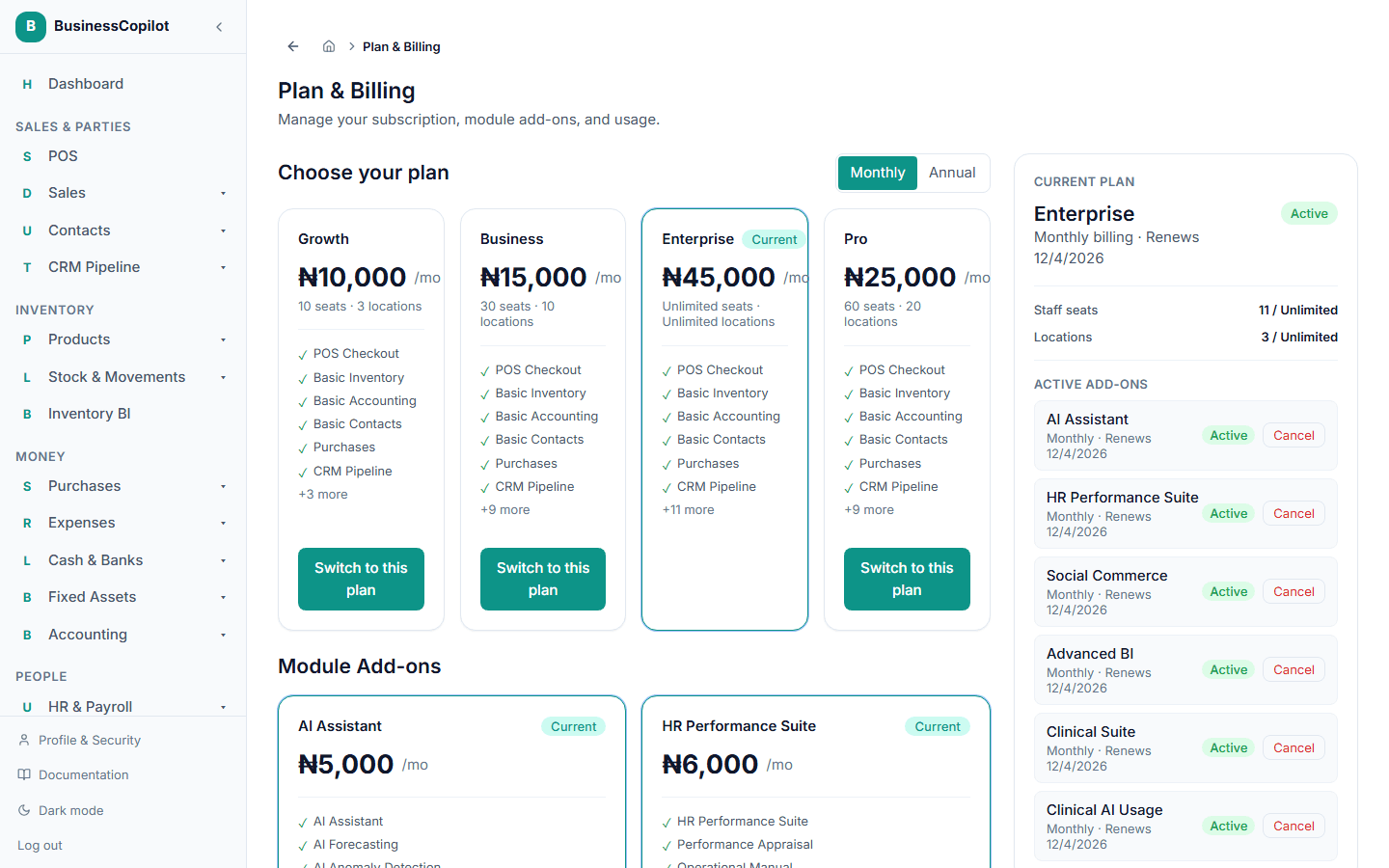
Once payment is confirmed it appears under Active Add-ons and the Clinical Suite entry appears in your sidebar. Turning an add-on on or off works the same as any other — see Adding or removing add-ons.
If the add-on is off, the Clinical Suite isn't available to anyone in your workspace, whatever their role.
Step 2 — Give your team access
The Owner can use everything as soon as the add-on is on. Everyone else needs their role to allow it.
- Go to Roles & Permissions.
- Open the role you want to change (for example Manager or Cashier).
- Find the Clinical Suite module in the permission list.
- Tick the actions you want that role to have on each line, then save.
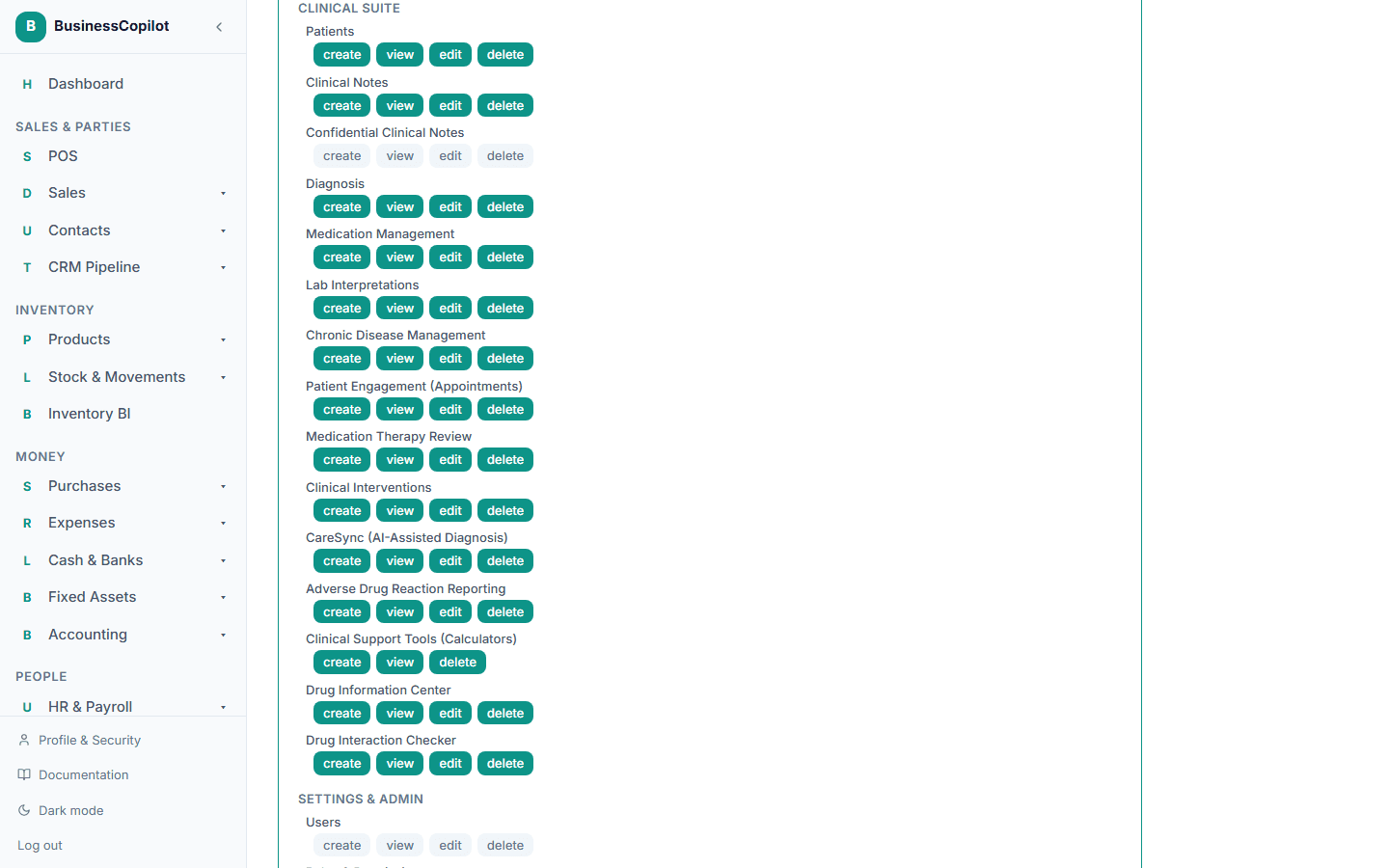
Each line has four actions: View, Create, Edit and Delete.
The lines that matter today
The Clinical Suite permission list has more lines than are built so far. Only these do anything today:
| Permission line | What it controls |
|---|---|
| Patients | The patient list, patient records, adding and editing patients, logging vitals, importing and exporting, deleting a patient. |
| Patient Engagement (Appointments) | The calendar, booking, provider schedules, follow-ups, reminders, recurring appointments, the waitlist and Insights. |
| Clinical Notes | Writing, reading, searching, editing and deleting clinical notes, their files, Notes Insights and your own note types. |
| Confidential Clinical Notes | Who may read, search, edit, delete and download files from notes marked confidential. Separate on purpose — see Confidential notes. |
| Diagnosis | Clinical encounters and diagnoses: starting an encounter (Create), viewing them (View), running triage, documenting an escalation, recording a decision, signing and cancelling (Edit), and deleting a diagnosis (Delete). Named "Diagnosis" for continuity; it covers the whole encounter workflow — see Starting a clinical encounter. |
The other lines — Medication Management, Lab Interpretations, Chronic Disease Management, Medication Therapy Review, Clinical Interventions, CareSync, Adverse Drug Reaction Reporting, Clinical Support Tools, Drug Information Center and Drug Interaction Checker — are already listed so you can plan who should get what, but they don't open any screen yet.
What each action allows
| Action | On Patients | On Appointments |
|---|---|---|
| View | See the list and every patient record; export patients; download a patient's PDF. | See the calendar, follow-ups, reminders, schedules, recurring series, waitlist and Insights. |
| Create | Add a patient; import patients. | Book appointments; start recurring series; add follow-ups (and book an appointment from one); add someone to the waitlist; add your own appointment and follow-up types. |
| Edit | Change a patient's details; log vitals. | Confirm, start, complete, reschedule or cancel an appointment; escalate, complete or cancel a follow-up; mark reminders as sent or dismiss them; remove someone from the waitlist or mark them booked; set provider schedules and time off; request an SMS sender ID; rename or deactivate your own appointment and follow-up types. |
| Delete | Delete a patient (it goes to the Recycle Bin). | Delete an appointment or a follow-up; stop a recurring series. |
A person without View on a line won't see that part of the Clinical Suite at all. On a patient's dashboard, someone who can see patients but not appointments sees the message "Appointments aren't available to your role."
What each action allows on Clinical Notes
| Action | On Clinical Notes |
|---|---|
| View | Read notes, search them, see Notes Insights and the note types, and download files. |
| Create | Write a note (including marking it confidential) and add your own note types. |
| Edit | Change a note, add or remove its files, change type, priority and tags on several notes at once, and rename or switch off your own note types. |
| Delete | Delete a note, one at a time or several at once. |
A confidential note needs the matching action on Confidential Clinical Notes as well. Ordinary Clinical Notes access never opens confidential notes by itself.
A sensible starting point
BusinessCopilot's eight starting roles don't include a "Pharmacist" or "front desk" role, so here is a suggestion using the roles you already have. Every workspace is different — treat it as a starting point, not a rule:
| Role | Suggested access |
|---|---|
| Owner | Everything (automatic). |
| Manager | View, Create, Edit and Delete on the Patients, Appointments and Clinical Notes lines. Add Confidential Clinical Notes only if managers should read confidential notes. |
| Cashier (front desk) | View and Create on Appointments; View on Patients. Usually no Clinical Notes access. |
| Auditor | View only, on the Patients, Appointments and Clinical Notes lines. |
| A custom role (for example "Pharmacist") | If clinical staff need to log vitals and edit records, create a role for them from Roles & Permissions with View, Create and Edit on the Patients, Appointments and Clinical Notes lines, and add Confidential Clinical Notes for the people who should read sensitive notes. |
People only see their own locations
If a role is limited to certain branches, that person only sees patients and appointments at those branches, and Insights only counts those branches. See Branches / locations.