Reconciling your bank statement
Match your records against your real bank statement and catch anything missing.
Reconciling is how you confirm your books agree with what your bank actually shows — catching a missed transaction, a bank fee you forgot about, or a mistake, before it piles up.
Starting a reconciliation
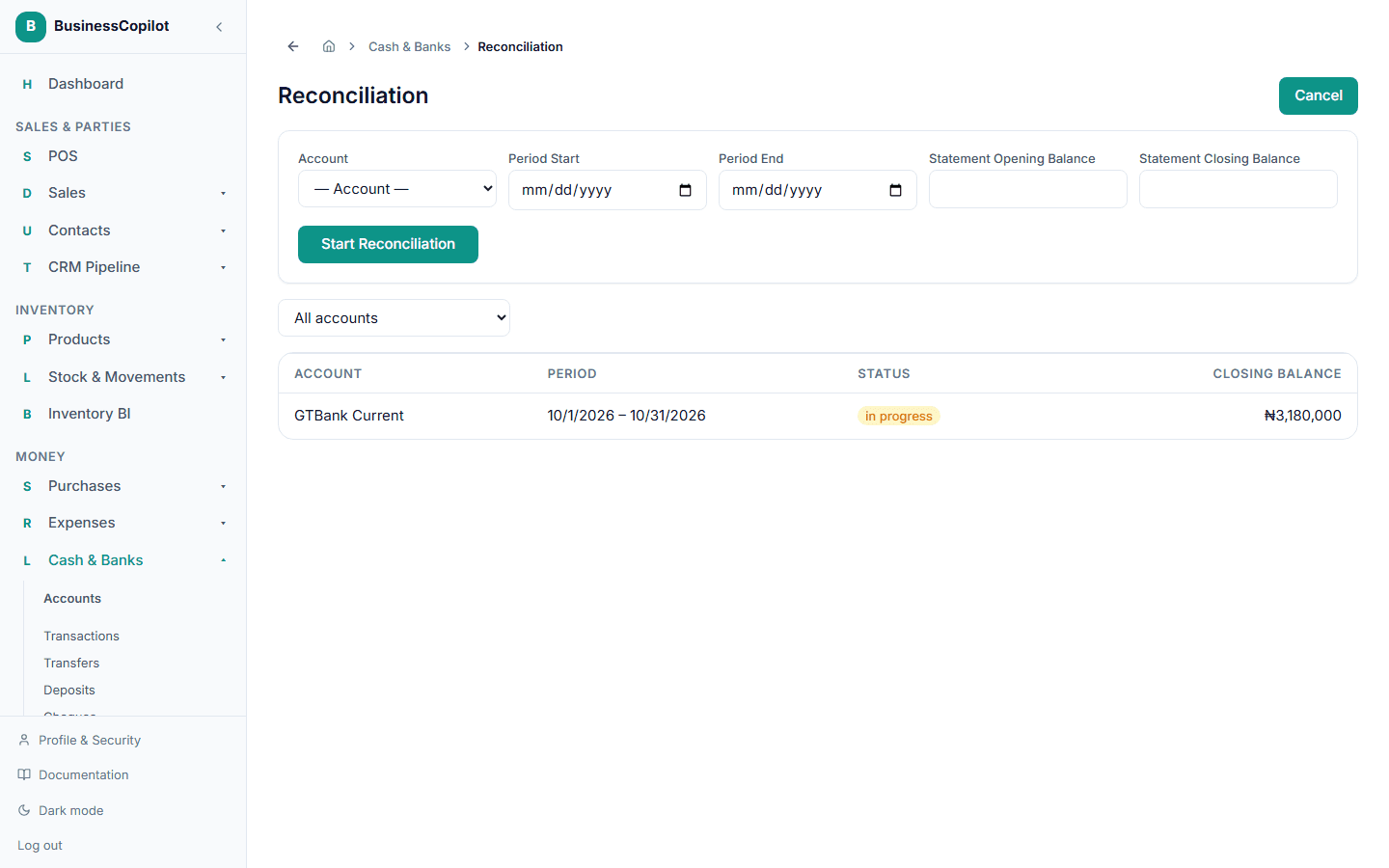
- Go to Cash & Banks → Reconciliation.
- Select + New Reconciliation.
- Choose the account, the statement period, and the statement's opening and closing balance (copy these straight from your bank statement).
- Select Start Reconciliation.
Importing your statement
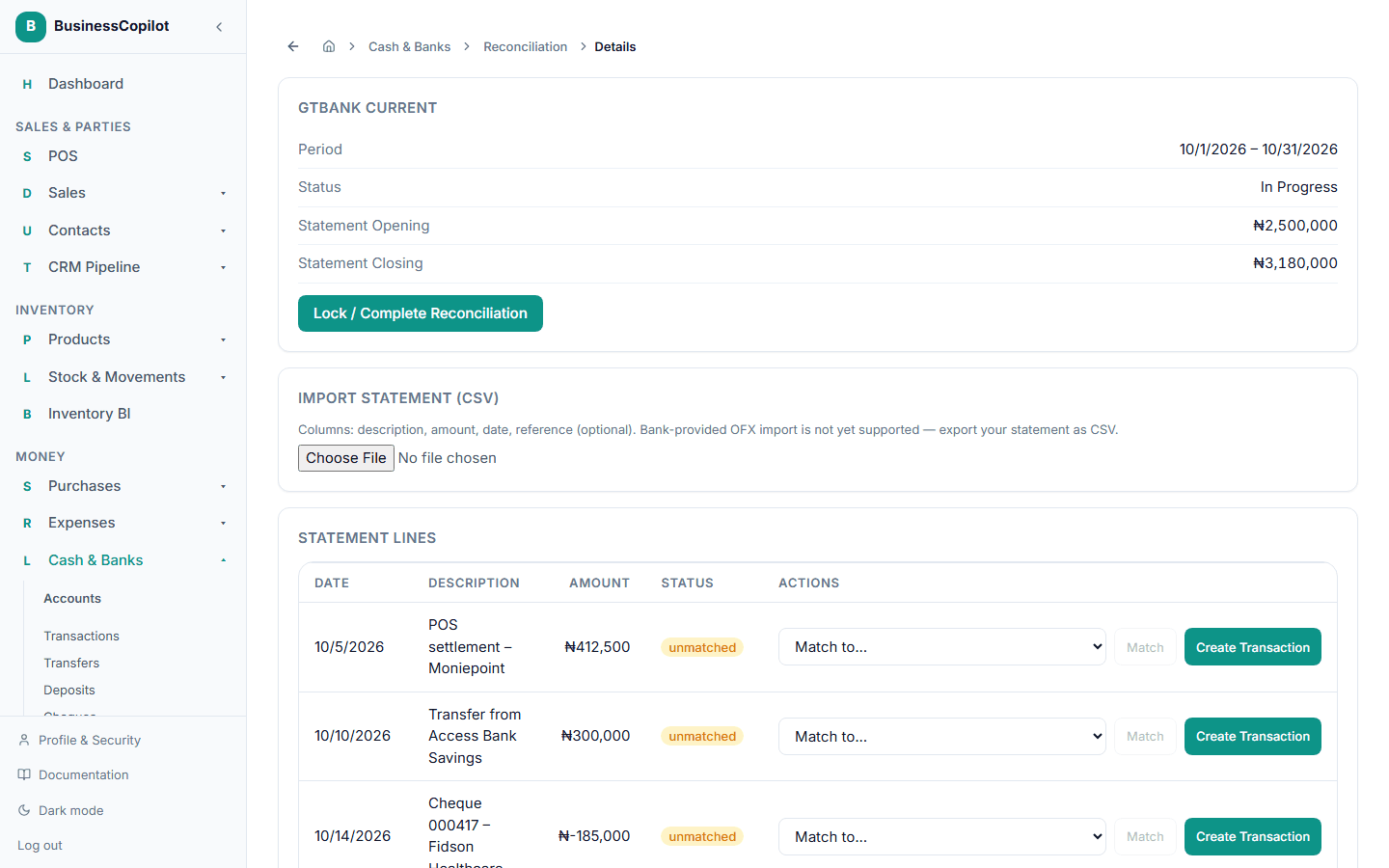
On the reconciliation's own page, upload your statement as a CSV file (most banks let you export one) under Import Statement. BusinessCopilot reads it and automatically matches lines it recognizes against your existing records.
Handling a line that didn't match
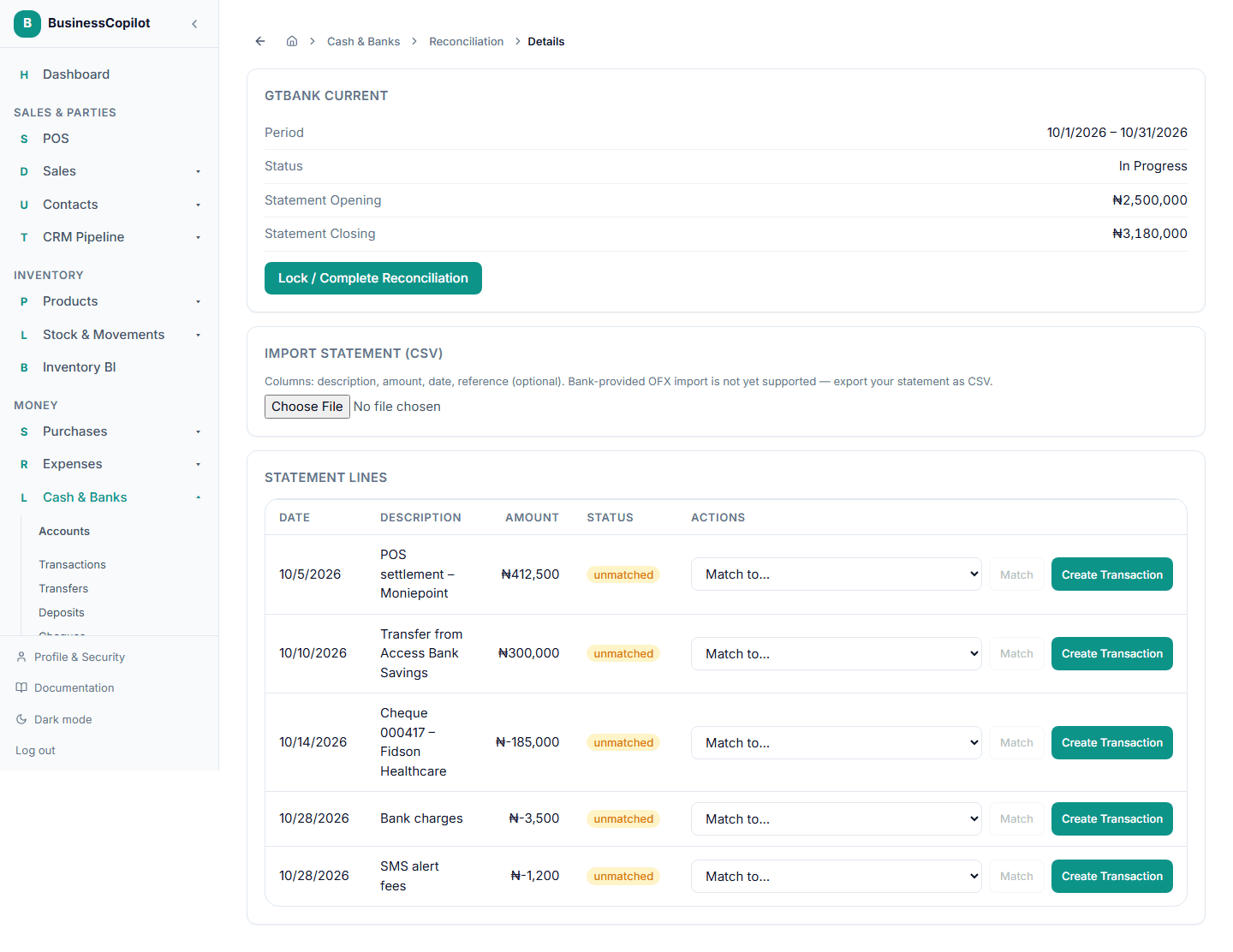
A line that isn't automatically matched shows as unmatched. For each one, you can:
- Match it to an existing record yourself, by picking it from the dropdown next to the line, or
- Create a record for it, if it turns out you never recorded that transaction at all — a bank fee you missed, for example.
Finishing up
Once everything's accounted for, select Lock / Complete Reconciliation. This locks the period so it can't be accidentally changed later.
Related
- Understanding your accounts
- Recording a cash sale — where a card or cash payment first gets recorded, before it shows up on your statement