Business Settings
Your business identity and the defaults applied when creating new products, contacts, sales, and purchases.
Business Settings is six related pages, grouped together. On Web and Desktop they're separate sidebar items (Business, Product, Contact, Sell, POS, Purchases); on the mobile app they're grouped under one Business Settings screen. Each is described below.
None of these change anything that already exists — they only apply to things you create after saving.
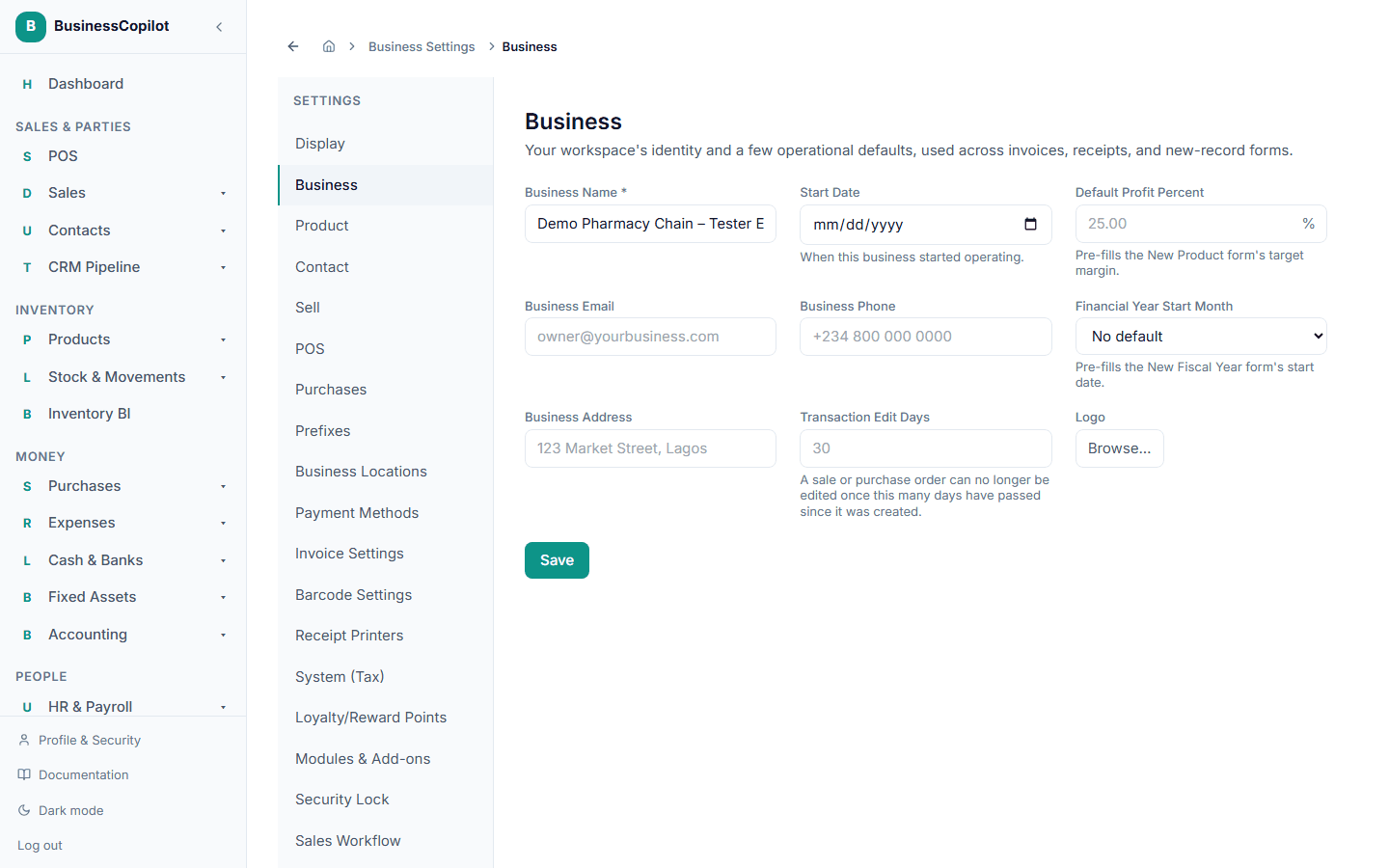
Business
Your workspace's identity — used across invoices, receipts, and new-record forms.
- Business Name — required.
- Start Date — when your business started operating.
- Default Profit Percent — pre-fills the target margin on the New Product form.
- Business Email and Business Phone — your contact details, printed on invoices.
- Financial Year Start Month — pre-fills the start date when you open a new fiscal year.
- Business Address — printed on invoices.
- Transaction Edit Days — how many days after creation a sale or purchase order can still be edited. After that, it's locked.
- Logo — click Browse… to upload an image. This is the same logo used on Invoice Settings — changing it here changes it everywhere.
Product
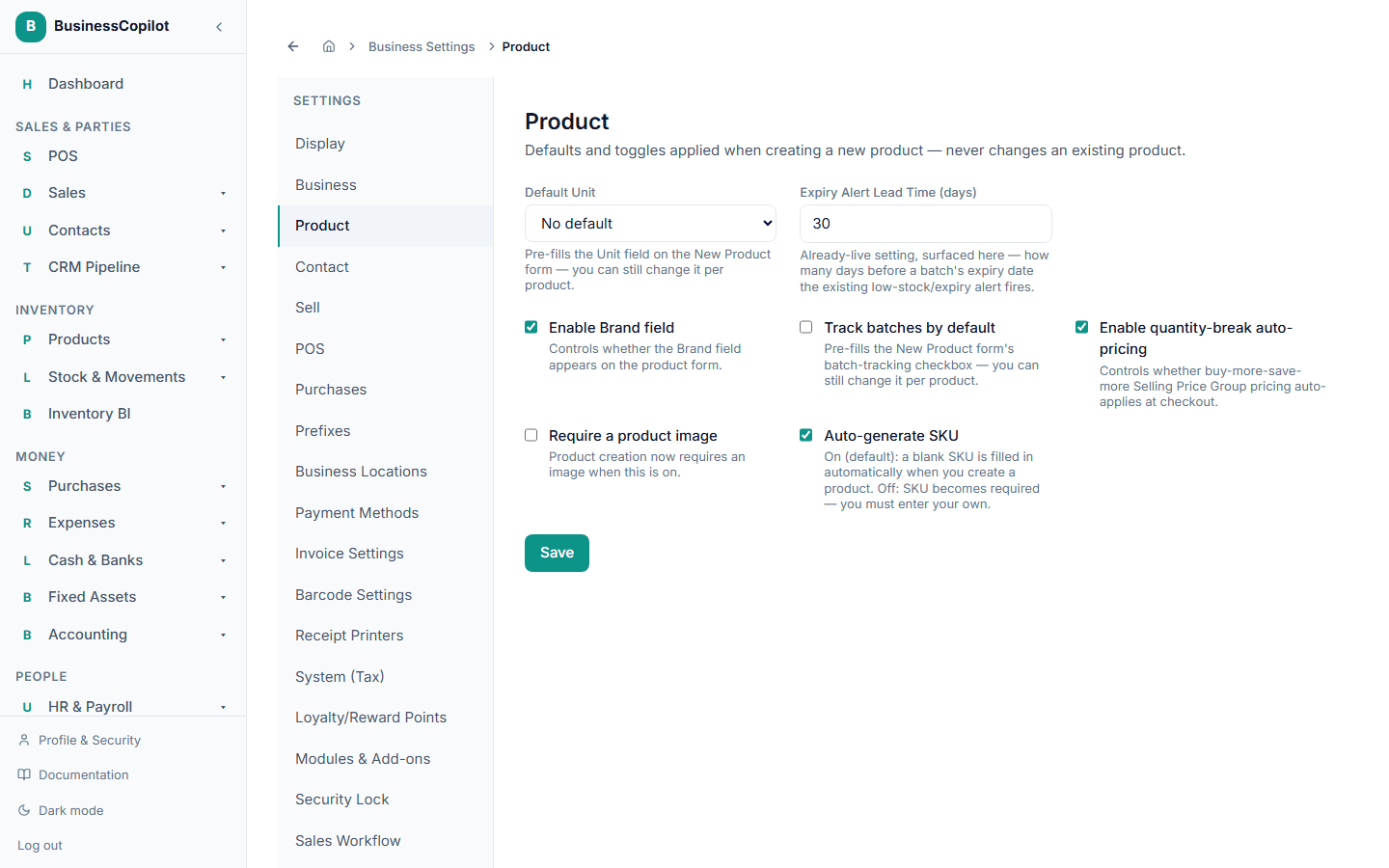
Defaults applied when creating a new product.
- Default Unit — pre-fills the Unit field on the New Product form.
- Expiry Alert Lead Time (days) — how many days before a batch expires the low-stock/expiry alert fires.
- Enable Brand field — shows or hides the Brand field on the product form.
- Track batches by default — pre-checks the batch-tracking box on new products (you can still change it per product).
- Enable quantity-break auto-pricing — turns on buy-more-save-more pricing at checkout when a product has quantity-break pricing set up.
- Require a product image — makes an image mandatory when creating a product.
- Auto-generate SKU — on by default: leaving SKU blank when you create a product fills one in automatically. Turn this off to require every product to have its own SKU you type yourself — see Adding a new product.
Contact
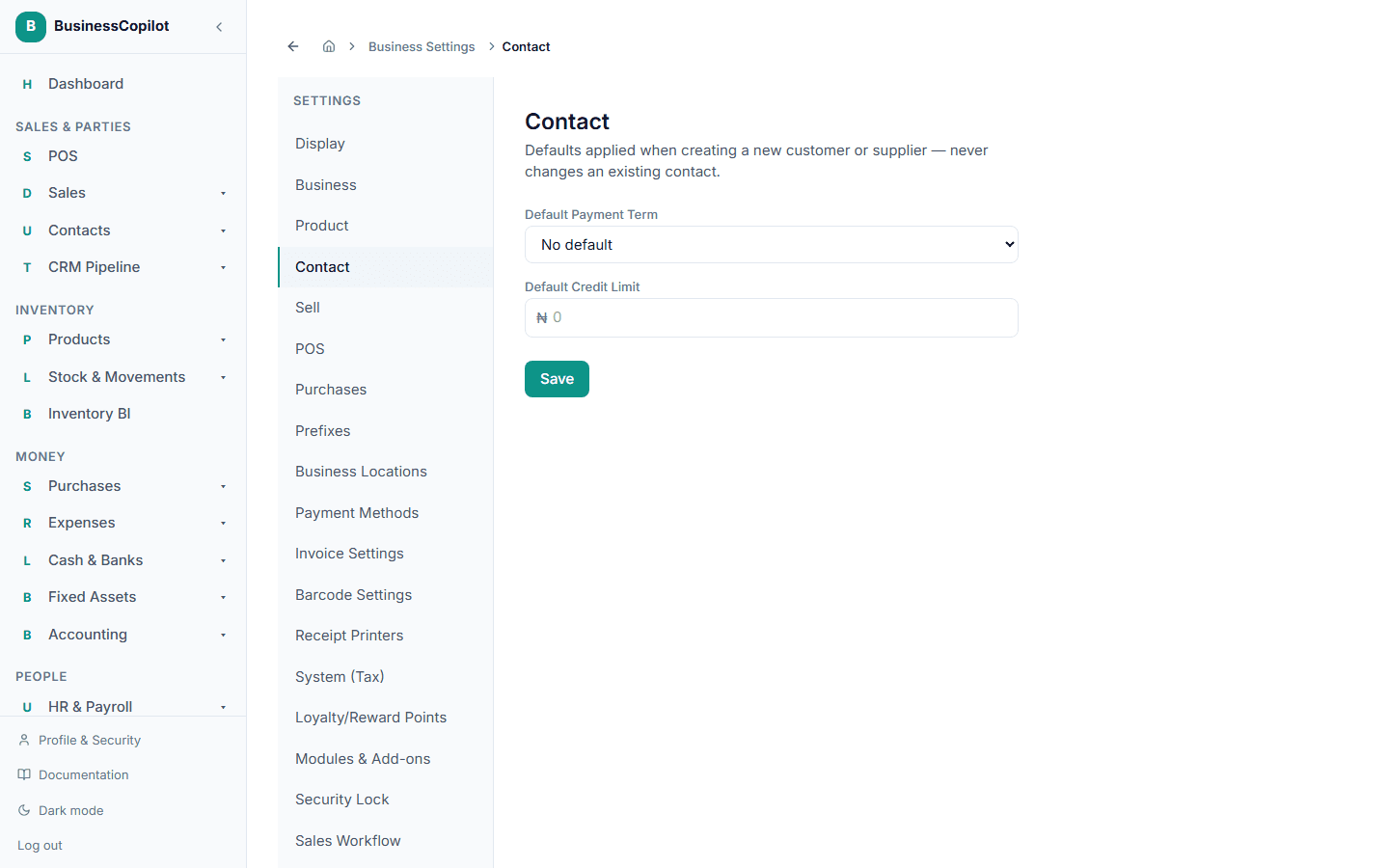
Defaults applied when creating a new customer or supplier.
- Default Payment Term — Cash on Delivery, Net 7, Net 15, Net 30, or Net 60.
- Default Credit Limit — pre-fills a new contact's credit limit in Naira.
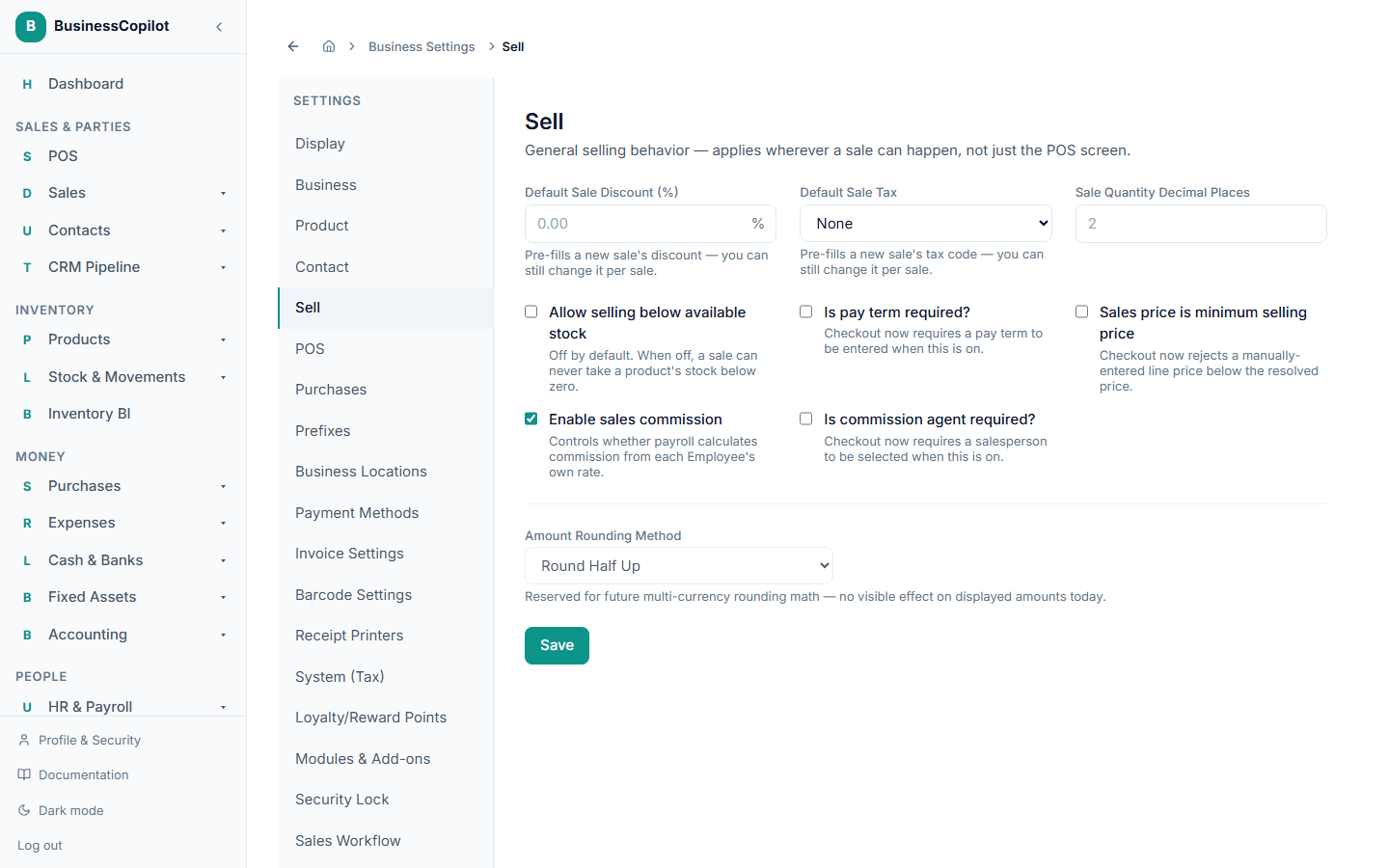
Sell
General selling behavior — applies wherever a sale happens, not just the till.
- Default Sale Discount (%) and Default Sale Tax — pre-fill a new sale's discount and tax code.
- Sale Quantity Decimal Places — how many decimal places a sale line's quantity allows.
- Allow selling below available stock — off by default. When off, a sale can never take a product's stock below zero.
- Is pay term required? — when on, checkout requires a pay term before completing a credit sale.
- Sales price is minimum selling price — when on, checkout rejects a manually-typed price below the product's resolved price.
- Enable sales commission — turns on commission calculation from each employee's own commission rate.
- Is commission agent required? — when on, checkout requires a salesperson to be picked before completing a sale.
POS
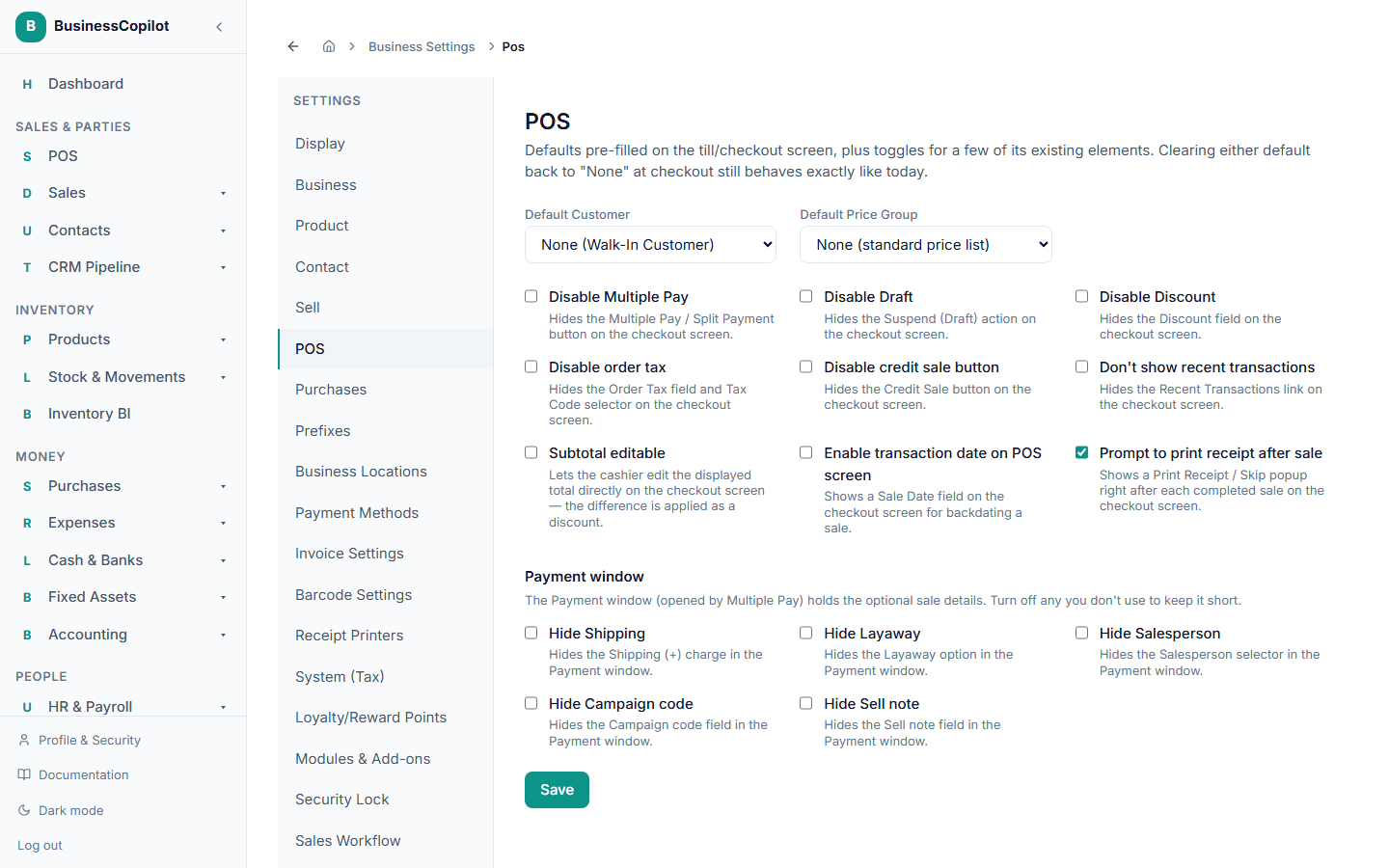
Defaults pre-filled on the till screen, plus toggles for a few of its buttons and fields.
- Default Customer and Default Price Group — what the till starts with; clearing either back to "None" still behaves exactly as before.
- Disable Multiple Pay — hides the split-payment button.
- Disable Draft — hides the Suspend (save-for-later) action.
- Disable Discount — hides the discount field.
- Disable order tax — hides the order-level tax field and tax code picker.
- Disable credit sale button — hides the Credit Sale option.
- Don't show recent transactions — hides the Recent Transactions shortcut.
- Subtotal editable — lets a cashier type the total directly; the difference is applied as a discount.
- Enable transaction date on POS screen — adds a Sale Date field so a sale can be backdated.
- Prompt to print receipt after sale — on by default. Shows a Print Receipt / Skip popup right after each completed sale on the checkout screen; see all the ways to print a receipt.
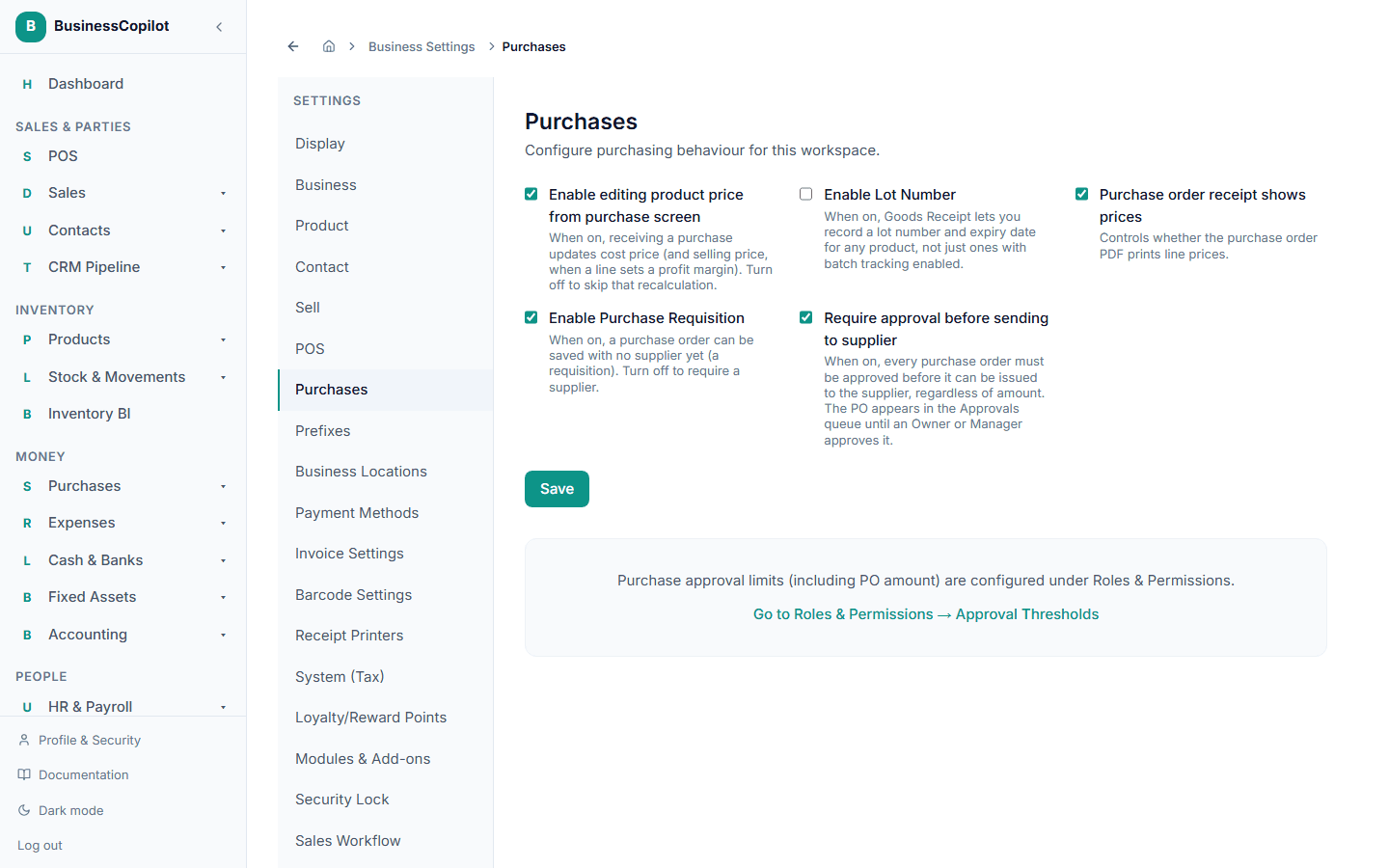
Purchases
Toggles for a few purchasing elements — all four match today's behavior until you change them.
- Enable editing product price from purchase screen — when on, receiving a purchase updates the product's cost price (and selling price, if a line sets a profit margin). Turn off to skip that.
- Enable Lot Number — when on, Goods Receipt lets you record a lot number and expiry date for any product, not just ones with batch tracking on.
- Purchase order receipt shows prices — controls whether the purchase order PDF prints line prices.
- Enable Purchase Requisition — when on, a purchase order can be saved with no supplier yet (a requisition). Turn off to require a supplier from the start.
Purchase approval limits are configured separately, under Roles & Permissions → Approval Thresholds.