CareSync: AI-Assisted Diagnostic Case Management
How CareSync works — opening a case, getting an AI diagnostic result, reviewing and acting on it, linking lab interpretations, and managing follow-up in the Clinical Suite.
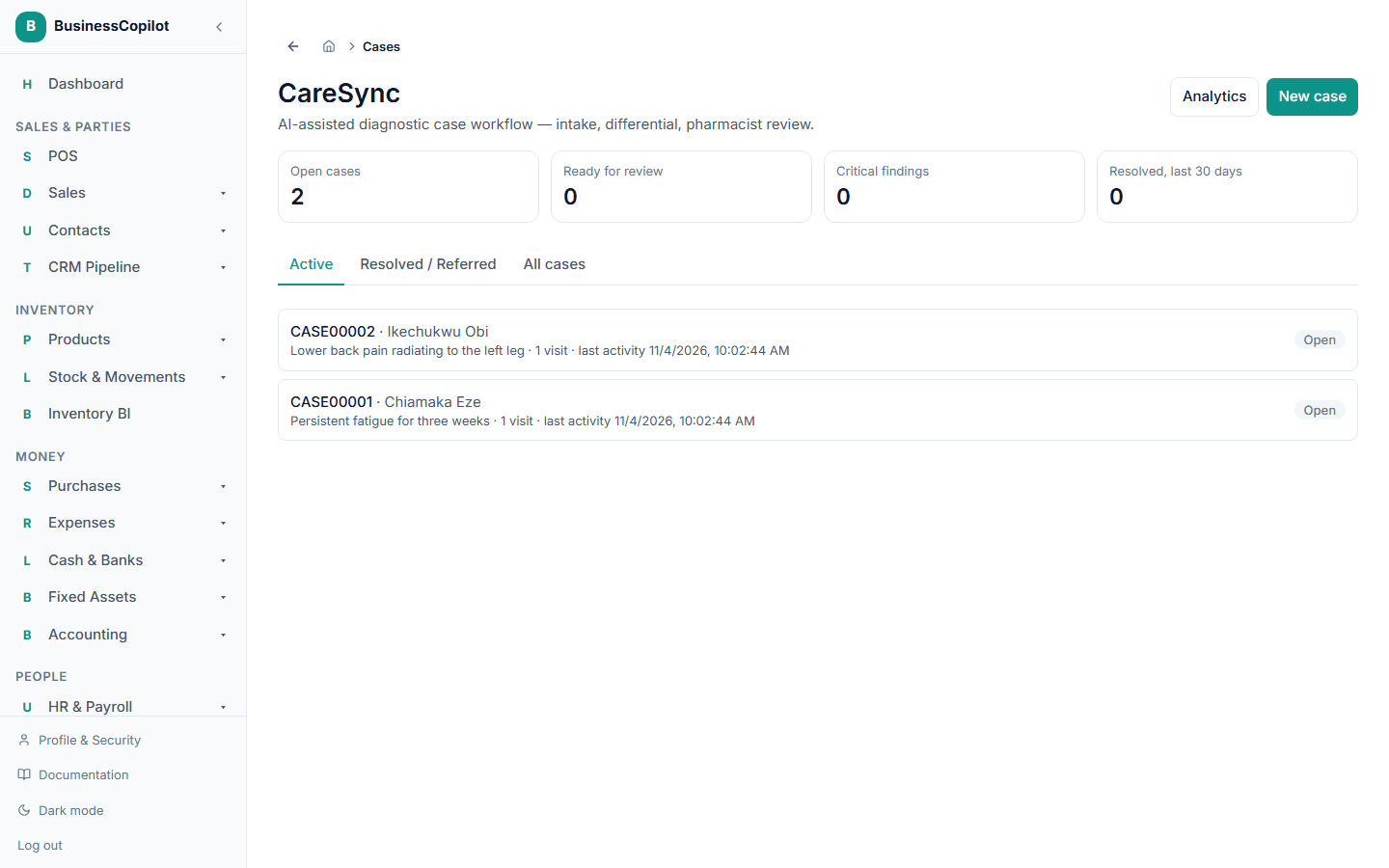
CareSync is a structured, AI-assisted case management workflow for complex diagnostic situations. When a patient presents with symptoms you want to investigate systematically — rather than just writing a note — CareSync gives you a case file that groups the intake, the AI analysis, the lab results, your decisions, and the follow-up plan in one place.
When to use CareSync
CareSync is the right tool when:
- A patient presents with unexplained symptoms that need differential diagnosis support
- You want the AI to analyse a full clinical picture (symptoms + vitals + history + medications) and suggest possible diagnoses
- You need to track a patient through an investigation, not just record a one-time encounter
- You want to link lab results, notes, and follow-up tasks to a single case timeline
For a straightforward clinical consultation, use Clinical Encounters. For a medication review session, use MTR.
Opening a case
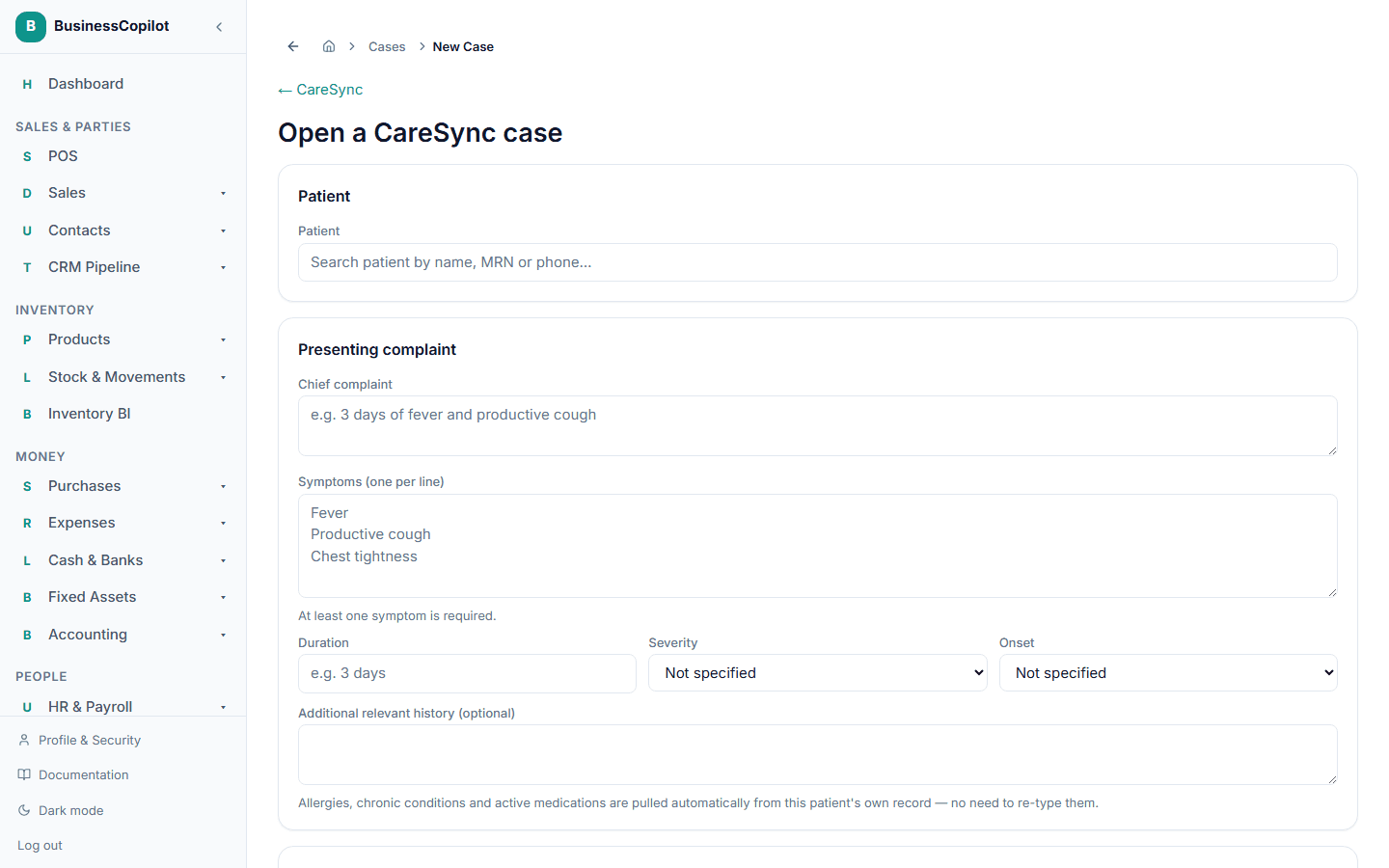
Go to Clinical Suite → CareSync (Web and Desktop sidebar), or tap CareSync in the mobile Clinical Suite sub-nav. Select New case.
Selecting the patient
Search for and select the patient. The case is immediately linked to their full record — allergies, conditions, active medications, and vital signs are all loaded in the background to inform the AI analysis.
Recording consent
Before any AI analysis, you must check the Patient consent box. This confirms the patient has agreed to have their clinical data processed. Consent is mandatory — the system will not run the AI without it.
Intake information
Describe the patient's current presentation:
- Chief complaint — the primary reason for the visit, in your own words
- Symptoms — each symptom, with severity (Mild / Moderate / Severe) and duration
- Onset — how the symptoms started (sudden, gradual, chronic)
- Additional context — any other relevant information (travel history, occupational exposure, family history)
You can also upload intake documents — a referral letter, a previous lab result — as images or PDFs. These are kept in the private clinical storage bucket.
Select Submit and analyse when ready.
The AI diagnostic result
The AI analyses the full picture — your intake, plus the patient's allergies, conditions, medications, and vital signs (read live from their record, never re-typed) — and returns:
Differential diagnosis — a ranked list of possible conditions. Each entry shows:
- The condition name
- A confidence level (High / Moderate / Low)
- The supporting clinical reasoning for that level
Suggested investigations — further tests that would help confirm or rule out the leading diagnosis.
Medication suggestions — possible medication approaches relevant to the leading diagnoses. These are suggestions only — your pharmacist makes all final medication decisions.
Red flags — symptoms or findings in this case that require urgent attention.
Risk assessment — an overall severity assessment of the current clinical picture.
Referral recommendation — whether and how urgently a referral is indicated.
The AI does not access any external system — it works entirely from what is on the patient's record and what you entered in the intake form. No patient-identifying information (name, MRN, contact) is sent in the AI call.
📸 Screenshot needed: the AI result panel showing the differential diagnosis list with confidence levels.
Reviewing and acting on the AI result
The AI result starts as Pending review. A pharmacist must review it before it is considered final:
- Approve — the AI result is accurate as-is. The case moves to Investigating.
- Modify then approve — edit the result first (add your own notes, remove incorrect suggestions, adjust the differential) then approve.
- Reject — the result is not useful for this case. Add a reason. The case stays open and you can add a follow-up request.
📸 Screenshot needed: the review buttons with an "Approve" and "Modify & approve" option.
Promoting a diagnosis
From the AI result's differential diagnosis list, you can promote any suggested diagnosis to a confirmed Diagnosis record on the patient's profile. Select the diagnosis and choose Promote to diagnosis. This creates a real diagnosis entry linked to this CareSync case.
Creating an intervention
From the approved result, select Create intervention to link a Clinical Intervention to this case. For example: "Refer to physician for further evaluation" or "Initiate medication change."
Adding follow-up requests
CareSync cases stay open across multiple visits. If the first review leads to investigations and you want to reassess once results are in, select Add follow-up request on the case. This creates a new request within the same case, with a fresh intake form. The case timeline accumulates all requests, lab results, and notes.
Linking lab interpretations
If you run a lab interpretation (from the Lab Interpretations module) for a patient who has an open CareSync case, you can link the two. Open the lab interpretation and select Link to CareSync case, then search for the relevant case. Once linked:
- The lab result appears in the CareSync case timeline.
- The CareSync case also appears on the patient's Lab Results tab.
Alternatively, from inside an open CareSync case, select Attach lab result — this opens the Lab Interpretations upload flow pre-linked to the case.
📸 Screenshot needed: the CareSync case timeline showing a linked lab interpretation entry alongside intake requests.
Scheduling follow-up
Select Schedule follow-up from the case detail to create a Follow-up task linked to this case. The follow-up will appear on the patient's follow-up worklist and on the calendar.
Closing a case
When the clinical investigation is complete, select Close case. Choose an outcome:
- Resolved — the issue has been addressed
- Referred — the patient has been referred to another provider
Add any closing notes. Closed cases remain in the patient's timeline as a permanent record.
Case status workflow
A case moves through these statuses:
| Status | What it means |
|---|---|
| Open | Just created; intake in progress |
| Investigating | AI result reviewed; under active investigation |
| Monitoring | Investigation complete; patient being monitored |
| Resolved | Case closed — issue addressed |
| Referred | Case closed — patient referred |
CareSync analytics
The CareSync page includes an Analytics tab with workspace-level outcome data: case outcomes breakdown, average time to resolution, how often AI results are approved vs. modified, and counts of promoted diagnoses, interventions created, and follow-ups scheduled.
Finding past cases
The main CareSync list has tabs for Active (Open + Investigating + Monitoring), Resolved, and All. A patient's own CareSync cases appear on their CareSync tab on the patient record.
Permissions
The CareSync permission line controls access. View lets you read cases; Create opens a new case; Edit covers intake, review, and case updates; Delete removes a case to the Recycle Bin.
Related
Chronic Disease Management
How to track a patient's long-term conditions, record structured review visits, monitor readings against clinical targets, and set up custom condition configurations in the Clinical Suite.
Clinical Calculators
How to use BusinessCopilot's built-in clinical calculators — renal, dosing, risk scoring, lab interpretation, and more — from within the Clinical Suite.