Setting up discount rules
Run an automatic, scheduled promotion across a category — distinct from a one-off discount at checkout.
A discount rule is a promotion that applies itself automatically at checkout for as long as it's active — different from manually applying a discount to one sale, which a cashier types in by hand each time.
- Go to Sales Menu → Discounts (from the checkout screen).
- Select + Add Discount.
- Give it a Name.
- Choose what it applies to — All products, a specific category, a specific product, or a brand.
- Choose the Type (Percent or a Fixed ₦ amount) and the Amount.
- Optionally set a Start date and End date to schedule it.
- Save.
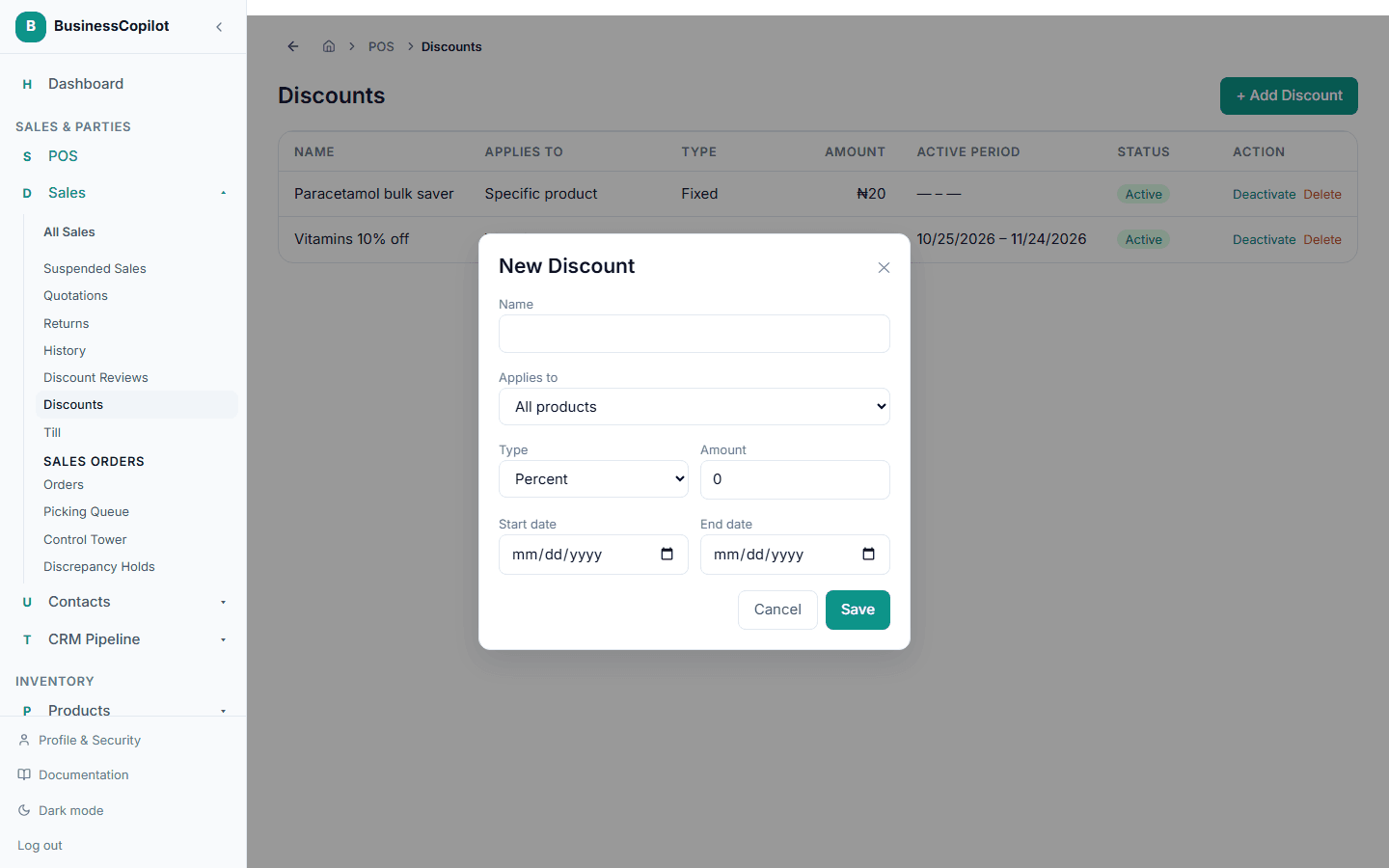
Once saved, it's active immediately (unless you gave it a future start date) and applies automatically at checkout to anything it covers — you can deactivate or delete it any time from the same list.
If more than one rule could apply
A product can match more than one active rule at once — its own product-specific rule, a rule on its brand, and a rule on its category, all at the same time. Only one applies at checkout, in this order: a rule on the exact product wins first; if there isn't one, a rule on its brand applies; if there isn't one, a rule on its category applies; otherwise, nothing scoped that specifically applies.