The patient record
A tour of a patient's record — the header, the Dashboard tab and the other tabs — and which parts are live today.
Select a patient's name in the list to open their record.
The header
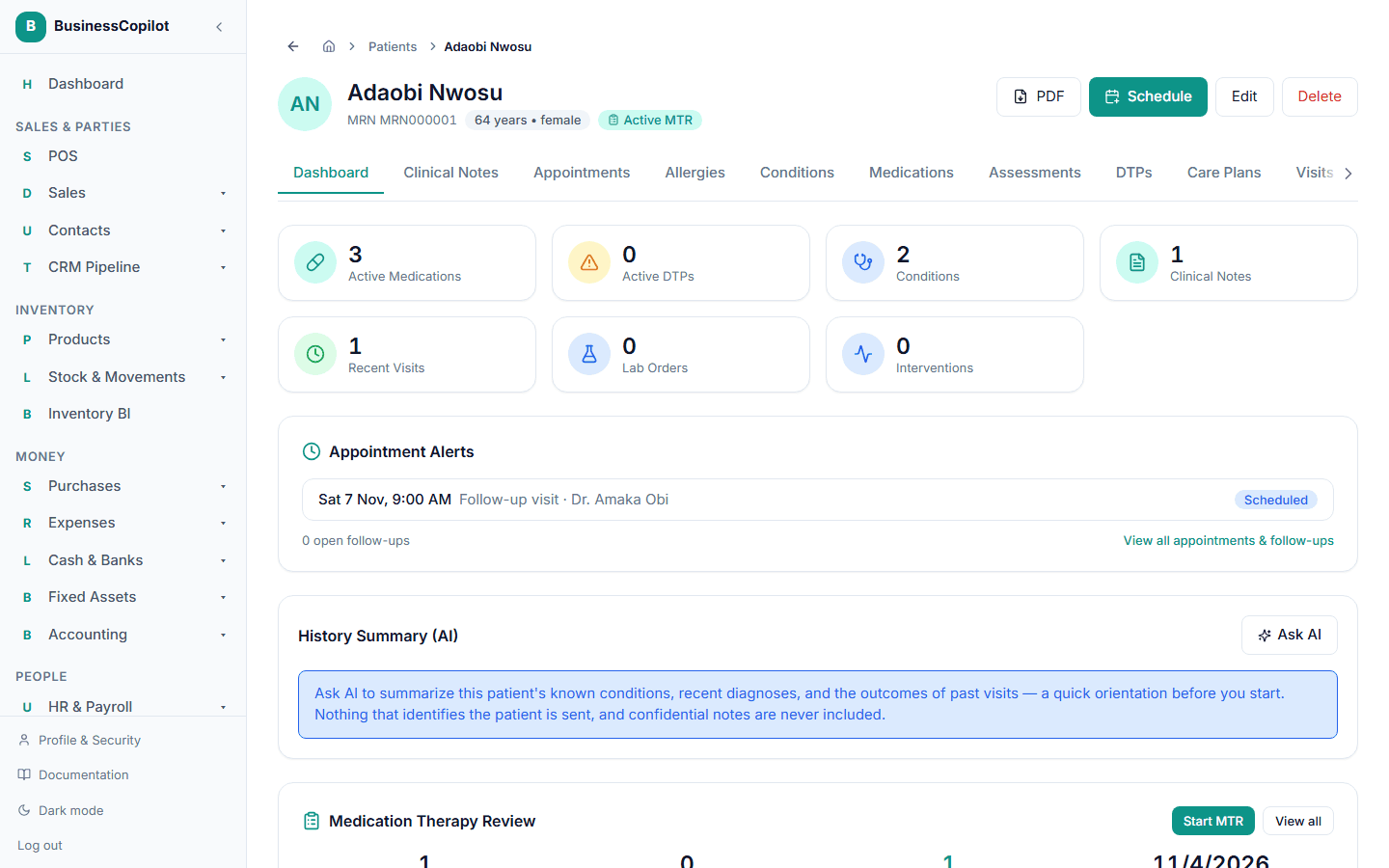
At the top you'll see the patient's name, their MRN, age and gender, and whether they're Active or Inactive. Buttons on the right:
- PDF — downloads a print-ready copy of the record (a file named after the MRN).
- Edit — switches the record into edit mode (needs the Edit permission). It changes to Cancel while you're editing.
- Delete — moves the patient to the Recycle Bin (needs the Delete permission).
The tabs
A strip of tabs runs under the header. These are live today:
| Tab | What it's for |
|---|---|
| Dashboard | The overview — see below. |
| Appointments | This patient's upcoming and past appointments, with buttons to book. See The Appointments tab. |
| Allergies | Their recorded allergies — allergen, reaction and severity. |
| Conditions | Their known conditions — name, status and date diagnosed. |
| Vitals | Log new vitals and see the history. See Logging vitals. |
The tab strip scrolls sideways, so on a small screen you can swipe or drag to reach every tab.
The Allergies and Conditions tabs are read-only. To add or change something, select Edit patient to add or change on the tab — it takes you into the same form used to add a patient.
The Clinical Notes tab
The Clinical Notes tab lists this patient's SOAP notes, with search, filters and a New note button. See Writing a clinical note and Finding and searching notes. Notes marked confidential show as locked entries unless your role includes confidential access — Confidential notes.
The Encounters tab
The Encounters tab lists this patient's clinical encounters — structured visits with a safety check, possible conditions and your decision — with a New encounter button, and their Diagnoses underneath. See Starting a clinical encounter and Diagnoses.
Tabs that aren't built yet
These tabs are in the strip but only show a short description and "Lands in Phase …": Medications, Assessments, DTPs, Care Plans, Visits, MTR Sessions, Chronic Disease, Interventions, Lab Results and CareSync. They're placeholders, not errors.
The Dashboard tab
The Dashboard gives a snapshot of the patient.
Row of tiles. Six numbers across the top. Only Conditions is live — it counts the conditions on record. Active Medications, Active DTPs, Recent Visits, Lab Orders and Interventions show a dash (—) with the phase they belong to. A dash means "not tracked yet", not "none".
Appointment Alerts. A live card. It tells you at a glance:
- how many follow-ups are overdue, and the next one due;
- how many appointments the patient has missed;
- their next few upcoming appointments with the status of each;
- or, if nothing is booked, "No appointments scheduled — This patient has nothing booked. Consider scheduling a consultation." with a Schedule appointment button.
Under it are the number of open follow-ups and a link, View all appointments & follow-ups.
History Summary (AI). Only shown once your workspace has turned on AI clinical assistance and you can view Patients, Notes and Diagnosis. An Ask AI button writes a short orientation paragraph from the patient's known conditions, recent diagnoses and past visit outcomes — see AI clinical reasoning.
Patient Information. Phone, Email, Location and Date of Birth.
Insurance. Provider, Policy Number and Plan Name.
Emergency Contacts. Each contact with their relationship and phone.
Patient Summary. A plain roll-up: Allergies, Active conditions (anything not marked Resolved) and Latest vitals. If there are none, it says "No active clinical issues identified."
Cards for later stages. Medication Therapy Review (with a disabled Start MTR button), Lab Orders (Quick Order), Lab Integration Cases (New Case) and Patient Timeline are placeholders that say which phase they belong to.
The Appointments tab
The Appointments tab has two cards.
Appointments. Lists the patient's Upcoming appointments and, below, their Past ones, each with a status pill. If the patient's no-show risk is medium or high, a risk label appears next to it — see No-show risk. Select Book appointment to book a new one with this patient already chosen — see Booking an appointment. Select any appointment to open it and act on it — see Managing an appointment. With none yet it says "No appointments yet."
Follow-ups. This patient's follow-up tasks, with a New follow-up button. See Follow-ups.