Discrepancy Holds
What happens when a picker finds the wrong quantity in the warehouse, and how to resolve the hold so goods can be released.
A discrepancy occurs when a picker finds fewer items in the warehouse than the order requires. When this happens, the order is automatically placed On Hold and cannot be released until a manager or authorised team member resolves each discrepant line.
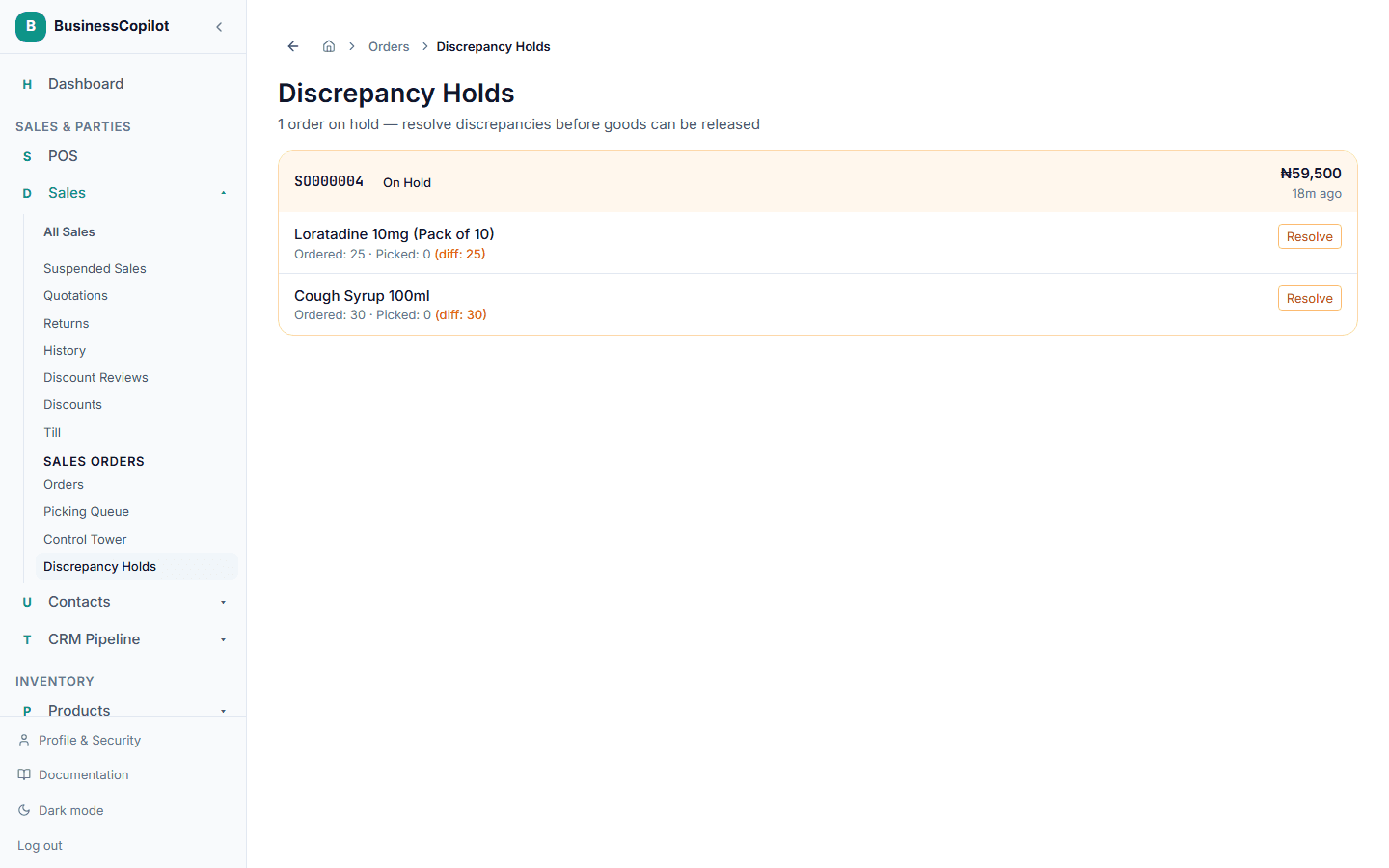
Go to Sales Orders → Discrepancy Holds to see all orders currently on hold.
How an order ends up on hold
In the Picking Queue, a picker can click Discrepancy on any line and enter the quantity they actually found. As soon as that is reported:
- The order status changes to On Hold.
- The order is removed from the Picking Queue.
- It appears in Discrepancy Holds with the difference clearly highlighted (e.g. "Ordered: 5 · Picked: 3 · Diff: 2").
- The On Hold tile in the Control Tower increments by one.
Resolving a discrepancy
Click Resolve on the discrepant line. A dialog appears with three resolution options:
Stock was found — proceed with full quantity
Choose this if someone rechecked the warehouse and the missing items have been located. The picker's discrepancy report is overridden and the full ordered quantity is used for release.
Write off — release with the discrepant quantity
Choose this to accept the shortfall. The order will be released with the lower quantity actually picked. The sale and stock deduction will reflect the picked amount, not the ordered amount.
Partial release — specify quantity
Choose this to set a custom quantity — somewhere between zero and the ordered amount. Useful when only part of the found stock is suitable for release.
You can also add an investigation note to any resolution for audit purposes.
Once every discrepant line is resolved, the order automatically moves to Picked status and becomes available for release in the Control Tower.
Who can resolve a discrepancy?
Any team member whose role has the discrepancy_holds.view permission can see and resolve holds. Typically this is Managers and Owners.
Related
Control Tower
Monitor all in-flight sales orders at a glance, track picking progress, confirm payment, and release goods to the customer.
Sales Workflow settings and role assignment
How to configure your workspace selling mode and control which team members can use Counter Checkout, Sales Orders, or both.