Stock transfers between branches
Move stock from one branch to another.
If one branch is running low on something another branch has plenty of, move it across with a transfer instead of a new purchase.
- Go to Stock → Transfers.
- Select New Transfer.
- Choose the source and destination branch by name, search for and add each product and its quantity, and add an optional note.
- Save.
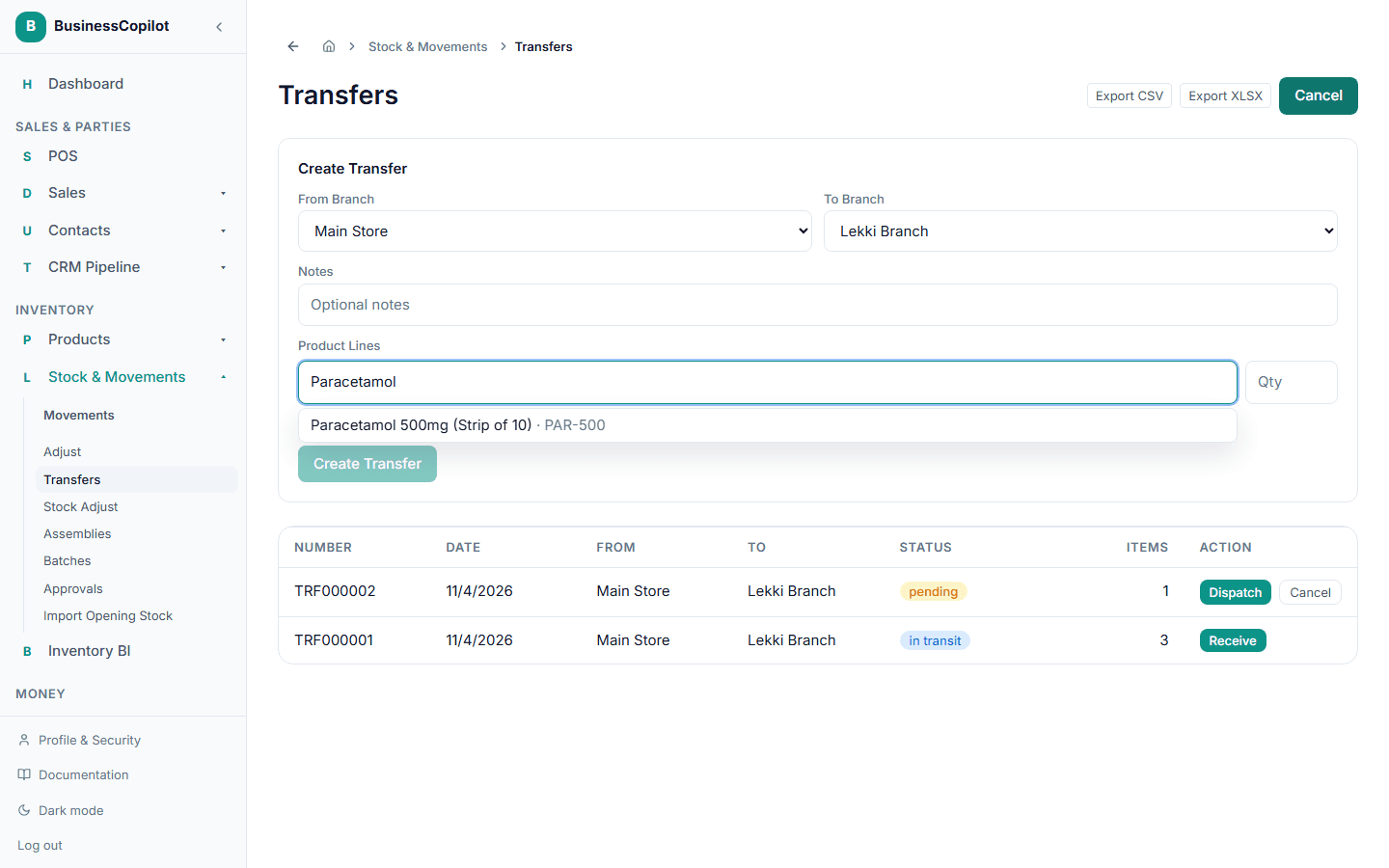
A transfer moves through a status as it goes:
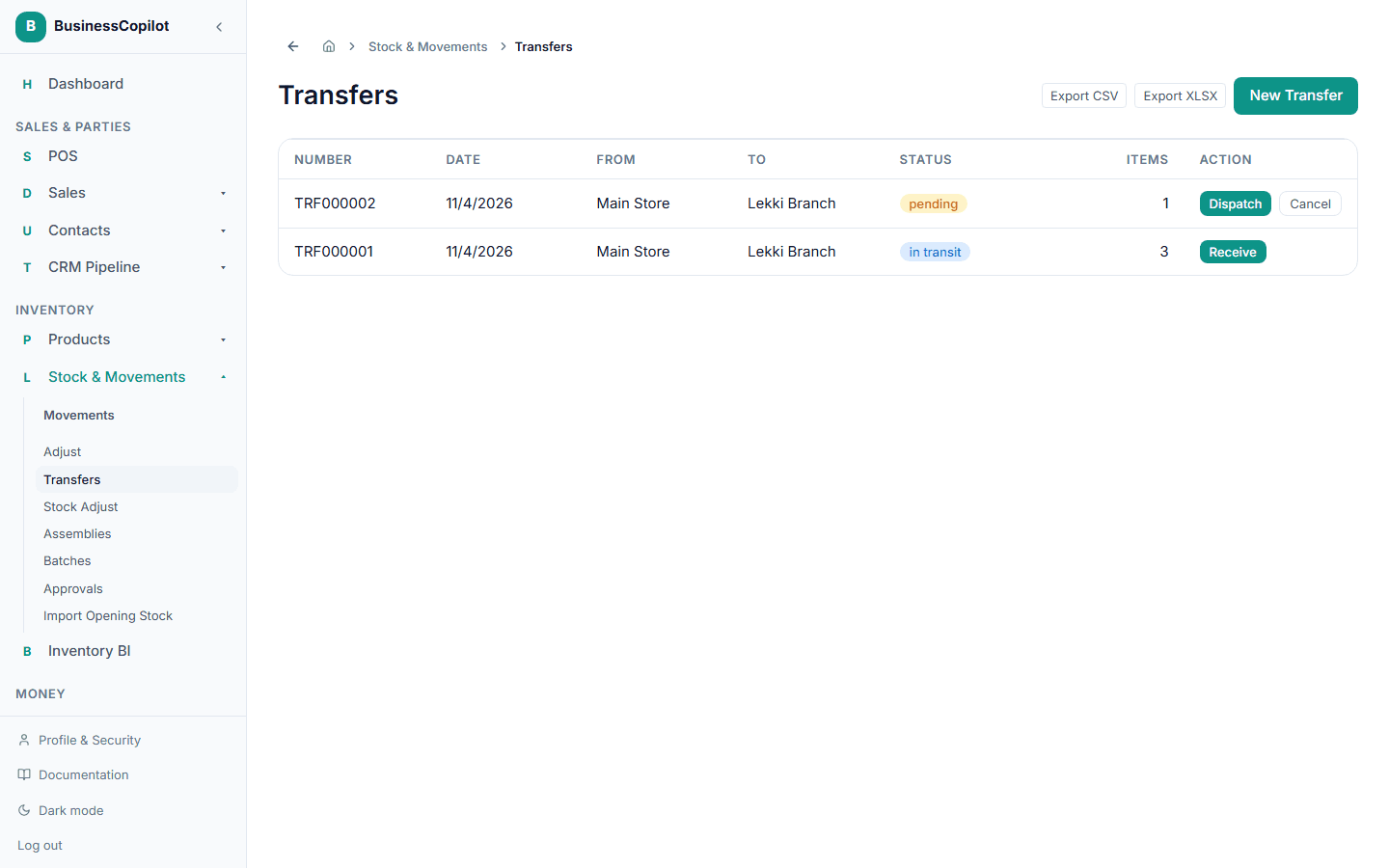
- Pending — created, not yet on its way. Select Dispatch once you've actually sent the stock — this is what moves it out of the source branch's stock.
- In Transit — on its way. Select Receive once it arrives at the destination — this is what adds it to the destination branch's stock.
- Received — done. Stock has moved from one branch to the other.
You can also Cancel a transfer that's still pending, before anything has been dispatched.
If dispatch needs approval first
A transfer can sit at Pending for two different reasons: it simply hasn't been dispatched yet, or dispatching it was requested and is now waiting on an Owner or Manager to approve it (if your workspace has a threshold set for larger transfers). BusinessCopilot shows you which one it is, so you're never guessing — a transfer awaiting approval is clearly marked, with no Dispatch button to press until it's decided.