Finding and filtering patients
Search your patient list, narrow it with filters, and read the columns.
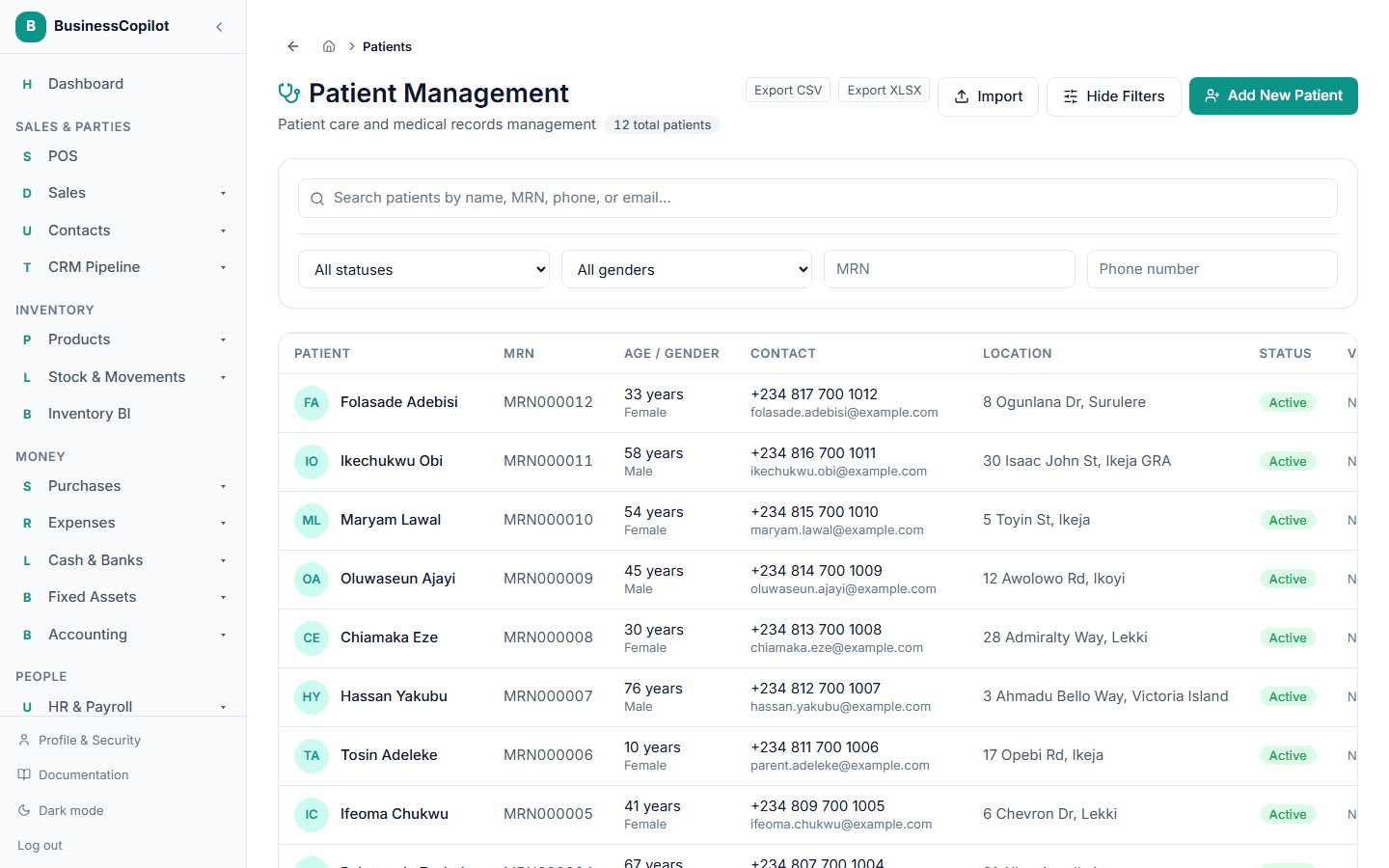
The patient list is the first screen of the Clinical Suite. Open it from Clinical Suite → Patients.
What the list shows
At the top of the page:
- The title Patient Management, and a count such as 128 total patients.
- Export CSV and Export XLSX buttons, an Import button, a Hide Filters / Show Filters button, and Add New Patient.
Each patient is one row:
| Column | What it shows |
|---|---|
| Patient | Their initials in a circle, and their name. Select the name to open their record. |
| MRN | Their medical record number. |
| Age / Gender | Age in years (worked out from their date of birth) and gender. |
| Contact | Phone number, and email — or "No email". |
| Location | Their address. |
| Status | Active or Inactive. |
| Vitals | Their most recent blood pressure, heart rate and BMI, or "No vitals recorded". |
| Actions | A menu — see below. |
Searching
Type in the box at the top of the card. It searches name, MRN, phone and email at the same time, and updates a moment after you stop typing.
Examples:
Adaeze— finds every Adaeze.MRN000042— finds that exact patient.0803— finds phone numbers containing 0803.
Filtering
Select Show Filters if the filter row is hidden. You can combine these with the search box:
| Filter | Choices |
|---|---|
| Status | All statuses, Active, Inactive. |
| Gender | All genders, Male, Female, Other. |
| MRN | Type part of an MRN. |
| Phone number | Type part of a phone number. |
Select Clear filters to reset all four.
If nothing matches you'll see "No patients match your search or filters." If you have no patients at all you'll see "No patients yet — add one to start building the patient record."
The Actions menu
Each row has an Actions menu:
- View Patient Profile — opens the record.
- Edit Patient Info — opens the record straight into editing. Only shown if you have Edit.
- Delete Patient — only shown if you have Delete. See Editing and deleting a patient.
Long lists
The list shows the first 100 patients that match. If you have more, a note under the table says "Showing the first 100 of …" — narrow it down with the search box or filters.
Exporting exactly what you see
Export CSV and Export XLSX download the patients that match your current search and filters — so filter first, then export. See Importing and exporting patients.
On the mobile app
The mobile app's patient list has a search box ("Search by name, MRN, phone..."), each patient shown as a card with their MRN, phone and branch, and Export and Import options. It doesn't have the Status / Gender / MRN / Phone filter row — use the search box instead. See The Clinical Suite on each platform.