Typing the amount for a row
Set the final amount for a sale, purchase or sales order row by typing it into the amount column. The unit price works itself out.
Every screen where you add items to a sale, a purchase or a sales order has an amount column on each row: Subtotal on sales and sales orders, Line Total on purchases. You can click that amount and type the figure you actually want for the row. For example, if DC BREAKER 100A shows ₦8,800 and the customer agrees to ₦8,500, type 8500.
The screen works out the unit price (or unit cost on a purchase) from the amount you typed. You do not need to do the sum yourself.
On a sale
- Go to Sales → POS, or open Sales → Add Sale for the back-office form.
- Add the item to the cart.
- Click the amount at the end of the row.
- Type the final amount for the row and move on.
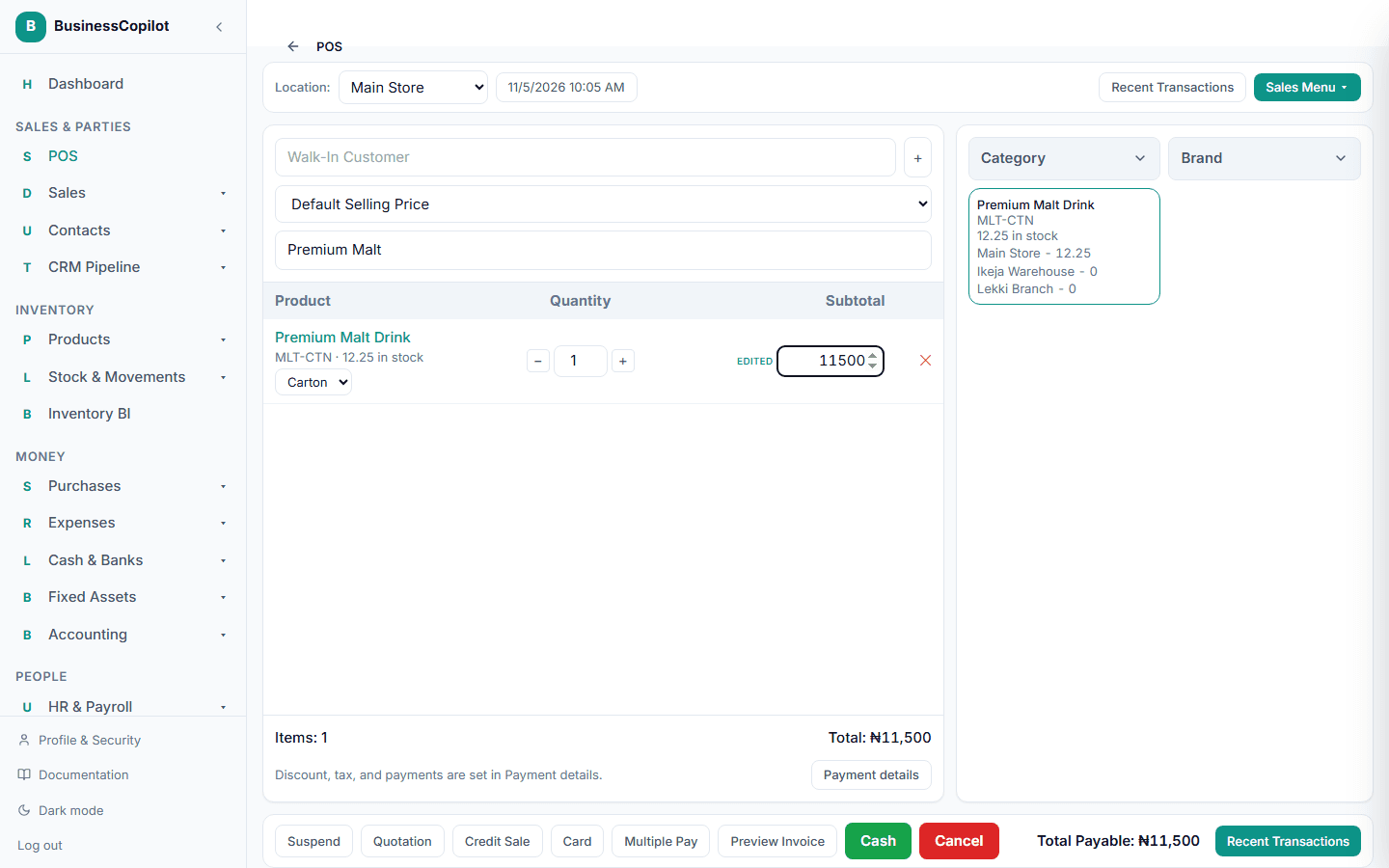
The row shows exactly the amount you typed, and the unit price behind it is updated to match (on the back-office Add Sale form you can see it in the Unit Price column). A small edited marker appears beside the amount so you and your manager can see that the price was set by hand.
The row's discount is not touched. If the row has a ₦300 discount and you type ₦8,500, the unit price is worked out so that the price times the quantity, less ₦300, comes to ₦8,500. A percentage discount on the row works the same way.
You can type an amount higher than the list price as well as lower.
On a purchase
- Go to Purchases → Add Purchase.
- Add the item.
- Click the Line Total and type the amount the supplier is charging for the row.
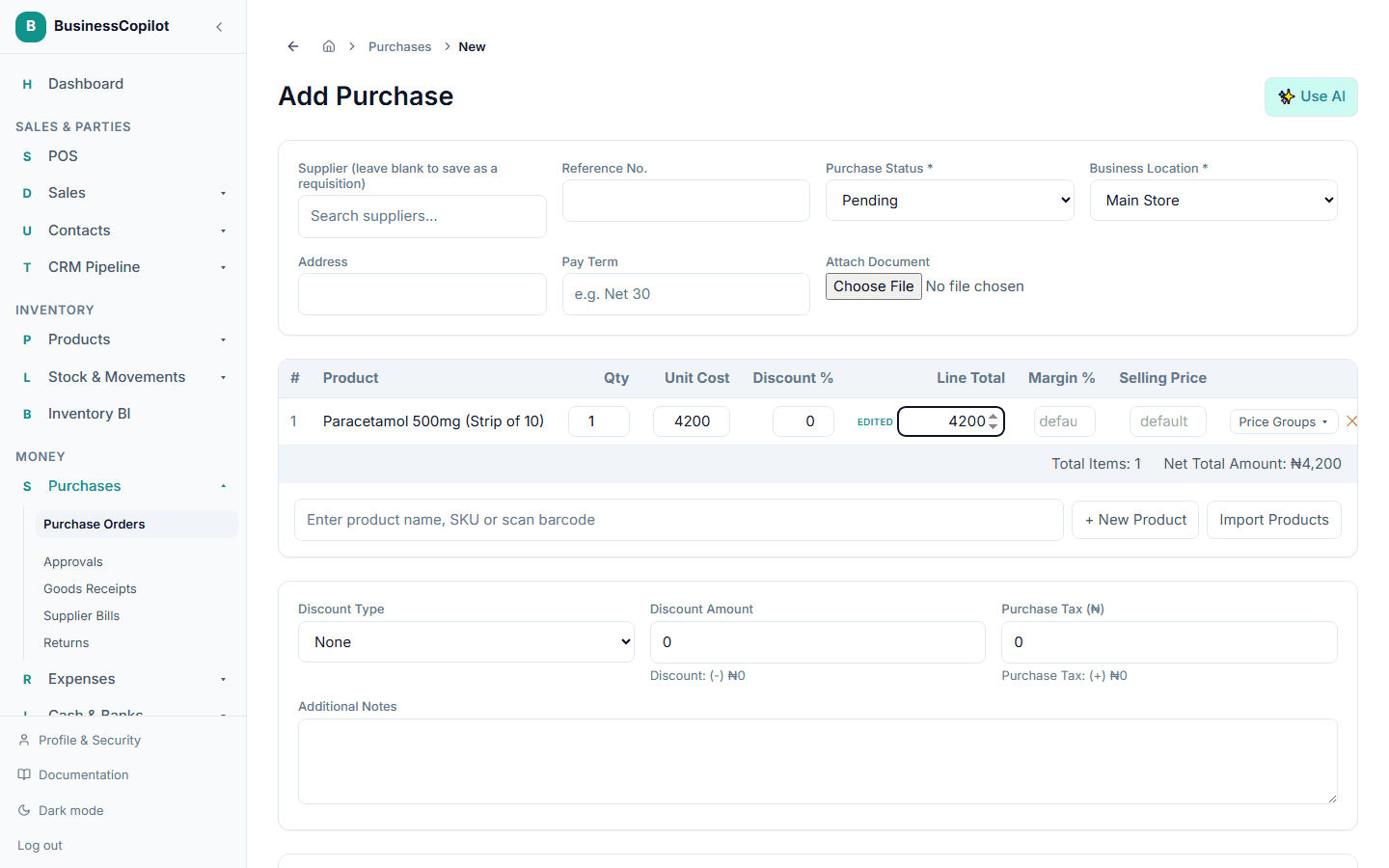
The Unit Cost is worked out from the line total, taking the row's Disc % into account. The same applies when you change the lines of an existing purchase order that has not been fully received.
If the discount on the row is 100%, the amount cannot be typed, because no unit cost can produce it. Lower the discount first.
On a sales order
On Sales Orders → New and when you edit an order, the amount at the end of each line works the same way and updates the line's unit price.
On every platform
The same field is on the web app, the desktop app and the mobile app. On mobile, tap the amount and type.
What happens when you change the row afterwards
- Change the quantity. The unit price you set stays, and the amount follows the quantity. 2 of an item set to ₦8,500 each is ₦17,000. At the till, automatic quantity-break and price group pricing is not applied again to a row you have edited, because that would undo the price you typed.
- Scan the same item again. The quantity goes up and the price you set is kept.
- Change the unit (see Selling in different units). The row goes back to the standard price for the new unit, because a price worked out for a carton means nothing for a pack.
- Type a unit price yourself. Your unit price is used and the edited marker disappears.
When the amount does not divide evenly
₦8,800 for 3 items is ₦2,933.33 each, plus a third of a kobo. The unit price field shows ₦2,933.33, but the program keeps the exact figure behind it. The row stays at exactly ₦8,800.00, and that is the amount saved, posted to your books and printed. If you multiply the printed unit price by the quantity by hand you may be one kobo away from the row total, which is normal for billing programs.
Every saved line total is rounded to the nearest kobo.
Limits that still apply
Typing an amount is the same as typing a new unit price. The same checks apply:
- If your business uses a minimum selling price, an amount that takes the price below it is refused when you complete the sale.
- A change to the price does not go to discount review, because the discount on the row is unchanged.
- Returns refund what was actually charged for the row, so they have no amount to type.