Adding a new product
Add a product to your catalog, including products that come in more than one option.
- Go to Products and select New.
- Fill in:
- Name and, optionally, SKU and Barcode — see below
- Selling Price (₦) and Cost Price (₦) — see Understanding product pricing and cost
- Category and Brand, if you use them
- Product Type — Simple (one price, one stock count) or Variable (comes in multiple options — see below)
- Description
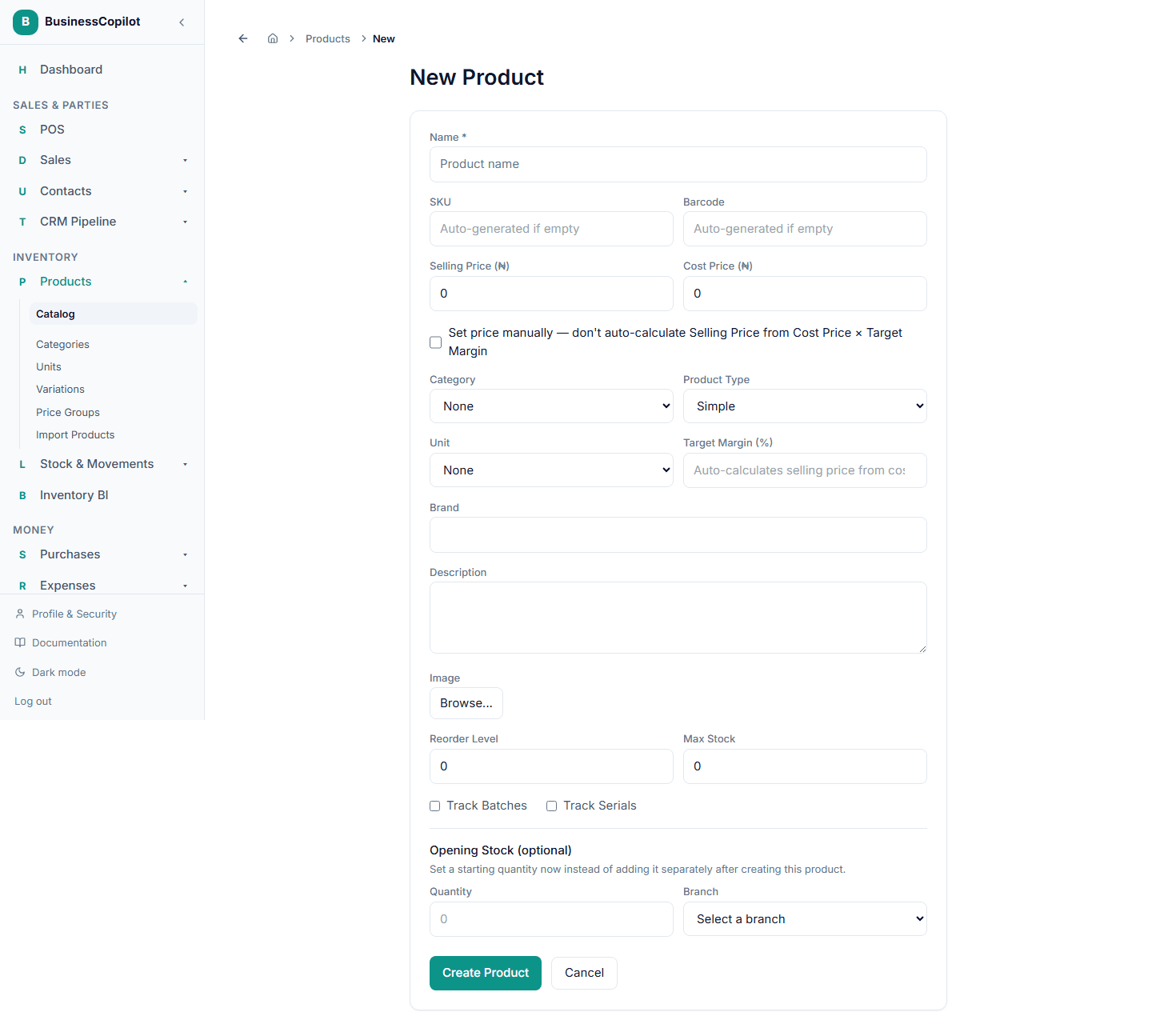
- Reorder Level and Max Stock — see Low stock and reorder alerts
- Opening Stock, optional — see below
- Select Create Product.
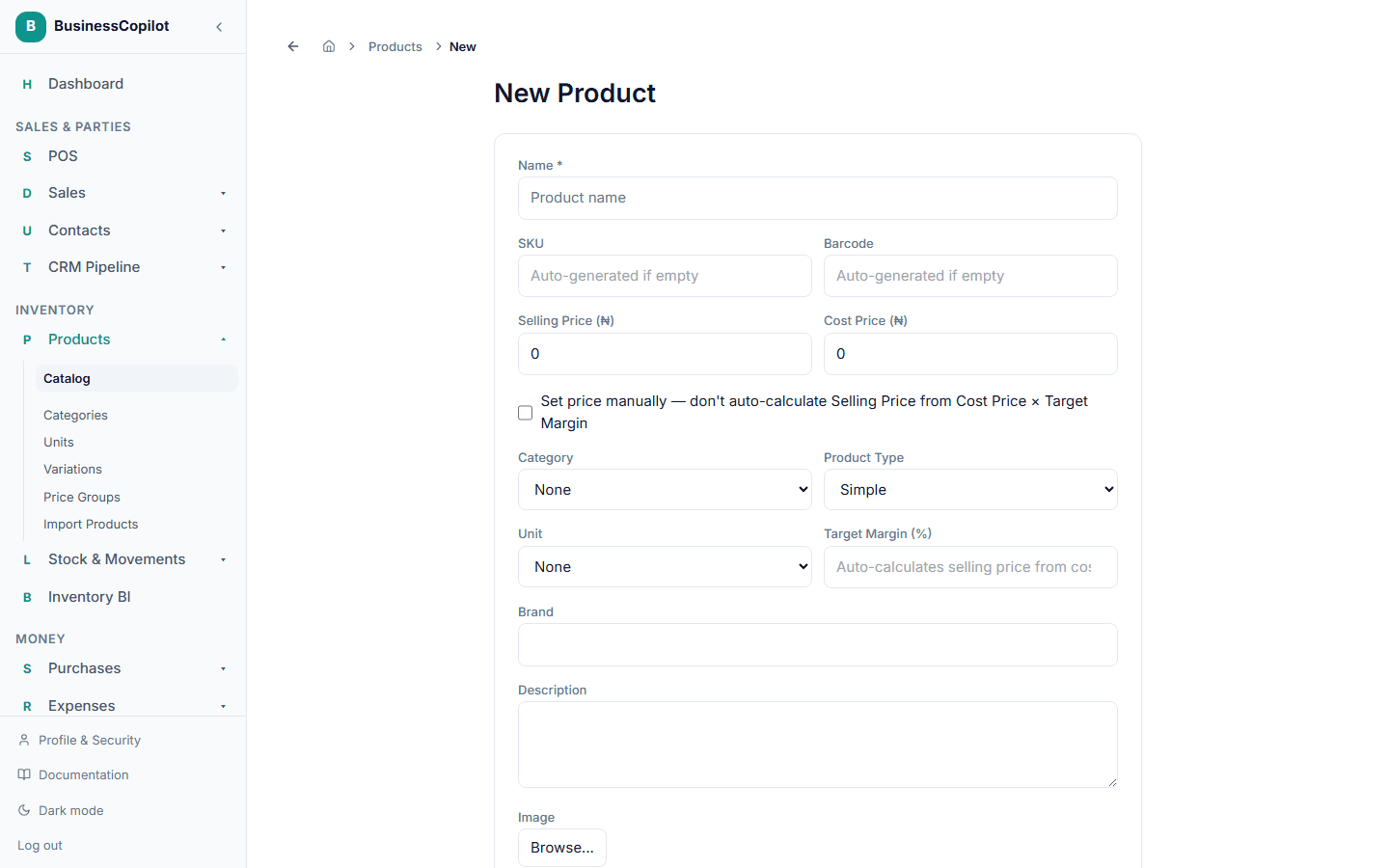
Once created, you can optionally set the product's price under any of your price groups before moving on.
This same New Product form also opens right from the middle of creating a purchase order, if you try to add a product that doesn't exist in your catalog yet — see Recording a purchase from a supplier.
SKU and Barcode
Leave these blank and BusinessCopilot fills them in for you automatically once you save. You can also type your own at any time — anything you enter yourself is kept exactly as typed, never overwritten.
If your workspace has turned off Auto-generate SKU in Settings, SKU becomes a required field — you must enter your own before the product can be created.
Opening Stock
If you already know how much of this product you're starting with, enter a Quantity right on the New Product form instead of adding it as a separate step afterward. If your workspace has more than one branch, choose which one the stock belongs to.
This records real starting stock at that branch — the same as using Add/Edit Opening Stock from a product's own menu after creating it, just done in one step. Leave Quantity blank (or 0) to skip this and add stock later — see Setting your opening stock for every other way to do it, including bulk import.
Products with multiple options (variable products)
If what you sell comes in different sizes, colors, or similar options — each with its own price and stock — set Product Type to Variable when creating it.
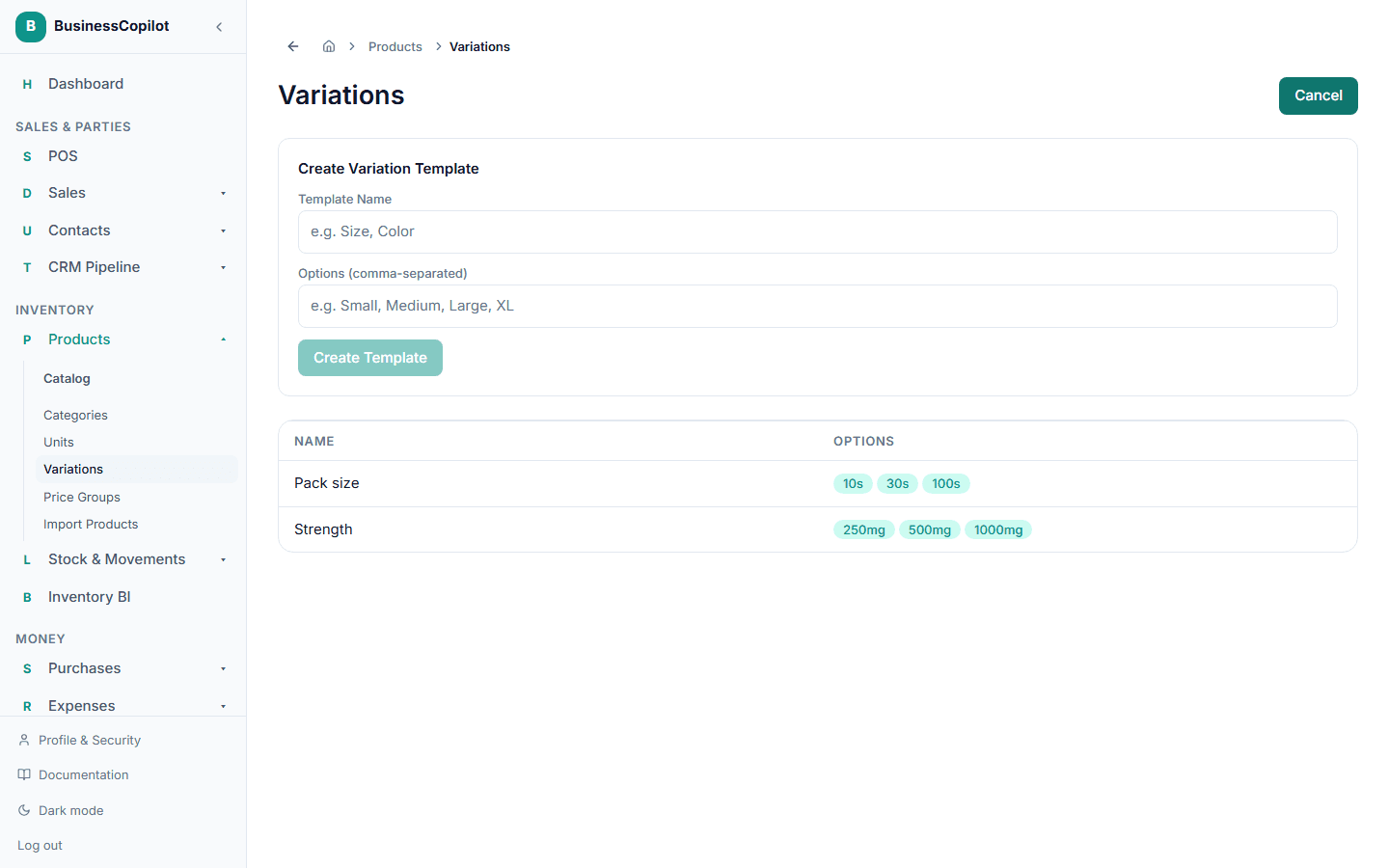
Before you do, set up the option types you'll reuse (like "Size" or "Color") once, from Products → Variations → New Template, so they're available whenever you create a variable product.
Generating the individual combinations
Once your product is saved as Variable, open it and find Variations:
- Select Add variations.
- Check each option template that applies (e.g. Size, Color).
- Under each checked template, check the specific values this product comes in (e.g. just S and M, not every size you've ever defined).
- Select Preview combinations — BusinessCopilot generates one row per combination (e.g. "S / Red", "S / Blue", "M / Red", "M / Blue").
- Adjust the Price and Cost for each row if they differ from the product's default — each combination is priced and stocked independently from here on.
- Select Create Variations.
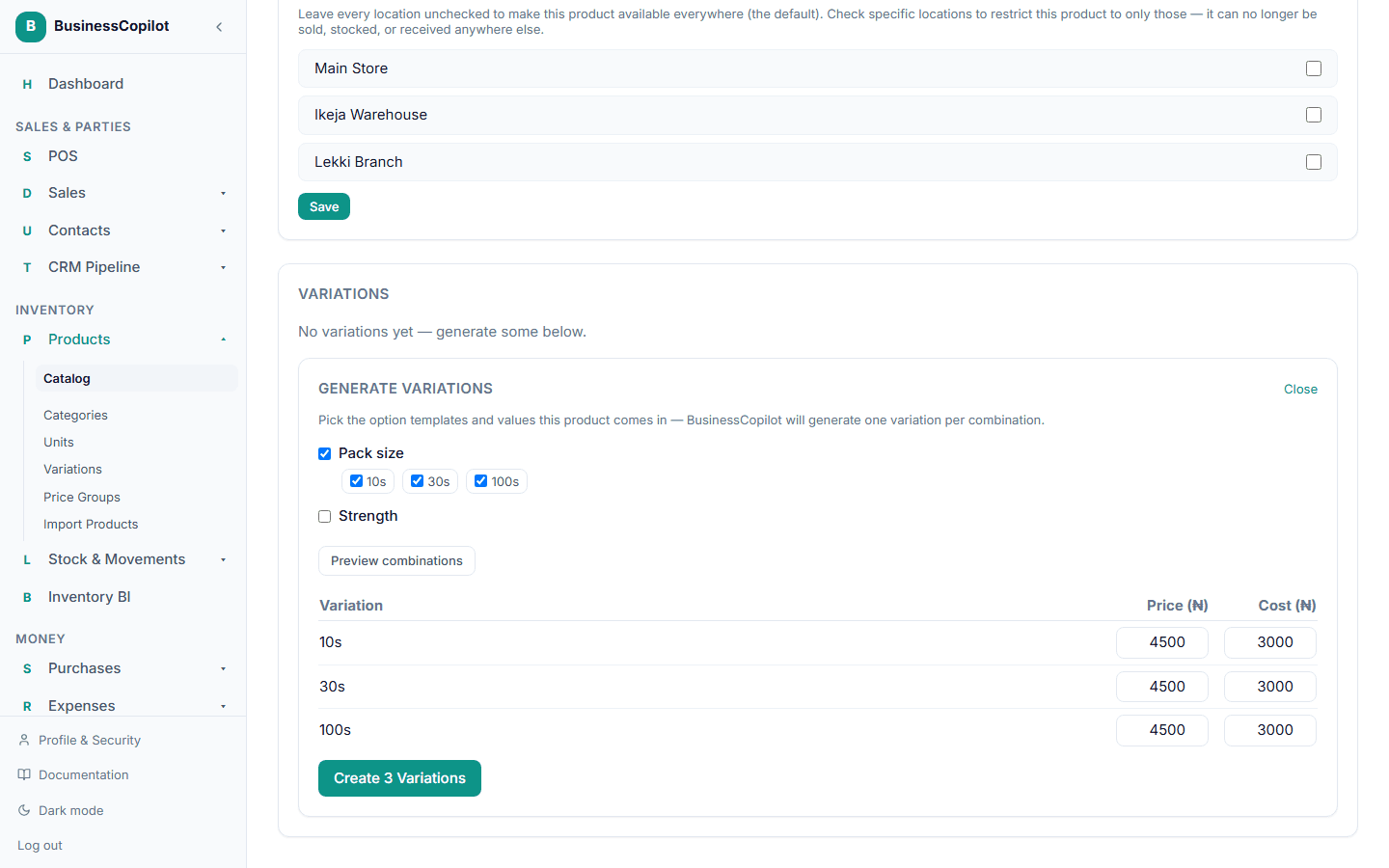
Each combination now behaves like its own product for stock and selling purposes — add stock to a specific one from Stock → Adjust, and it shows up as its own line at checkout.