Drug Interaction Checker
How to check for drug interactions, review the results, and get an AI second opinion on a patient's medication list in the Clinical Suite.
The Drug Interaction Checker lets your pharmacist run a patient's full medication list — or any custom set of drugs — against MedSafe's interaction database, review flagged pairs, notify the patient of critical findings, and keep a record of every check for clinical accountability.
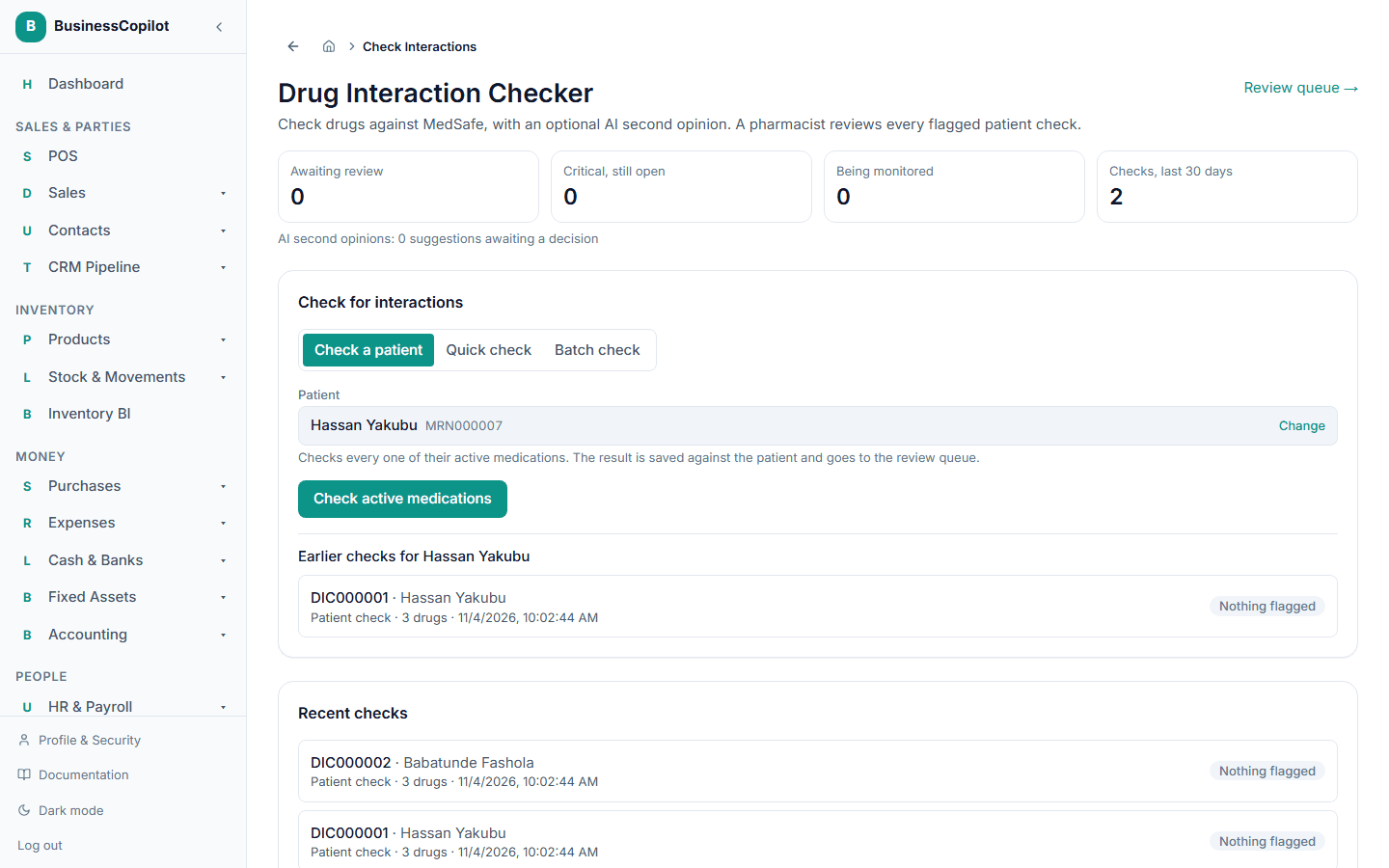
Opening the checker
Go to Clinical Suite → Drug Interactions (Web and Desktop), or tap Interactions in the mobile Clinical Suite sub-nav.
There are three checking modes:
| Mode | When to use it |
|---|---|
| Patient check | Checks all active medications on a specific patient's record |
| Quick check | Checks any list of drugs you type in — no patient needed |
| Batch check | Runs interaction checks for a list of patients at once |
Running a patient check
- Select Patient check.
- Search for and select the patient.
- The system pre-loads that patient's active medications. You can add extra drugs that aren't on the record yet (e.g. over-the-counter drugs the patient just mentioned).
- Select Check interactions.
Results appear within seconds. Each flagged pair is shown with:
- The two drug names
- The severity (Major, Moderate, Minor, Theoretical)
- A brief clinical description of the interaction
- The source (MedSafe)
Pairs MedSafe had no data on are listed separately as Not checked — this is honest: it means MedSafe's database doesn't cover that combination, not that the combination is safe.
📸 Screenshot needed: the results panel with several flagged pairs, each showing severity and description.
Running a quick check
Quick checks are for ad-hoc lookups — a patient on the phone, a colleague asking a question, or checking a new prescription before it's on the system.
- Select Quick check.
- Type drug names one by one, selecting from the autocomplete list each time.
- Select Check when your list is complete.
A quick check is saved to your history and can later be attached to a patient if you need to add it to their clinical record.
Batch check
Batch check runs interaction checks for multiple patients in one go. Select the patients from a list, then select Run batch. Results for each patient appear as they complete. Checks with critical findings are highlighted at the top.
Reviewing and acting on results
Every check goes through a review workflow before it is considered resolved:
- Pending — the check has been run but not yet reviewed by a pharmacist.
- Approved — the pharmacist has reviewed all flagged pairs and is satisfied with the current medication plan.
- Modified — the pharmacist reviewed the check and a medication was changed as a result.
- Rejected — the check flagged issues that weren't resolved; the case needs follow-up.
- Monitoring — the medication combination is intentional (the prescriber is aware) but needs ongoing monitoring.
To review a check: open it from the Pending reviews tab, read the flagged pairs, and select the appropriate outcome.
📸 Screenshot needed: the review panel with the outcome buttons visible.
Notifying the patient
When a check has critical findings, you can use the Notify patient action to queue a reminder for the patient. The system records that you sent the notification (who sent it, when) and a field appears for the patient to acknowledge receipt.
AI second opinion
After a patient check, select Ask AI to request a second opinion. The AI reviews the complete drug list plus MedSafe's own result and highlights:
- Interactions MedSafe may have missed or flagged with low confidence
- Clinical context about the most significant flagged pairs
- Suggested monitoring parameters
AI findings are always labelled AI — unverified. They are advisory only and never change the check's status or critical flag on their own. A pharmacist must explicitly promote an AI suggestion to a confirmed finding.
AI second opinion consumes one token from the Clinical AI daily allowance. See Clinical AI: enabling it and managing tokens.
Background monitoring
The system automatically re-checks interaction profiles in the background:
- Whenever a patient's active medications change.
- On a daily sweep of all patients with active medications.
If a re-check finds a new critical pair (one that wasn't flagged in the last check), an alert is raised on the workspace feed.
Permissions
The Drug Interactions permission line controls access. View is needed to see existing checks; Create runs a new check; Edit covers the review workflow; Delete removes a check.
Related
Drug Information Center
How to search drug monographs, look up safety information, create therapy plan templates, and get AI-generated medication counselling points in the Clinical Suite.
Adverse Drug Reaction (ADR) Reporting
How to report, review, and submit adverse drug reaction cases to NAFDAC using the Clinical Suite's built-in ADR workflow.