Editing and deleting a patient
Change a patient's details, and what happens when you delete one.
Editing a patient
You need the Edit permission on Patients.
- Open the patient's record. Select Edit in the header — or use the row's Actions → Edit Patient Info on the list, which opens the record already in edit mode.
- Change what you need. The form is the same one used to add a patient.
- Select Save Changes.
Select Cancel instead to leave without saving.
You can also reach edit mode from the Allergies and Conditions tabs with Edit patient to add or change.
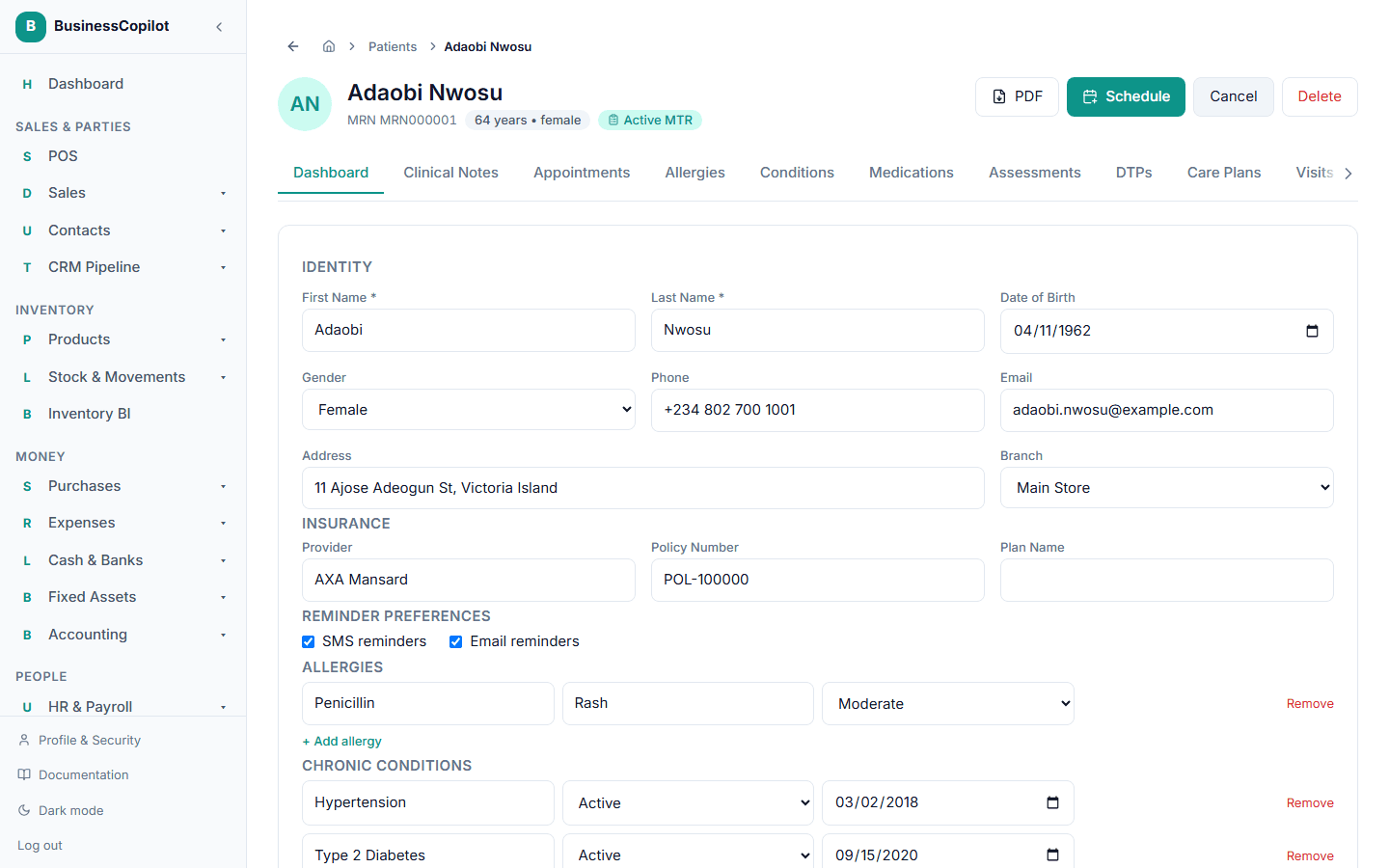
Good to know when editing
- The MRN can't be changed. It's fixed when the patient is created.
- Allergies, conditions and emergency contacts are saved as a whole list. What you see in the form when you select Save Changes replaces the previous list. So if you remove a row and save, it's gone from the record — and if you leave a row in, it stays.
- Vitals aren't part of this form. They have their own tab — see Logging vitals.
Deleting a patient
You need the Delete permission on Patients.
- On the list, open the row's Actions menu and choose Delete Patient — or open the record and select Delete.
- Confirm. The message says: "Delete this patient? It will be moved to the Recycle Bin, where it can be restored."
Deleting is not permanent. The patient disappears from your lists and can be brought back.
Bringing a patient back
- Go to the Recycle Bin.
- Find the patient — the Module column says Patients.
- Select Restore.
The patient returns with their record as it was. Appointments, follow-ups, recurring series and waitlist entries have their own lines in the Recycle Bin too, listed as Appointments, Recurring Appointment Series and Appointment Waitlist.
Someone with the right permission can also purge an item from the Recycle Bin. That deletes it for good and cannot be undone.