Understanding the POS/checkout screen
A tour of BusinessCopilot's checkout screen — the cart, the product browser, and the action bar.
Go to Sales POS to open the checkout screen — this is where you record every sale.
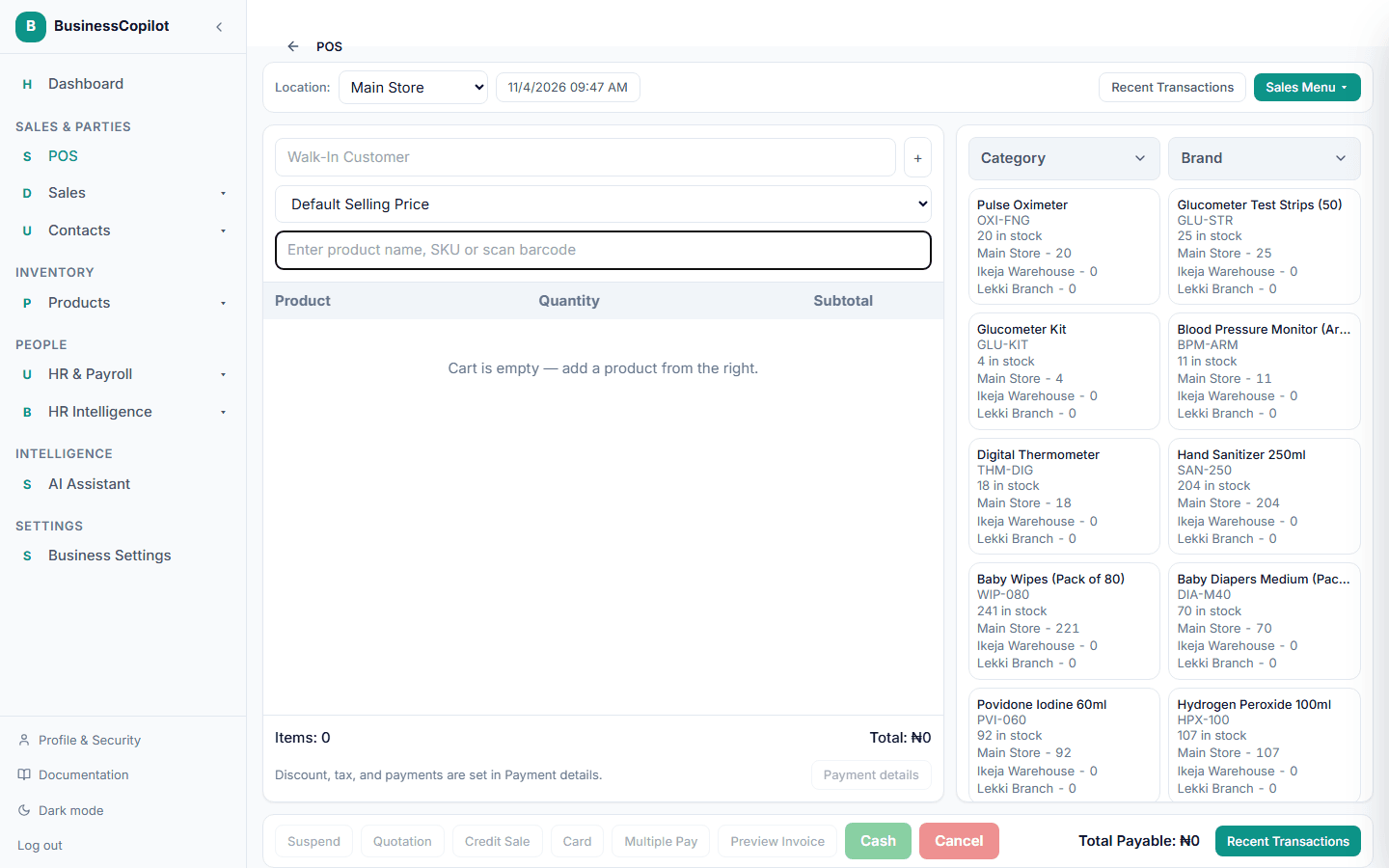
The layout
The screen has three parts:
Toolbar (top) — shows the branch you're selling from and the current date/time. If you work at more than one branch, switch which one you're selling for here. A Sales Menu button in the corner takes you to All Sales, Suspended Sales, Quotations, Returns, History, Discount Reviews, Discounts, and the Till.
Cart (left panel) — where the sale takes shape:
- A customer field at the top (leave it as "Walk-In Customer" for a sale with no named customer, or search for an existing one). The + beside it creates a new customer without leaving the sale; see Adding a customer while you sell.
- A price group selector, if you use price groups.
- A product search box — type a name or SKU, or scan a barcode.
- The cart table itself: each line shows the product, quantity (with +/− buttons), and its subtotal. Select a product's name in the cart to change its unit price or add a per-line discount. The table always has room for at least four products, so you can see several items at once.
- Running totals at the bottom: items, subtotal, discount, order tax, shipping, and an optional sell note. If there are many of these details, this block scrolls on its own so the product table stays in view.
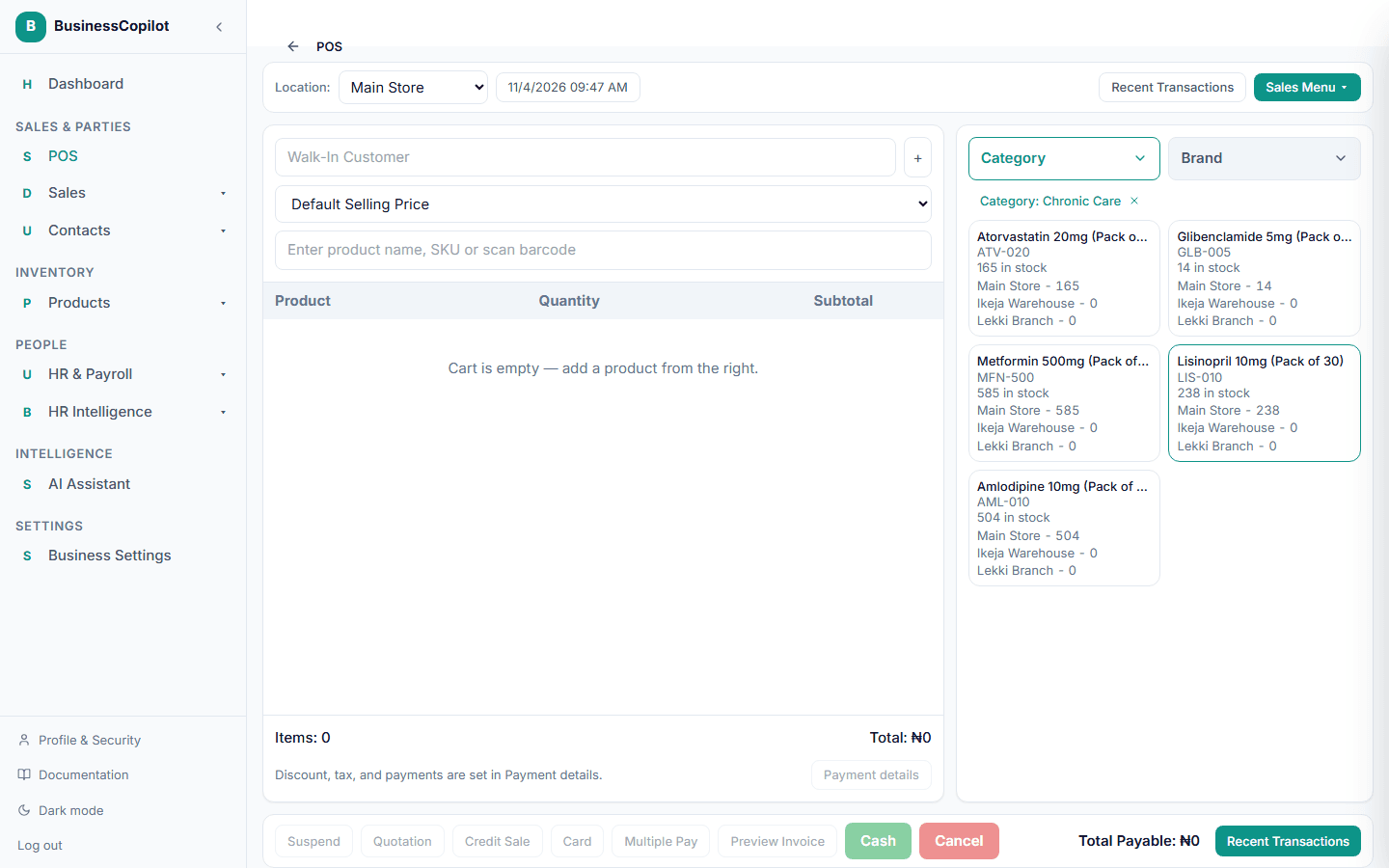
Product browser (right panel) — browse what you sell by Category or Brand using the two buttons at the top. Each opens a panel with the full list and a search box, and the choice you make appears as a chip above the products. Select any product to add it to the cart. See Browsing products by category and brand.
The bottom action bar
Once you have items in the cart, this bar is where you finish the sale:
- Suspend — pause this sale and free up the till (see Draft sales and quotations)
- Quotation — save this as a price estimate instead of a sale
- Credit Sale — complete the sale without collecting payment now (see Recording a credit sale)
- Card, Cash — complete the sale with that payment method
- Multiple Pay — split the payment across more than one method
- Preview Invoice — see what the receipt will look like before you finish
- Cancel — clear the cart and start over
The total the customer owes is always shown at the bottom right, next to a shortcut back to Recent Transactions.
Every item added to the cart is checked against what's actually in stock at your selected branch — see Understanding stock levels across branches.
Related
Sales reports for the people who sell
Open sales by product, customer, salesperson and more from your home page, for your branch, without any profit figures.
Browsing products by category and brand at the till
Find the product a customer wants quickly, even when you stock hundreds of items across many categories and brands.